Summarize this article with
A flash sale is a short sale with a fixed start and a fixed end, from a few hours to a few days. On Shopify you build it as a discount with an end date, which stops on its own. Or you set sale prices with the compare-at price, which stay until you put them back.
The sections below compare the offers, give a seven-day plan, and show how to start and end the sale on time.
What is a flash sale?
A flash sale is a sale that runs for a short, announced window. The deadline is part of the offer. Customers plan around the end time you give them, so the sale must stop exactly then.
That makes two jobs: start the sale on time, and stop it on time. A Shopify discount does both, because it has a start date and an optional end date. A sale price set with the compare-at price has no dates at all. It starts when you save it and ends when you change it back.
Which offer should you run?
Pick the offer before the tools. The table maps common flash sale offers to Shopify's discount types.
| Offer | How to build it on Shopify | Ends on its own? |
|---|---|---|
| Percentage or fixed amount off chosen products | Amount off products discount | Yes, with an end date |
| Buy two, get one free or discounted | Buy X get Y discount | Yes, with an end date |
| Free shipping for orders that meet set criteria | Free shipping discount | Yes, with an end date |
| Crossed-out sale price on product pages | Price and compare-at price fields | No, restore by hand or with an app |
For help choosing an offer that protects your margin, see our guide to promotional pricing strategies. To see the margin left on a product at its sale price, use the free profit margin calculator.
Before you start
- Note the original price of every product and variant in the sale.
- Check the time zone in your Shopify admin under Settings > General, because discount dates follow it.
- Decide where customers should see the saving: at checkout only (a discount) or crossed out on product pages (compare-at prices).
- Check stock on the sale products so you can fill orders until the end.
What is the timeline for a flash sale?
Work backward from the start time. Seven days gives you room to fix mistakes without rushing.
| When | What to do |
|---|---|
| 7 days before | Choose the offer, the products, and the exact start and end times. |
| 5 days before | Check that each product and variant has the price you want as its original price. |
| 3 days before | Build the discount in Shopify with its start and end dates. |
| 1 day before | Reopen the discount and recheck the products, value, dates and time zone. Announce the end time. Show it on the store with a free countdown timer for your website, made on a computer set to your Shopify admin time zone. |
| Start time | Add a sale product to a cart, go to checkout, and confirm the saving shows. |
| During the sale | Watch orders and stock. Do not change prices by hand unless you plan to restore them. |
| End time | Confirm the discount has ended and prices are back to normal. |
| 1 day after | Review the orders from the sale window and note which products sold. |
How do you create a flash sale discount in Shopify?
Use an automatic discount with a start date and an end date, so the sale ends without a manual step. These steps follow Shopify's amount off products page.
- Go to Discounts and click Create discount.
- Click Amount off products.
- Under Method, choose Automatic discount.
- In Title, name the discount.
- In Discount value, enter a percentage or an amount.
- In Applies to, choose the products or collections.
- In the Schedule card, set the start date and time.
- Click Set end date, then set the end date and time.
- Click Save.
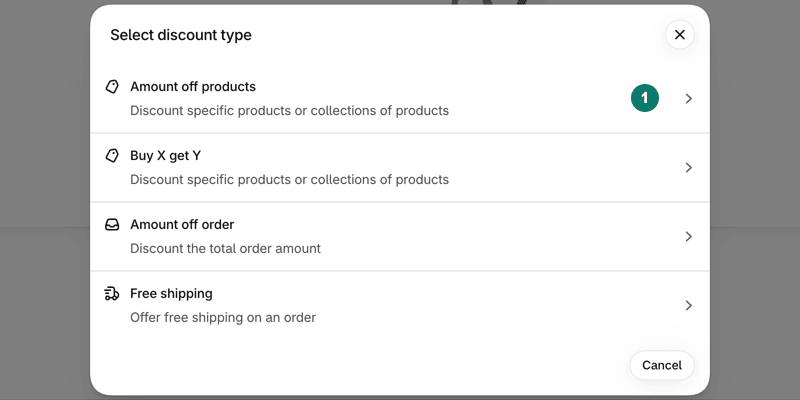
Start from Discounts, click Create discount, and choose Amount off products.

Set a start date, then click Set end date and choose when the discount stops.
Shopify says the start and end follow the time zone selected in your Shopify admin. To run a one-day sale, choose the same calendar day for the start date and the end date.
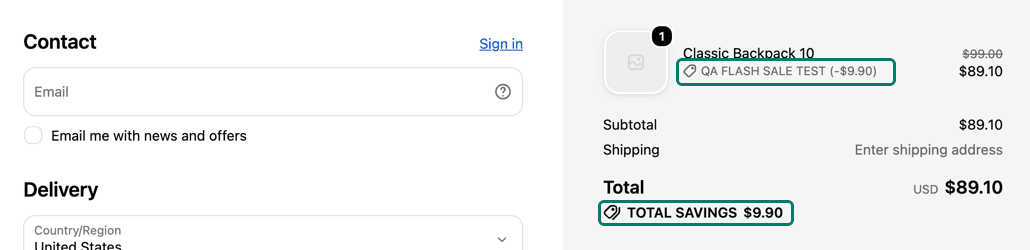
The discount and the amount saved show in the checkout order summary.
Who can use the discount, and with what?
The same Shopify page lets you narrow the sale before it starts. In Eligibility, choose All customers, Specific customers, Customer segments or Markets. Under Minimum requirements, you can set a minimum purchase amount or a minimum quantity of items.
Shopify says the minimum purchase amount counts product prices only, not shipping or taxes. In Combinations, tick the other discount classes this discount can combine with. Settle these before the start time, not during the sale.
How do you show the original price crossed out?
Use the compare-at price. Shopify's sale price page says a discount's saving always shows crossed out at checkout. Showing it on product and collection pages needs a third-party discount app or a custom build. A compare-at price higher than the price shows the original price crossed out on product and collection pages, if your theme supports it.
The trade-off is the end. Compare-at prices have no end date, so you put the original prices back yourself. Our guide to the compare-at price has the steps.
Keep the crossed-out price honest. In the United States, 16 CFR 233.1 treats a former price as genuine when it is the actual, bona fide price offered to the public for a reasonably long period. Check the current rules in each country where you sell.
How do you end the sale and restore prices?
A discount stops on its end date. A sale built with price fields needs a manual restore at the end time: set the original price and clear the compare-at price on every variant.
Each variant has its own price and compare-at price, so restore all of them, not only the first. Clear the compare-at field instead of typing 0.00. Shopify says a compare-at price of $0.00 is not the same as an empty one, and it can stop a product showing as on sale on collection pages.
By hand, that means a reminder and a bulk edit at the exact minute. On Shopify Plus, Launchpad can change product prices at the start and end of an event.
A scheduling app is the other route. PopAutomate is a scheduling app made by Grovlix, the publisher of this blog. PopAutomate is not on the Shopify App Store yet. Its help page explains how a scheduled discount sets the sale price and compare-at price at the start, then puts everything back at the end. A price you change yourself during the sale is left as you set it.
Why did my flash sale not start or end on time?
Check these causes first.
- The admin time zone is not the one you expected. Shopify applies the dates in that zone.
- The discount has no end date, so it does not expire.
- The cart does not meet the minimum requirement you set.
- The product is not in the products or collections the discount applies to.
- You used compare-at prices and nobody put the original prices back.
Frequently asked questions
How long should a flash sale on Shopify last?
Shopify sets no minimum or maximum length. A discount can start on one date and end on another, and choosing the same calendar day for both makes it valid for one day. Pick the shortest window that suits your offer and tell customers the exact end. Shopify applies the start and end in the time zone selected in your Shopify admin, so state that zone in your announcement.
Can Shopify start and end a flash sale automatically?
Yes, for discounts. In the Schedule card you set a start date and time and can click Set end date, and the discount ends on its own. Sale prices set with the price and compare-at price fields have no start or end date. You change those prices by hand, or with an app, at the times you want the sale to start and stop.
Will customers see a crossed-out price in a Shopify flash sale?
It depends on the method. A compare-at price higher than the price shows the original price crossed out on product and collection pages, if your theme supports it. Shopify says discount savings always show crossed out at checkout, but need a third-party discount app or a custom build to show on product and collection pages. Choose the method that fits where you want the saving seen.
What should I do after a Shopify flash sale ends?
Check that prices are back to normal on a few products and variants, and that any discount you made has ended. Then review the orders from the sale window and note which offer and which products sold. If you used compare-at prices, clear them on every variant so no product keeps a crossed-out price by mistake.
Compare every way to schedule a sale
A flash sale is one kind of timed sale. The pillar guide compares manual changes, Shopify discounts, Launchpad on Shopify Plus and apps, with the start, end and restore steps for each.