Summarize this article with
To hide a product on Shopify, remove the Online Store from its Publishing section, or change its status to Draft, Unlisted or Archived. Each method hides something different. Removing the Online Store takes the product off your storefront only. Draft and Archived stop customers buying it anywhere, and Unlisted keeps it on sale at its direct URL.
Shopify can schedule when a product appears, but not when it disappears. The last sections cover that gap.
Which method hides a product on Shopify?
Pick the method by what customers should still be able to do. The table follows Shopify's product status page.
| Method | What customers can do | Good for |
|---|---|---|
| Remove the Online Store | Cannot see or buy it on your storefront. Other sales channels are unchanged. | Hiding from the website only |
| Draft | Cannot buy it in any sales channel | A product still being prepared |
| Unlisted | Can buy it, but only through the direct URL. It is out of search, collections and your sitemap. | A private link or an add-on |
| Archived | Cannot view or buy it. It also leaves the main product list in your admin. | A product you no longer sell |
Two details are easy to miss. An unlisted product is not hidden from people who have the link. An archived product stays in its collections, but customers cannot view it there.
Which method should you choose?
Match the method to the reason you are hiding the product.
- To keep selling in your other sales channels, such as point of sale, remove the Online Store.
- To stop all sales while you fix photos, prices or descriptions, use Draft.
- To sell only to people who have the link, use Unlisted.
- To retire a product, archive it.
None of these deletes the product. You can bring it back later by changing the status or adding the Online Store again.
Before you start
- Open the product and note its current status and sales channels.
- Decide whether other sales channels should keep selling it.
- If you plan to schedule, check your store's time zone under Settings > General > Store defaults.
- Remember that an archived product comes back as Draft when you unarchive it.
How do you hide a product from the Online Store?
Remove the Online Store in the product's Publishing section. This hides the product from your storefront and leaves its status and other sales channels alone.
- In your Shopify admin, go to Products.
- Click the product name.
- In the Publishing section, click the Adjust icon.
- In the Manage publishing dialog, turn off the Online Store toggle.
- Click Done.
- Click Save.
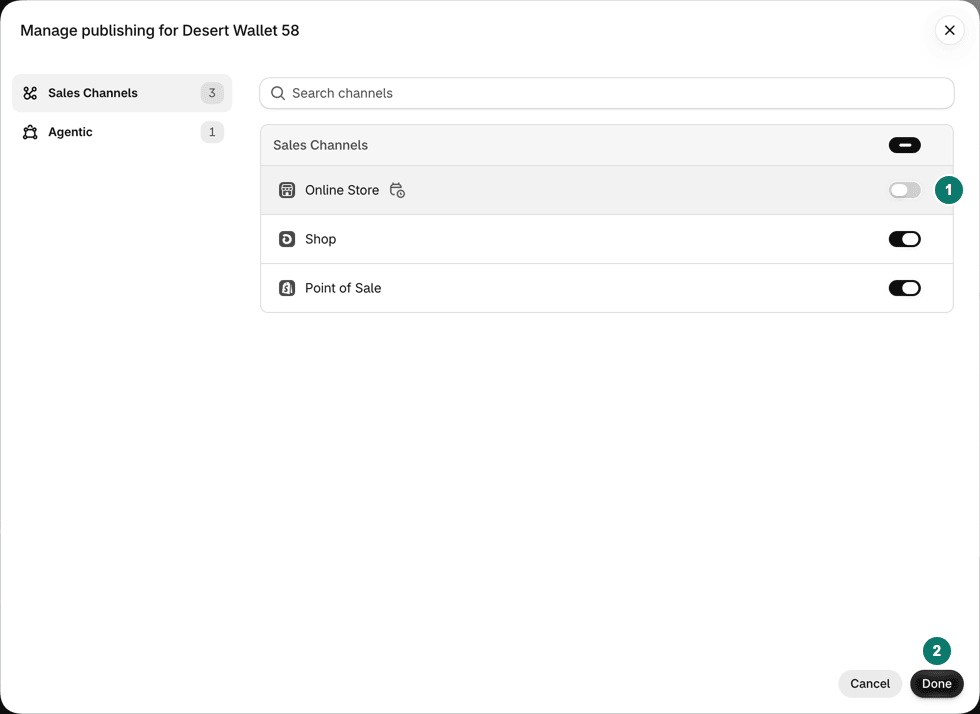
Turn off Online Store in the Manage publishing dialog to hide the product from your storefront.
To show the product again, open the same dialog, turn on Online Store, click Done, and click Save.
How do you hide a product with Draft or Unlisted?
Change the product's status. Use Draft when no sales channel should sell it. Use Unlisted when it should still sell, but only to people with the link.
- In your Shopify admin, go to Products.
- Click the product name.
- In the Status section, open the drop-down menu.
- Choose Draft or Unlisted.
- Click Save.
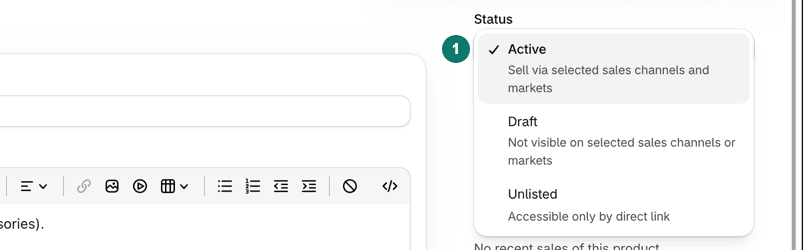
Change the status to Draft or Unlisted from the Status section.
Choose Active in the same drop-down to bring the product back. An active product still needs Online Store turned on in the Publishing section to appear on your storefront.
How do you archive a product?
Archive a product you no longer sell. Shopify hides it from your storefront and moves it to the Archived tab of your Products page.
- In your Shopify admin, go to Products.
- Click the product name.
- Click More actions > Archive product.
- In the Archive product? dialog, click Archive product.

Archive a product from the More actions menu.
To bring it back, open it from the Archived tab and click More actions > Unarchive product. Shopify sets it to Draft, so change it to Active and check the Publishing section before customers can buy it.
How do you hide many products at once?
Tick the products in your Products list, then use a bulk action. To take products off your storefront, use Exclude from sales channels. Shopify's bulk actions page calls this action Make products unavailable. For status changes, the bulk editor's Status options include Archived.
- In your Shopify admin, go to Products.
- Tick the box next to each product.
- To remove a sales channel, click the … menu and choose Exclude from sales channels. In the dialog, tick Online Store and click Exclude products.
- To change the status instead, open the bulk editor, set Status for each product, and click Save.
Check one product afterward. A mistake in a bulk change repeats across every selected product.
How do you schedule when a product shows?
Use Future publishing to set the date and time a product appears on the Online Store. The product must have the Active status: Shopify's Future publishing page says a product still in Draft at the scheduled time will not publish.
- In your Shopify admin, go to Products and click the product.
- In the Product status section, confirm the status is Active.
- In the Publishing section, click the Adjust icon.
- In the Manage publishing dialog, turn off the Online Store toggle.
- Click the calendar icon next to Online Store.
- In Schedule publishing, choose a date and time, then click Done.
- Click Done, then click Save.
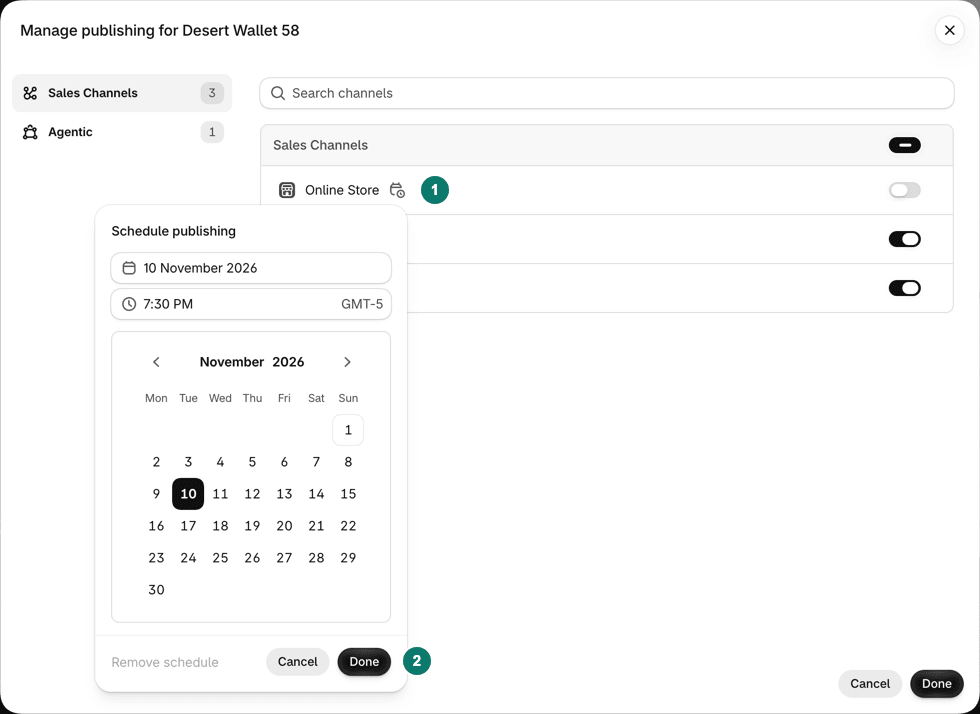
Future publishing sets a date and time for the Online Store to show the product.
The default time is the next :00 or :30 mark, but you can type any hour and minute. The time follows your store's time zone in Store defaults. You cannot set a date for single variants, and Future publishing does not work for the Shop app.
How do you hide a product at a set time and show it again?
Shopify has no built-in hide date. Its Future publishing page covers a publish date, which you can edit or delete, and describes no unpublish or end date. Launchpad does not fill the gap either. It is a Shopify Plus app, and Shopify says products it releases stay published when the event ends. Our Shopify Launchpad guide covers what it does.
That leaves two routes:
- Hide and show the product by hand, with a reminder for each time.
- Use a scheduling app that does both steps for you.
PopAutomate is a scheduling app made by Grovlix, the publisher of this blog. PopAutomate is not on the Shopify App Store yet. Its help page shows how a schedule hides and shows products on the Online Store. With Put everything back at the end ticked, each product goes back to how it was on the Online Store at the end time. Other sales channels do not change.
Why is a hidden product still showing?
Check the cause against the method you used.
- The product is Unlisted, so anyone with the direct URL can open it.
- It shows in another sales channel. Removing the Online Store changes that channel only.
- A third-party search app lists an unlisted product. Shopify warns this can happen.
- An archived product stays in its collections in your admin, hidden from customers.
- You clicked Done in the Manage publishing dialog but not Save.
If a hide schedule in an app stopped, check that your store has the Online Store sales channel. The PopAutomate help center explains how to add the Online Store sales channel.
Frequently asked questions
Does hiding a product on Shopify delete it?
No. Removing the Online Store or setting Draft, Unlisted or Archived all keep the product and its details in your Shopify admin. Shopify describes an archived product as complete but no longer for sale, and it stays in its collections although customers cannot view it. You can change the status or add the Online Store back later without recreating anything.
What is the difference between Draft and Archived on Shopify?
Draft means the product details still need work before it can be sold. Archived means the details are complete but the product is no longer for sale. Shopify hides an archived product from your storefront and from the main product list in the admin. You must unarchive it before you can change its status, and it comes back as Draft.
Can I schedule a Shopify product to hide at a set time?
Not with Shopify's own tools. Future publishing sets only a publish date and time, which you can edit or delete, and its help page describes no unpublish or end date. Launchpad, the Shopify Plus event app, leaves released products published when an event ends. To hide at a set time, remove the product by hand at that time or use a scheduling app.
Does an unlisted Shopify product show in search?
No. Shopify says an unlisted product cannot be discovered by customers. It is hidden from internet search, Shopify Catalog, your sitemap, collection pages, storefront search results and product recommendations, and its page carries noindex and nofollow tags. It can still be sold, and anyone with the direct URL can open the page.
Plan the whole sale, not just the hiding
Hiding products is one step in a sale. The pillar guide compares the ways to start a Shopify sale on time, end it, and put prices back, and links the other guides in this series.