Schedule blocked: add the Online Store sales channel
Add the Online Store sales channel in your Shopify admin. Then open the schedule with Edit, pick a new start time and save. A weekly schedule also runs on its next chosen day. A Hide or Show schedule cannot run in a store without that channel.
What you see
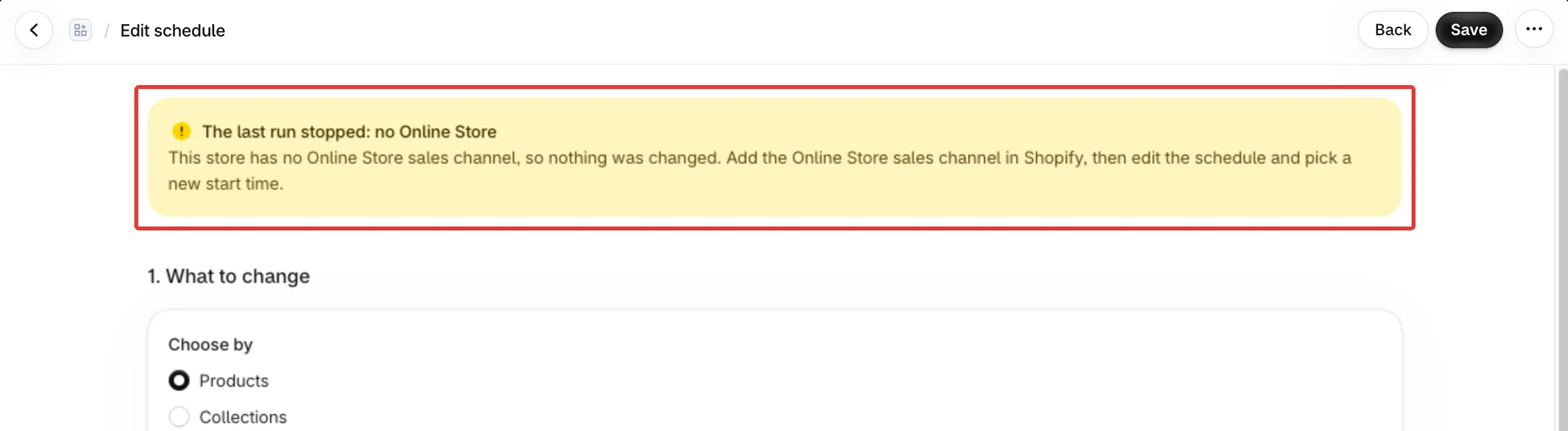
- On the schedule's Edit schedule page, a warning says The last run stopped: no Online Store, with "This store has no Online Store sales channel, so nothing was changed."
- On Schedules, the row of that schedule says "Add the Online Store sales channel in Shopify, then edit the schedule and pick a new start time."
- On Home, the schedule counts under Need attention.
- In the run's details, the result is Blocked and a line reads "Why it stopped: Add the Online Store sales channel in Shopify, then edit the schedule and pick a new start time."
- The products of the schedule were not hidden or shown. PopAutomate also sends you an email that says the same, with the same advice.
Why it happens
Hide from the Online Store and Show on the Online Store change products on the Online Store sales channel only. When the store has no Online Store channel, the run stops before it changes anything. Discount, price and collection schedules do not use this channel.
PopAutomate does not try the run again. The schedule stays as it is until you act, and the stop does not pause it: a weekly schedule is not paused by this, because only failed runs count toward the pause after two failures.
- A schedule that runs Once has no next start after the stop, until you edit it and pick a new start time.
- A schedule that runs Every week on chosen days runs again on its next chosen day. Until the channel exists, each of those runs stops the same way.
Fix
Add the channel, then edit the schedule
- In your Shopify admin, add the Online Store sales channel to your store.
- In PopAutomate, open Schedules and select Edit on the schedule's row. This opens the Edit schedule page.
- For a schedule that runs Once, pick a new start date and time that is still ahead, then select Save. The schedule is planned again and runs at that time.
- For a schedule that runs Every week on chosen days, nothing else is needed: it runs on its next chosen day.
See Hide or show products on your Online Store on a schedule for the steps of the schedule itself.
You do not sell on the Online Store
A Hide or Show schedule cannot work without the Online Store channel. Turn the schedule off: open Schedules, click Edit on its row, choose Save as a draft under After saving, then select Save. A draft never runs. You can also select Pause on the row.
Still stuck?
Contact PopAutomate support as described in Get help with PopAutomate on Shopify. Send:
- the name of the schedule;
- your store's myshopify.com address;
- a screenshot of the warning on the Edit schedule page.
Next: Hide or show products on your Online Store on a schedule
Did this article answer your question?