Smart collections cannot be used in a schedule
Add to a collection and Remove from a collection work only with a manual collection. Pick a manual collection in step 2. The change. To change the products that are in a smart collection, choose that collection in step 1. What to change instead.
What you see
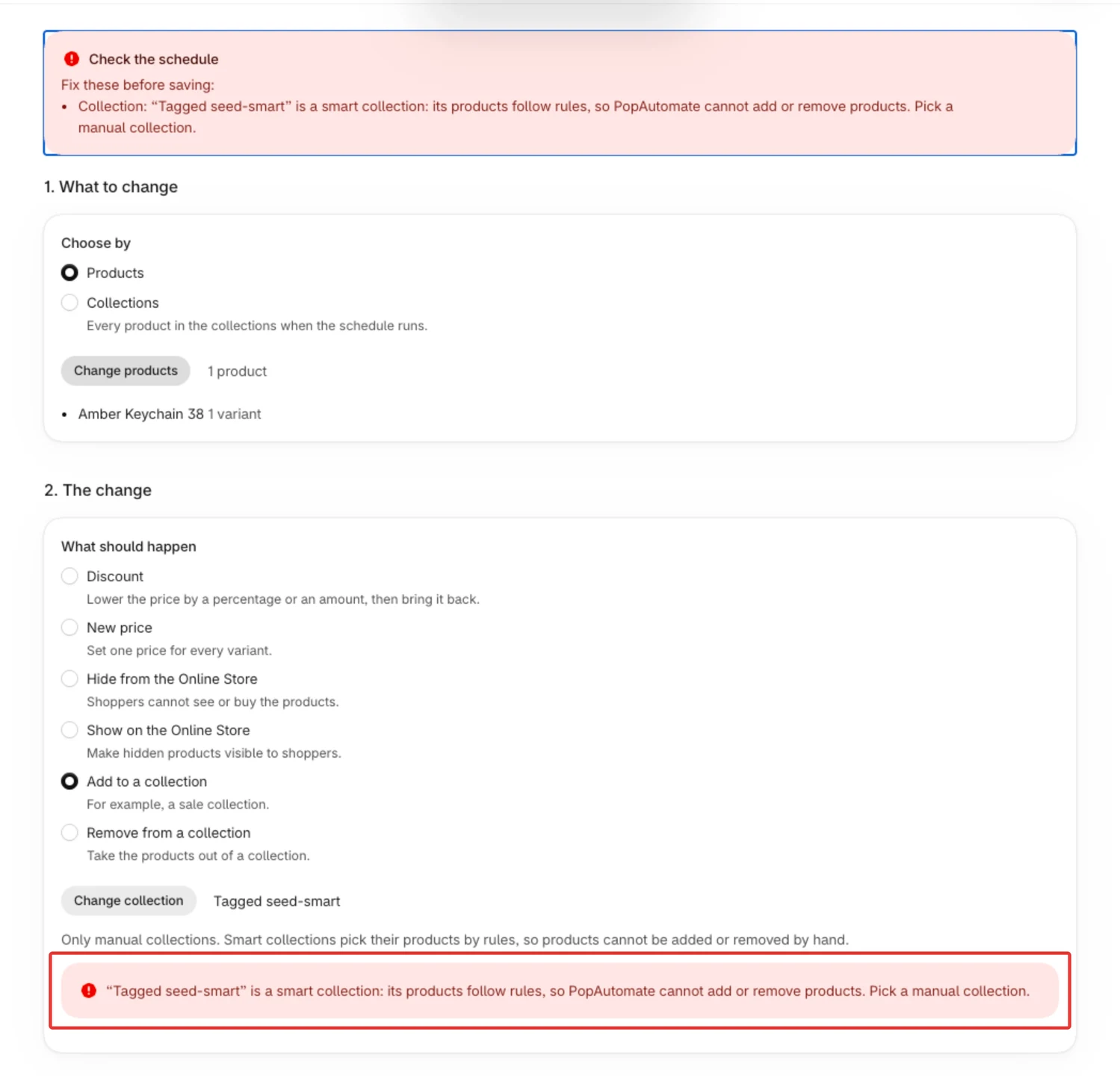
- When you select Save, a red banner Check the schedule opens at the top with "Fix these before saving:" and a line that starts with "Collection:".
- Under the collection in step 2. The change, the same message with the name of your collection, for example: "“Tagged seed-smart” is a smart collection: its products follow rules, so PopAutomate cannot add or remove products. Pick a manual collection."
- The schedule is not saved.
Why it happens
A smart collection picks its products by rules in Shopify. Nobody can add a product to it or take one out by hand, so PopAutomate cannot either. That is why step 2. The change says "Only manual collections."
PopAutomate checks this when you select Save: first in the app, then again with Shopify.
Fix
Pick a manual collection
- In step 2. The change, select Change collection.
- Pick a manual collection, for example your sale collection. If you do not have one, create a manual collection in your Shopify admin first, then pick it.
- Select Save.
Change the products of the smart collection instead
If you want a discount, a new price or a hidden state for every product in the smart collection, you do not need to add them anywhere:
- In step 1. What to change, under Choose by, choose Collections.
- Select Select collections and pick the smart collection.
- In step 2. The change, choose the change you want, such as Discount.
PopAutomate changes every product that is in the collection when the schedule runs.
The collection was renamed or deleted after you saved
If you rename the manual collection, nothing breaks. Add to a collection and Remove from a collection remember the collection itself, not its name, so the schedule still uses it. On the Edit schedule page, step 2. The change shows its new name.
If you delete the collection in Shopify, PopAutomate never creates a new one in its place:
- For Add to a collection, each product of the next run is marked Failed, with the reason "The schedule's collection was deleted in Shopify, so we didn't create a new one. Pick another collection in the schedule." For Remove from a collection, the products are marked Skipped, because there is nothing to remove them from.
- On the Edit schedule page, step 2. The change shows "This collection is no longer in your store." under the collection.
- Select Change collection, pick another manual collection, then select Save.
To reach the page, open Schedules and select Edit on the schedule's row.
Still stuck?
Contact PopAutomate support as described in Get help with PopAutomate on Shopify. Send:
- the name of the schedule;
- the name of the collection;
- a screenshot of the message.
Next: Add or remove products from a collection on a schedule
Did this article answer your question?