Reconnect your store: approve permissions or reopen the app
Select Reopen PopAutomate in the banner on Home, then approve what Shopify asks. If the banner says Connection not confirmed, wait a few minutes and select Check again.
What you see
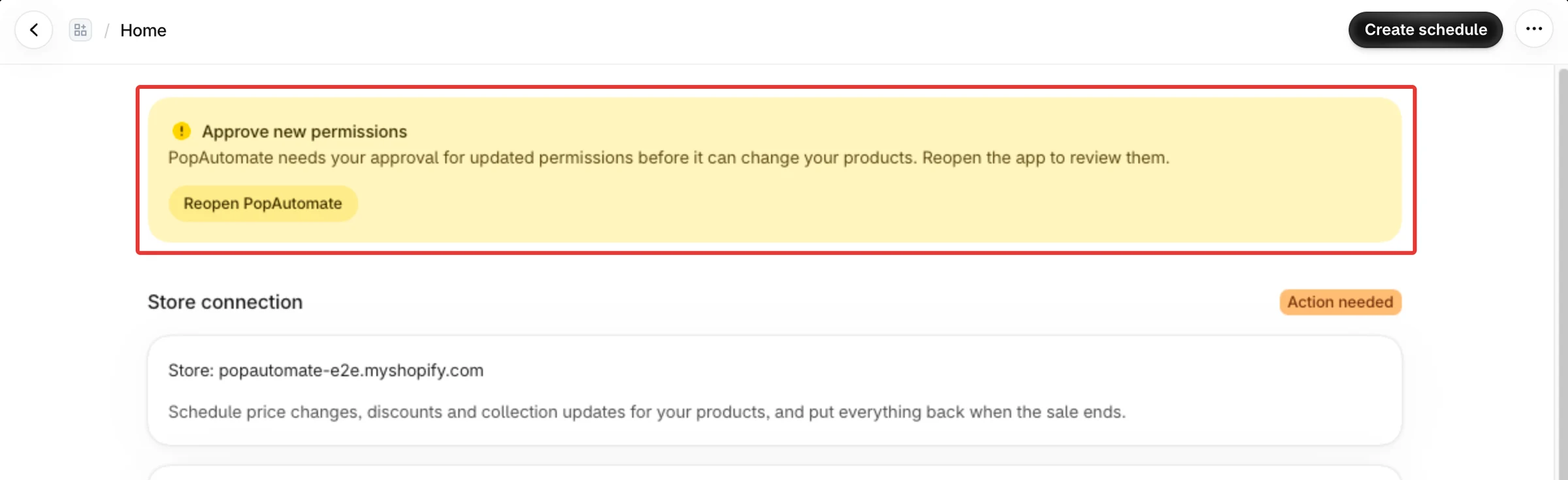
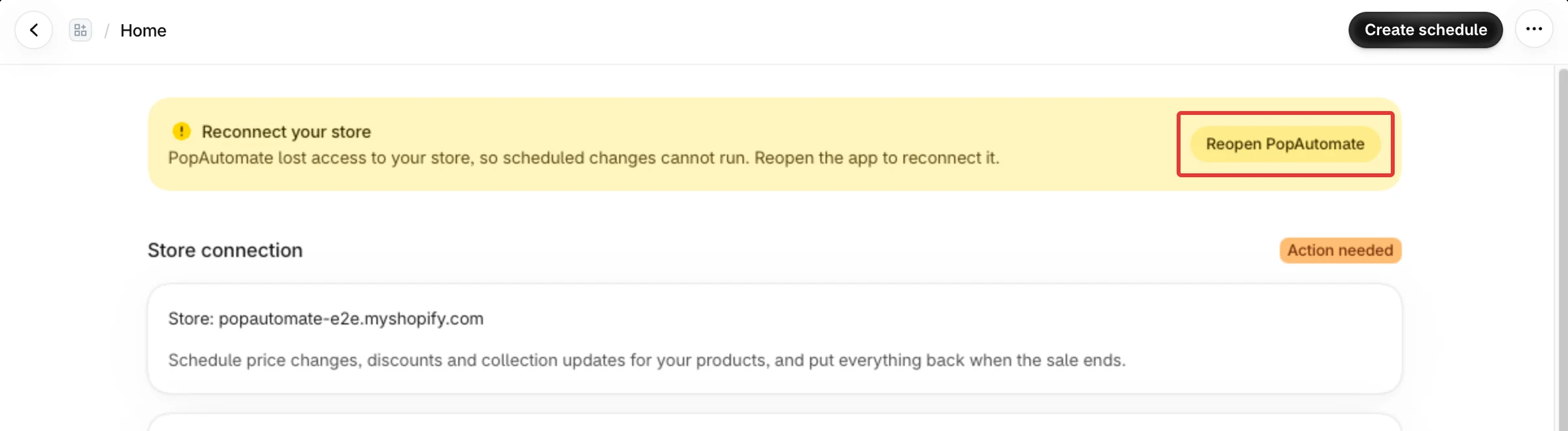
On Home, one of these banners, and the Store connection badge next to it. Home shows one banner at a time.
- Approve new permissions, badge Action needed
- Reconnect your store, badge Action needed
- Your store is not connected, badge Not connected
- Connection not confirmed, badge Not confirmed
Two other places show the same problem:
- When you save a schedule, or open its Edit schedule page, a banner Reconnect your store says "PopAutomate cannot reach your store right now, so this schedule was not saved. Reopen the app to reconnect it." It has a Reopen PopAutomate button.
- On Schedules, when Activate fails for the same reason, a banner Reconnect your store says "PopAutomate lost access to your store. Open the app again to reconnect." with a Reconnect button.
Why it happens
- Approve new permissions: PopAutomate needs a permission your store has not approved yet before it can change your products.
- Reconnect your store: Shopify refused PopAutomate's access to your store, so scheduled changes cannot run.
- Your store is not connected: PopAutomate was removed from this store.
- Connection not confirmed: PopAutomate could not reach Shopify to check the connection at that moment.
While the store is not connected:
- If PopAutomate was removed, your active schedules are paused, and a run in progress stops after its current batch. A put-back that is due waits, and PopAutomate checks again every 15 minutes until the store is connected.
- If Shopify refused access, a run that starts stops at once, and PopAutomate does not try that run again. A schedule that runs once does not start again by itself. A put-back that is due is tried again after 15 minutes, 1 hour and 6 hours, then PopAutomate stops trying. After that, open the run in History and select Retry restore: see Prices did not go back after the schedule ended.
Fix
Connection not confirmed
- Wait a few minutes.
- Select Check again in the banner. If the badge shows Connected, nothing else is needed.
Approve permissions or reconnect
- In the banner, select Reopen PopAutomate. The Shopify admin opens the app again.
- If Shopify shows its permission screen, review it and approve.
- On Home, check that the badge shows Connected.
If the banner came up while you were saving a schedule, the page reloads when you reopen the app, and what you had not saved is gone. After you reconnect, enter the schedule again and save it.
PopAutomate was removed from the store
- Select Reopen PopAutomate. If PopAutomate is no longer installed, install it again: see Install PopAutomate and what it can access.
- Your schedules stay paused after you install again. Turn each one on again from Schedules: see My schedules are paused or missing from Home.
If you install again more than 48 hours after removing the app, your earlier schedules are gone.
Before you remove PopAutomate, end or put back any schedule that is active now. While Home counts a schedule under Active now, it reminds you: "Before you uninstall PopAutomate, end or put back your live schedules. After it is uninstalled, PopAutomate cannot change your products back."
Still stuck?
Contact PopAutomate support as described in Get help with PopAutomate on Shopify. Send:
- your store's myshopify.com address, as shown under Store connection;
- a screenshot of the banner on Home.
Did this article answer your question?