Some price changes could not be confirmed
Open each listed product in your Shopify admin and check its prices. PopAutomate does not put these products back at the end, so you correct any wrong price yourself.
What you see
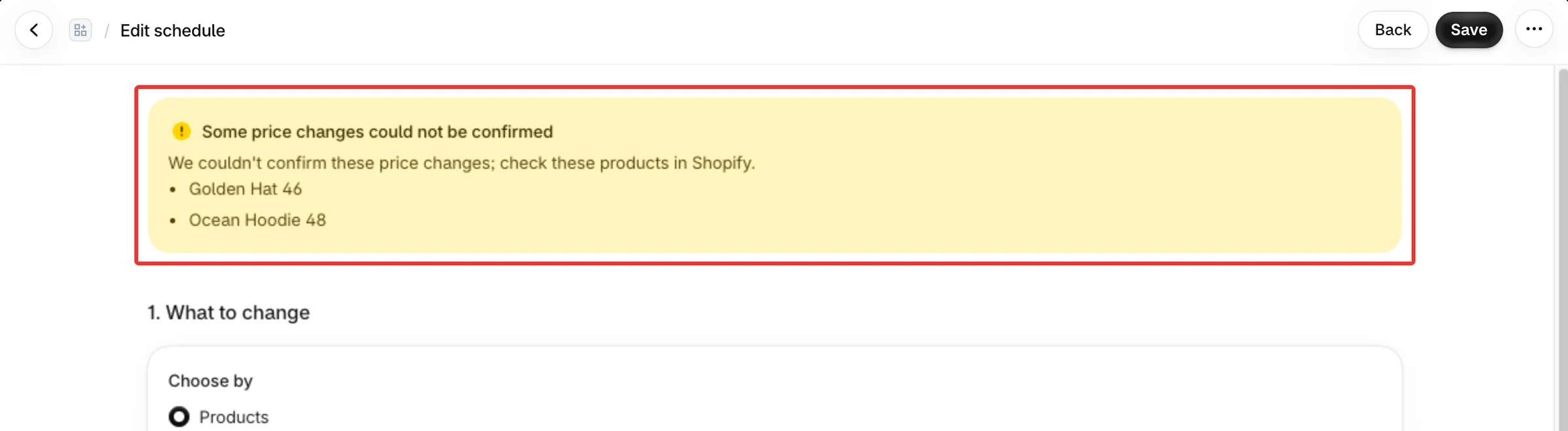
On the schedule's Edit schedule page, a warning says Some price changes could not be confirmed, with "We couldn't confirm these price changes; check these products in Shopify." Below it is a list of products.
Each line shows the product's name. When the name is not known, the line reads Untitled product.
In the run's details (History, then View details), the product's row is marked Failed with the reason "Shopify did not confirm the change in time." When the row is for one variant of the product, the reason reads "Shopify did not answer in time and we could not confirm whether this price changed. Check the product's price in Shopify before you run again."
Why it happens
During a Discount or New price run, Shopify's answer to a price change got lost, and reading those variants again failed too. PopAutomate cannot tell whether the price changed.
Because it does not know, it does not count these variants as changed. At the end time it does not put them back. If the price did change, it stays changed. The app has no button to try again for these products.
The list shows the products of the schedule's latest run. A put-back run does not hide it. When the schedule runs again, the list is replaced by what that run found.
Fix
Check the listed products in Shopify
- Write down the products in the list.
- In your Shopify admin, open each product.
- Look at each variant's price and compare-at price. A Discount sets the sale price and puts the original price in the compare-at price. New price sets the price and leaves the compare-at price as it was.
- Correct any variant that is wrong.
- After the end time, check these products again and set their prices back yourself. PopAutomate does not put them back.
Check the other products of the schedule too
The list shows only the products Shopify did not confirm. Open the run's details (History, then View details) to see every product of that run with its result: Changed, Partly changed, Failed or Skipped. A product marked Failed with a reason about Shopify not confirming the change or not answering in time needs the same check. What each part of that page shows: Run details: what each part of a run shows.
Still stuck?
Contact PopAutomate support as described in Get help with PopAutomate on Shopify. Send:
- the name of the schedule;
- your store's myshopify.com address;
- a screenshot of the warning with its product list.
Did this article answer your question?