Run details: what each part of a run shows
A run's details page lists every product the run touched: its state, the price before and after for each variant, and what became of each change after a restore.
Path: History > View details
In the Shopify admin sidebar, under PopAutomate, click History, then click View details on a run. From Schedules, the History button on a row lists only that schedule's runs.
The top of the page
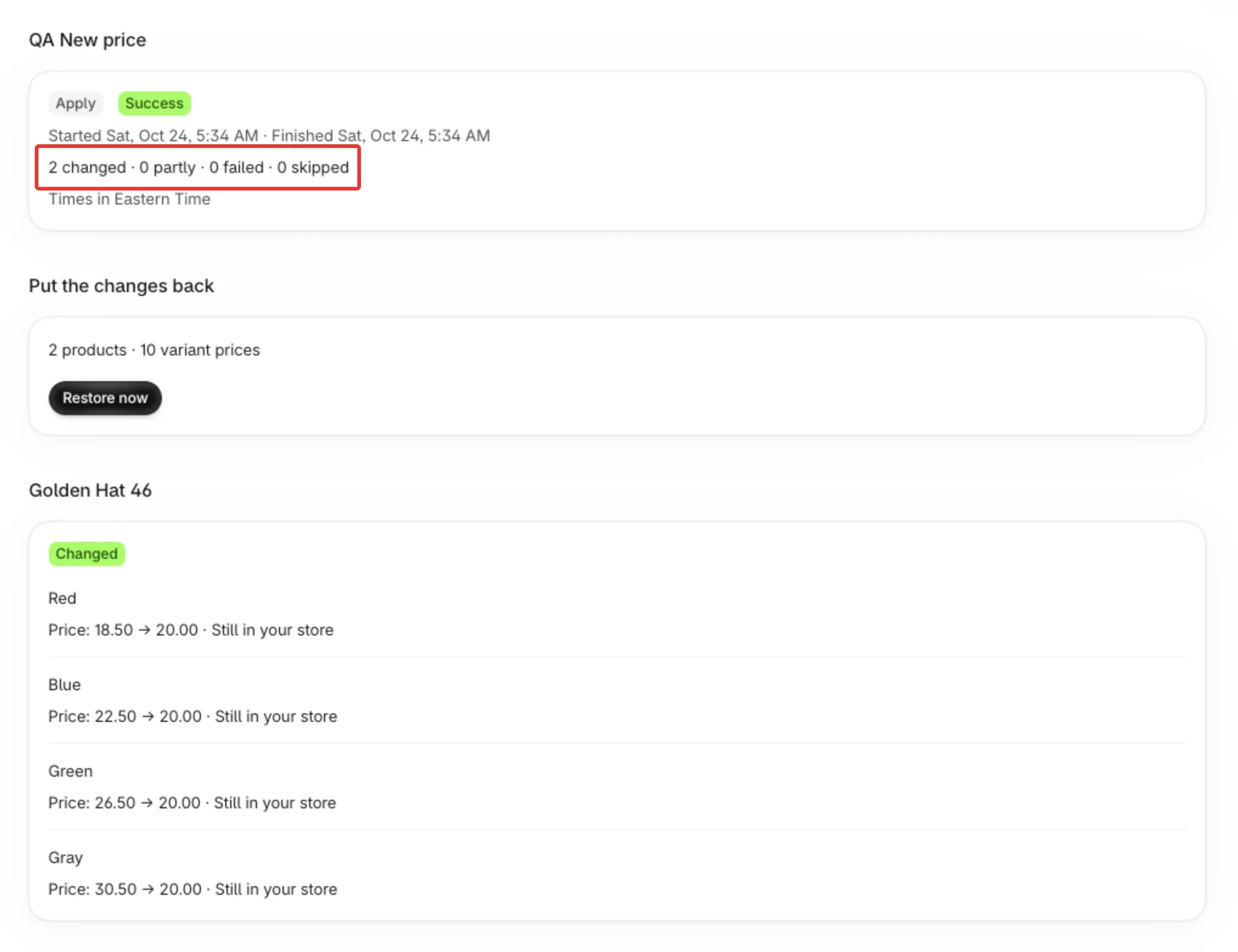
The page is titled Run #12 (with the run's number). The box under it shows:
- The schedule's name. A deleted schedule shows "(deleted)" after its name.
- Two badges. The first is the kind: Apply (the run changed your store), Restore (it put changes back). The second is the result: Success, Partly done, Failed, Blocked, Stopped or Running.
- When it started and finished ("Started … · Finished …"), or Still running.
- The counts, for example "12 changed · 2 partly · 1 failed · 0 skipped". They count products, and they cover the whole run, not only the page you are on.
- For a blocked run, "Why it stopped: …" with the reason, for example "The store needs to be reconnected."
- "Times in …" with the time zone of the times on the page.
Run history at the top of the page takes you back to the list.
Put the changes back
This section shows only on a run of the kind Apply. It holds Restore now, or the reason there is nothing to click.
- When a restore is possible, a line counts what it would put back (products, variant prices, products shown or hidden, collection changes) and Restore now puts it back. The confirm step Restore now? lists the same, and says "Anything you changed in Shopify since the run stays as you set it." Click Restore to start, or Cancel.
- If the offer is live and this run partly failed, the confirm step adds "The offer is live: restoring ends it now, and the schedule stops."
- If a restore already failed on some changes, the button reads Retry restore and a line says "Some changes couldn't be put back. Retry restore tries them again." See Some changes could not be put back: Retry restore.
- If the offer is still running in your store, a line says it ends by itself on a date and shows End now. See End a live discount early with End now.
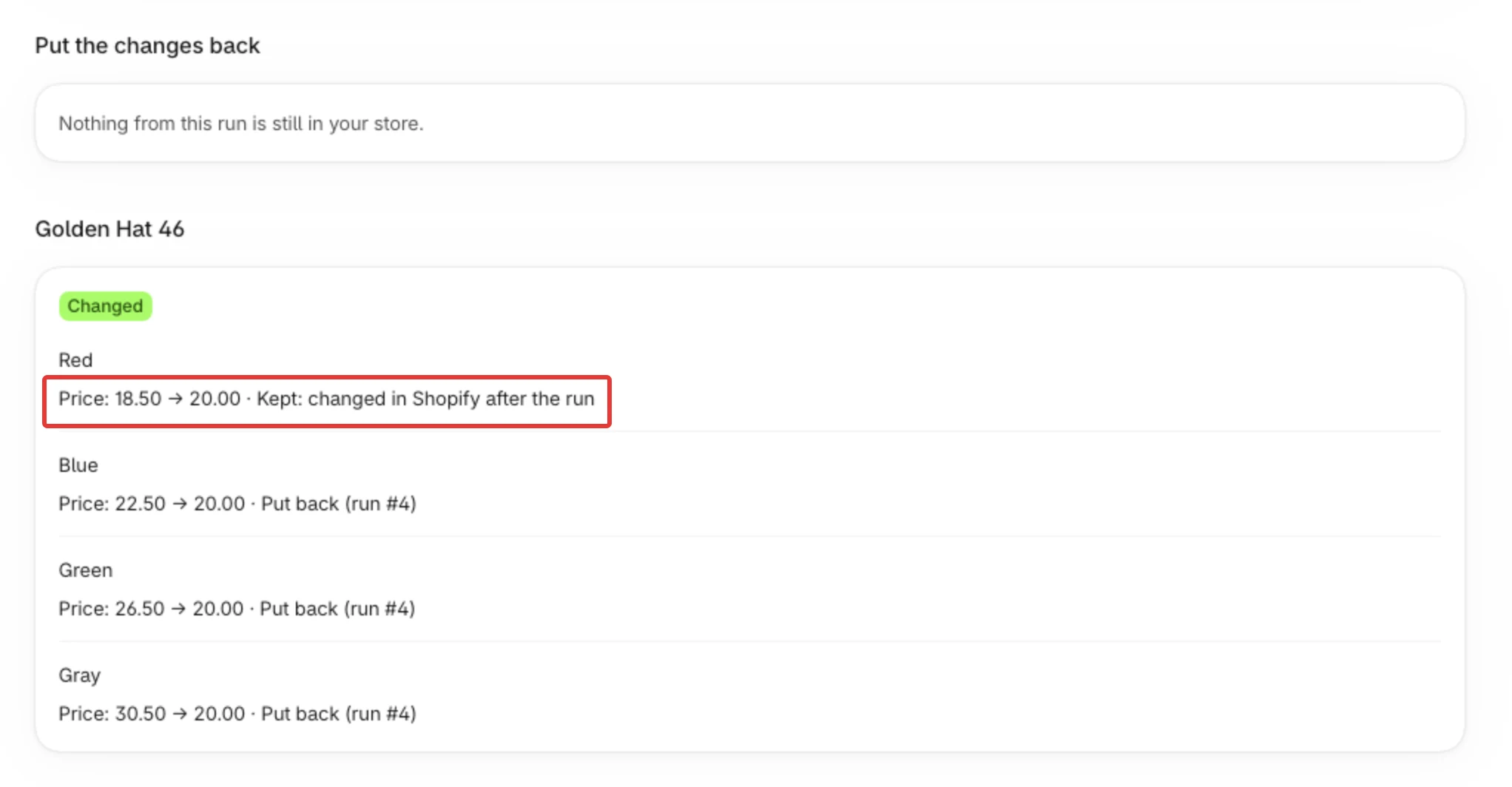
- Otherwise a line says why there is no button: "A run or restore is in progress. Try again when it ends." (with Check again), "Nothing from this run is still in your store.", "The schedule was deleted, so it cannot be restored from here.", or "This kind of change cannot be put back."
- After you click Restore, a message says "Restore started", "Restore will start when the current run ends" or "Nothing was left to put back", with View restore run. The section refreshes by itself while the restore runs.
Product cards
Each product the run touched has a card.
- The card's heading is the product's name. If PopAutomate cannot read the names from Shopify, the page says "Product names could not be read from Shopify. IDs are shown instead." and the cards show the product's ID.
- If Shopify was slow and PopAutomate read only some of the names in time, a second message shows instead: "Shopify was slow, so some product names were not read in time. IDs are shown for those. Open this page again to load them." The cards of the unread products show the ID. Open the page again to load the names. This is a different message from the one above, which shows when none of the names could be read.
- Under the heading is the state badge, then one block per variant. Each block starts with the variant's name, for example "Black / S", then lines such as "Price: 25.00 → 20.00" and "Compare-at price: none → 25.00". A change to the price only (New price) has no compare-at line.
- A Hide or Show change has one line: "Online Store: shown → hidden" or "Online Store: hidden → shown".
- A collection change has the heading Collections and a line such as "Added to Summer" or "Removed from Summer".
- A row that failed or was skipped has a reason under it. See Reasons under a row.
- If the run changed nothing, the page says "This run changed nothing."
State badges
The badge on each card sums up that product's rows:
| Badge | What it means |
|---|---|
| Changed | Every change of this product went through |
| Partly changed | Some changes went through, and others failed or were left as they were, with a reason |
| Failed | Nothing was changed and at least one change failed |
| Skipped | Nothing was changed and nothing failed, for example the product was already as the schedule wants it |
What became of each change
On a run of the kind Apply, each line that changed something can carry a mark after a dot. The mark says what became of that change:
- Put back (run #16): a restore put it back. The number is the restore run.
- Kept: changed in Shopify after the run: you changed it in Shopify after the run, so the restore left it as you set it.
- Couldn't be put back: … and a reason: the latest restore tried and failed, and the change is still in your store. The button reads Retry restore. See Some changes could not be put back: Retry restore.
- Nothing to put back: … and a reason: the restore found the product or the variant deleted from Shopify, for example "Nothing to put back: This product no longer exists in Shopify." A retry cannot help, so PopAutomate counts it as settled: it is not "still in your store", and it does not turn the button into Retry restore.
- Still in your store: the change is in your store and no restore has tried it yet.
When every change of the schedule is put back or settled, the section Put the changes back says "Nothing from this run is still in your store."
Reasons under a row
A row that failed or was skipped has a reason in plain words. The ones you meet most:
- "Already set, nothing to change.": the variant already had the value the schedule wanted.
- "The product already sells at or below the discounted price, so we left it as is.": a discount never raises a price.
- "Changed in Shopify after the run, so it was left as is.": you changed it after the run.
- "Shopify did not answer in time and we could not confirm whether this price changed.": check the price in Shopify. See Some price changes could not be confirmed.
- "The store connection was lost.": see Reconnect your store: approve permissions or reopen the app.
- "The store has no Online Store sales channel.": see Schedule blocked: add the Online Store sales channel.
- "This product no longer exists in Shopify." and "This variant no longer exists in Shopify.": the item was deleted, so there is nothing to change.
- "The collection is an automated (smart) collection …": see Smart collections cannot be used in a schedule.
Paging
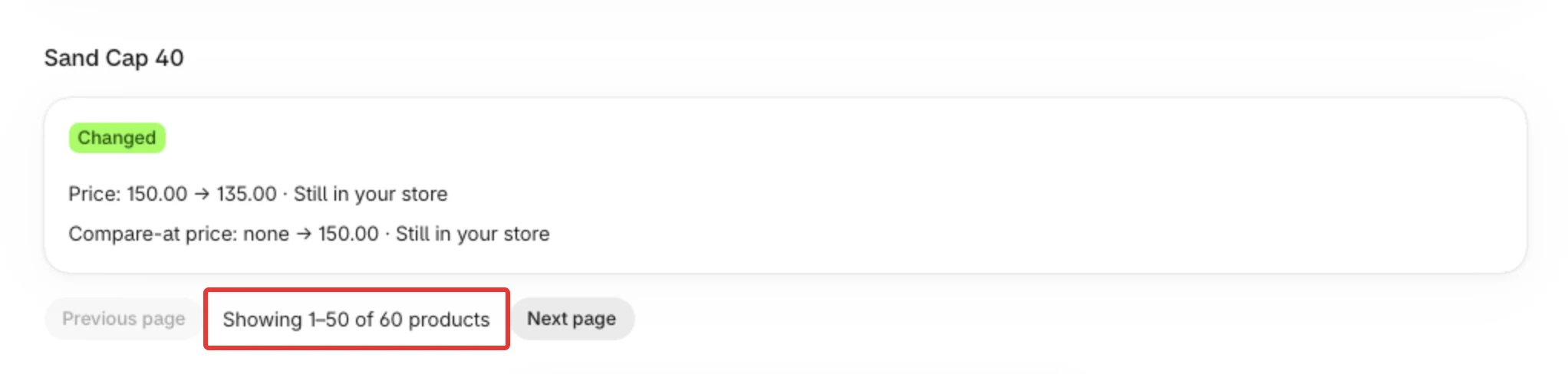
A long run is split into pages. Under the cards, a line such as "Showing 1–10 of 15 products" says which products are on this page, with Previous page and Next page. The line shows only when the run has more than one page.
A page holds up to 50 products or 2,000 rows, whichever comes first, and a product's rows always stay on one page. A product with many variants can therefore fill a page by itself, so a page can show fewer than 50 products. The counts at the top stay those of the whole run.
Prices still changed after the run ended: Prices did not go back after the schedule ended
Did this article answer your question?