Follow your schedules: Home, history and restore
Schedules lists every schedule with its status, its next run and its last run. History lists every run. Home counts your schedules by status. To end an offer, read a run or fix a failed restore, use the three articles linked below.
Steps
Path: PopAutomate > Schedules > History > View details
- In the Shopify admin sidebar, click Schedules under PopAutomate. Each row shows the schedule's name and status, what it changes, its next run, and its last run. Times use the zone shown at the top of the list after "Times in".
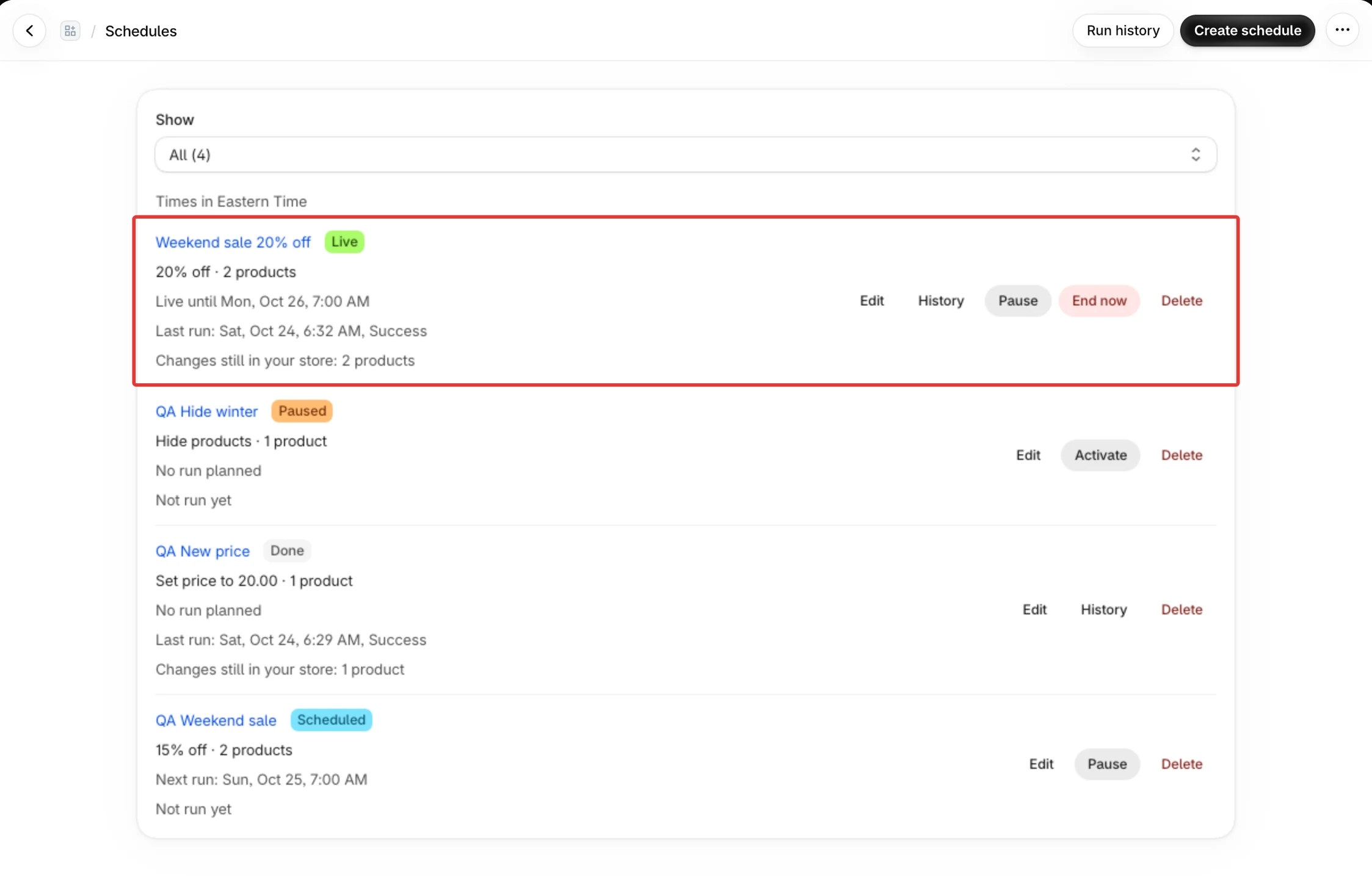
- To show fewer schedules, pick a filter under Show: All, Active, Scheduled, Paused, Needs attention, Ended or Drafts. Each filter shows its count in brackets. Active holds schedules that are running or live. Needs attention holds schedules that are blocked or failed. Ended holds schedules that are done or ended. The list shows 50 schedules a page.
- To change a schedule, click Edit on its row, or click its name. The row also has Pause on a schedule that is on, Activate on one that is off (not when it is Done, Failed or Ended), End now on a live offer, and Delete. End now is explained in End a live discount early with End now.
- To see the runs of one schedule, click History on its row. The button shows after the schedule has run once. To see the runs of every schedule, click History in the sidebar. The newest runs come first, 50 a page. Each run shows its kind (Apply or Restore), its result, and how many products changed, partly changed, failed or were skipped.
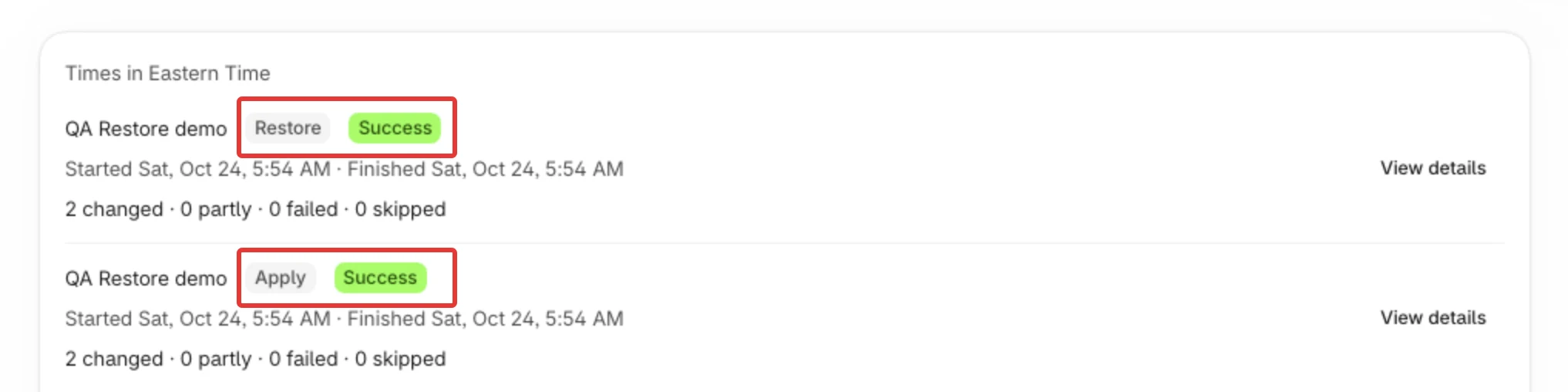
- Click View details on a run to see each product and variant before and after, and why a row failed or was skipped. To put changes back now, use Restore now in the run's details, or Retry restore when a change could not be put back. See Run details: what each part of a run shows and Some changes could not be put back: Retry restore.
Result
What each status on Schedules means:
| Status | What it means |
|---|---|
| Draft | Off, and it has never run |
| Scheduled | On, and waiting for its next run |
| Running | A run is changing your store now |
| Live | Its change is on until the end time shown after "Live until". End now shows only in this status |
| Done | It runs once and it ran. No put-back is waiting for an end time, so its change stays unless you restore it |
| Paused | Turned off after it was on, by you or by PopAutomate. It does not run |
| Blocked | A problem stopped it. The row says why |
| Failed | It runs once, and its last run failed |
| Ended | It finished: its changes went back, you ended it with End now, or it has no runs left |
A row can also say "Changes still in your store: …" while a change of the schedule has not been put back, and "You ended this offer early, on … It was planned to end on …" after End now.
On Home, the counts follow the same statuses: Active now holds Running and Live, Upcoming holds Scheduled, Ended holds Done and Ended, and Need attention holds Blocked and Failed. Drafts and paused schedules are in none of these four counts. While a schedule is paused, Home shows a notice with the button View paused schedules.
Rules
- Pause does not put anything back. What the last run changed goes back at the end time, or when you use Restore now in the run's details. See Put everything back at the end of a schedule.
- Do not count on Delete to put anything back. If the schedule's changes are still in your store, the delete step warns you: "Deleting does not put them back: restore them from the run history first." After a delete, its runs stay in History with "(deleted)" after the name, and Restore now is not offered. Delete is not offered while a run is going.
- Emails: Settings has an Email alerts section only when PopAutomate has an email address for your store. Without one, alerts have nowhere to go, so check Home and History.
If it did not work
- A schedule is paused or does not show on Home: My schedules are paused or missing from Home
- Need attention went up after a Hide or Show schedule: Schedule blocked: add the Online Store sales channel
- Prices stayed changed after the end: Prices did not go back after the schedule ended
- A change shows Couldn't be put back: Some changes could not be put back: Retry restore
- No End now button: check the status in the table above. The button shows only on Live.
Next
Did this article answer your question?