Put everything back at the end of a schedule
Keep Put everything back at the end checked in step 3. When, and set an end time. At that time PopAutomate puts your products back as they were. A discount always ends this way, with no checkbox.
Shopify has no end date for a sale. A discount ends only when PopAutomate puts the prices back.
Steps
Path: Home > Create schedule > 3. When > Put everything back at the end > 4. Review and save > Save
- On Home, click Create schedule.
- In 1. What to change, pick the products or collections. In 2. The change, pick the change. For Discount there is no checkbox: the line "A discount always ends: at the end time the original prices come back." shows instead.
- In 3. When, keep Put everything back at the end checked. It is checked when you start. If you uncheck it, the change stays after the schedule ends. The checkbox shows for New price, Hide from the Online Store, Show on the Online Store, Add to a collection and Remove from a collection.
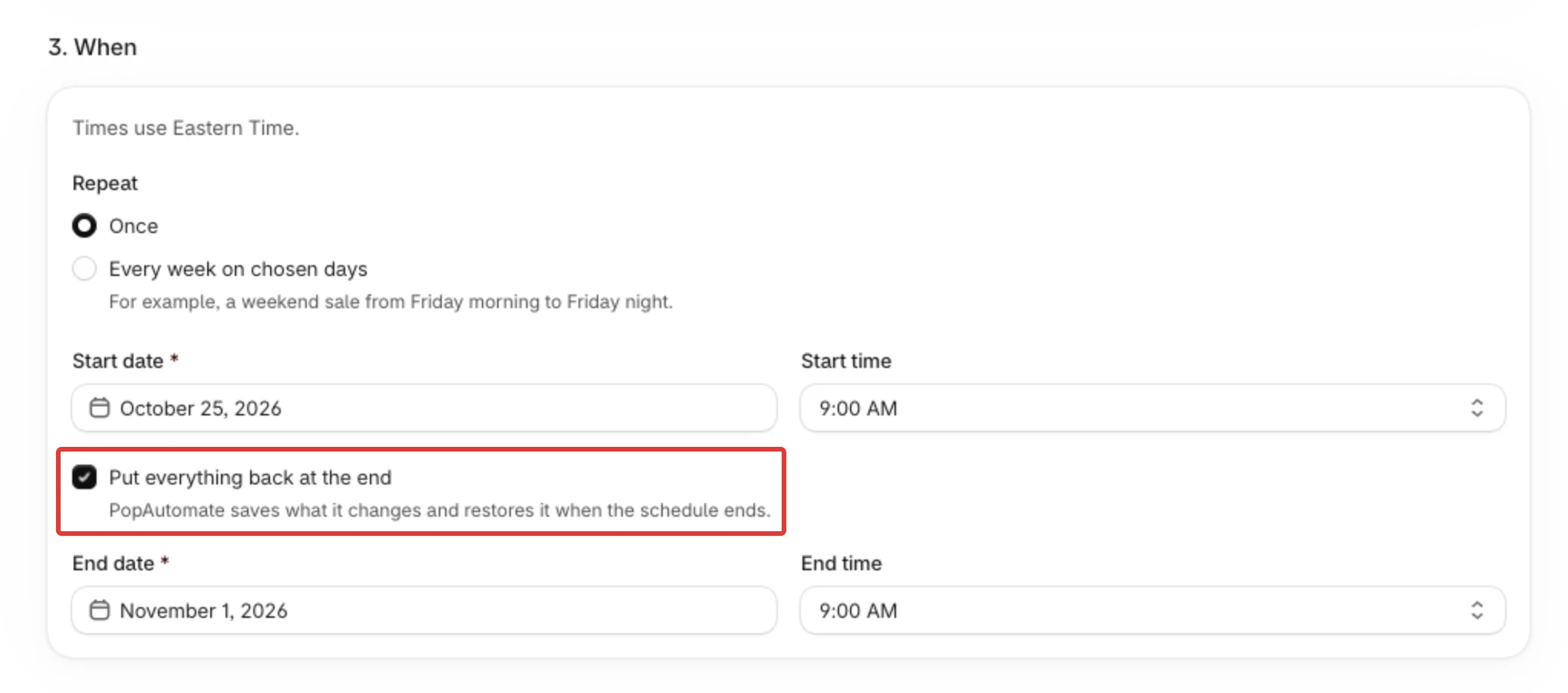
- Set when it ends. For Once, pick the End date and End time. Any time works, including 12:00 AM, which is the start of the end date. For Every week on chosen days, pick Ends at. It must be later in the day than Starts at, so a weekly window cannot run past midnight.
- In 4. Review and save, read the last lines under What will happen. They say "At the end, everything goes back as it was." or, for a discount, "At the end, the original prices come back." For a weekly schedule they say "At each day's end time, …".
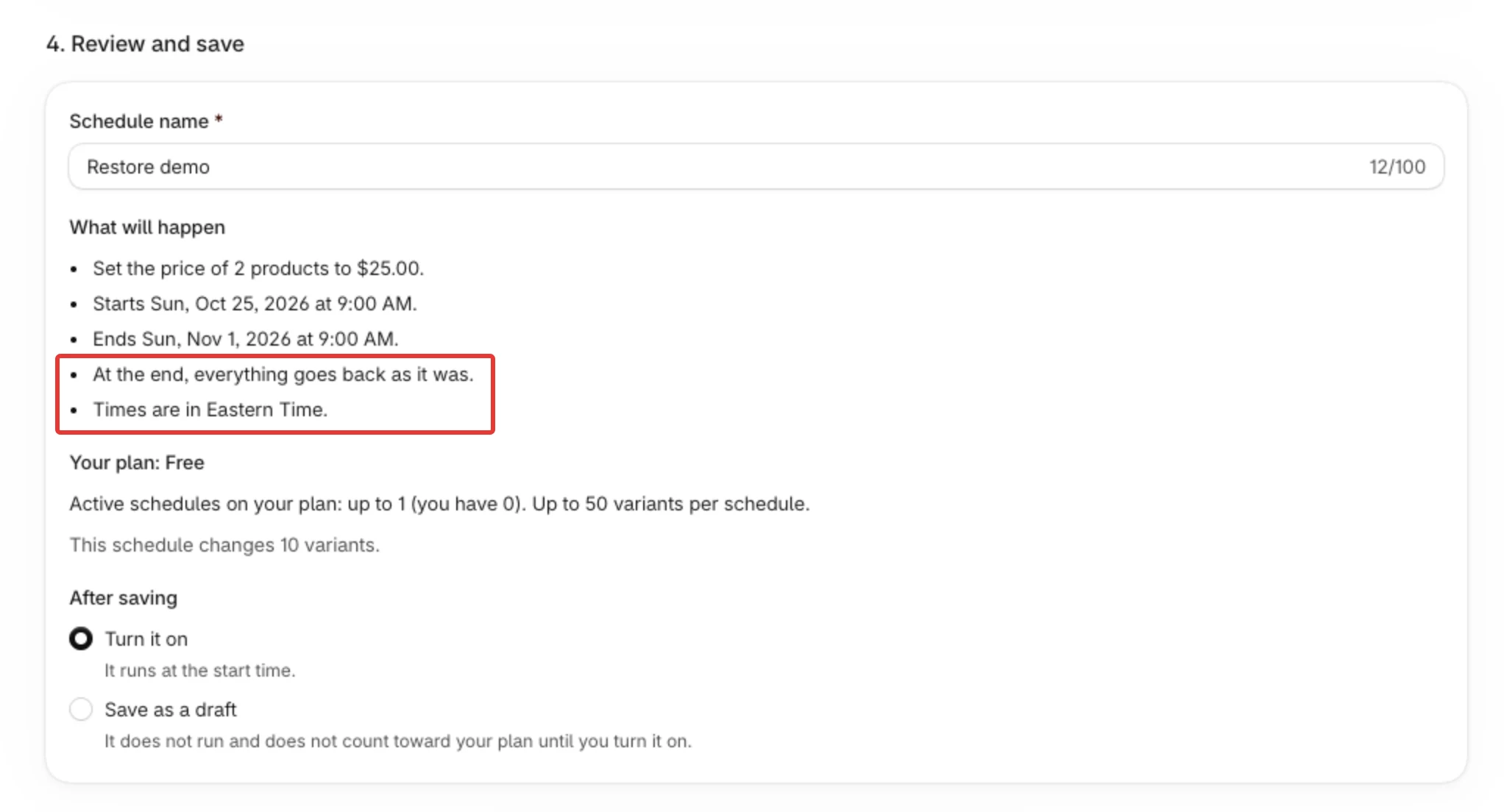
- Under After saving, keep Turn it on, then click Save. The message "Schedule saved and on" confirms it.
Result
At the end time, PopAutomate puts back what the schedule changed and is still in your store. A weekly schedule does this at each chosen day's Ends at time, not once after the last day, and runs again on its next chosen day. How to set one up: Make a schedule repeat every week.
- Discount: the price and compare-at price of each variant go back to their exact values from before. A sale that was already on the product comes back as it was. If that earlier sale came from another PopAutomate discount that was still on, it ends instead.
- New price: the price from before. The compare-at price is not touched.
- Hide from the Online Store or Show on the Online Store: each product is hidden or shown on the Online Store as it was before.
- Add to a collection or Remove from a collection: the products the run added are removed, and the products it removed are added back.
The restore is its own run. In History it shows with the kind Restore, and its View details list each change as Put back, Kept, Couldn't be put back or Nothing to put back. See Run details: what each part of a run shows.
A run that stopped on a store problem after it changed some products is put back at the end time too, like any other run.
If a change could not be put back, PopAutomate tries again after 15 minutes, after 1 hour, and after 6 hours. Then it stops trying. The change shows Couldn't be put back in the run's details, and Restore now reads Retry restore. See Some changes could not be put back: Retry restore.
Home gives no message about a put-back that failed in part: a schedule that runs once moves to the Ended count. If every change of the restore failed, the schedule shows Failed and counts under Need attention. To see what is not back, open the run in History with View details: a change that is not back shows Still in your store or Couldn't be put back. To check a product, open it in your Shopify admin and look at its price and compare-at price.
If you do not want to wait for the end time, use End now on a live offer. See End a live discount early with End now.
Rules
- Your own edits win. If you change a variant's price or compare-at price yourself during the schedule, PopAutomate leaves that variant as you set it, and its row says Kept: changed in Shopify after the run. The same goes for a product you hide or show yourself. The app has no button to put it back.
- Collections have no such check. The products the run added are removed even if you changed the collection since. Products you added to the collection yourself stay.
- Deleted items: a deleted product or variant has nothing to put back, and its row says "Nothing to put back: This product no longer exists in Shopify." (or "This variant no longer exists in Shopify."). If a collection was deleted, the products the run took out of it cannot be added back to it.
- Turning a schedule off with Pause does not put anything back. Saving it as a draft leaves the store as it is. What the last run changed still goes back at the end time.
- Do not count on a deleted schedule putting its changes back. If they are still in your store, the delete step warns you and lists them: "Deleting does not put them back: restore them from the run history first." Restore first, then delete.
- Removing the app during a schedule leaves your products changed. Settings and Help always say so, and Home says so while a schedule is running or live. Wait until the end time has passed before you remove PopAutomate, or use End now. See Uninstall PopAutomate and what happens to your data.
- Price changes that could not be confirmed are not put back. See Some price changes could not be confirmed.
- A run that changed nothing, or stopped before it changed anything, has nothing to put back. See Prices did not go back after the schedule ended.
If it did not work
- Prices are still discounted after the end time: Prices did not go back after the schedule ended
- A price you changed yourself did not go back: Prices did not go back after the schedule ended
- A change shows Couldn't be put back: Some changes could not be put back: Retry restore
- The edit page lists products whose price change could not be confirmed: Some price changes could not be confirmed
- A Hide or Show schedule stopped: Schedule blocked: add the Online Store sales channel
Next
Did this article answer your question?