Some changes could not be put back: Retry restore
Open the run in History, click View details, and click Retry restore under Put the changes back. PopAutomate tries again every change of the schedule that is still in your store. If it fails again, use the causes below.
What you see
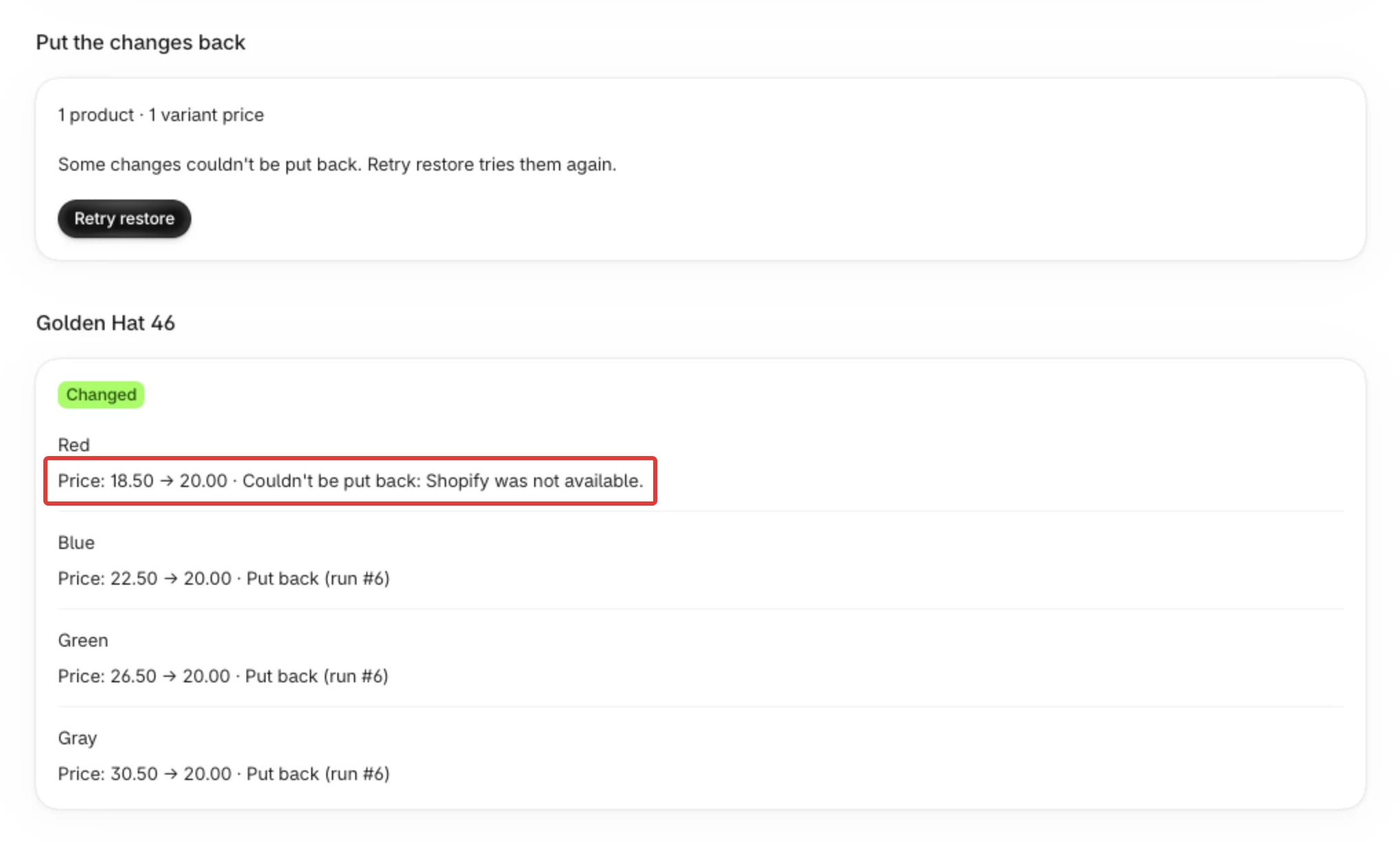
- In a run's details, a line that changed something ends with "Couldn't be put back:" and a reason, for example "Couldn't be put back: Shopify was not available."
- Under Put the changes back, the button reads Retry restore and a line says "Some changes couldn't be put back. Retry restore tries them again."
- On Schedules, the schedule's row says "Changes still in your store:" with a count of products.
- In Shopify, the products still show the schedule's change, such as the discounted price.
Do not count on Home to tell you about a failed restore. Check Schedules and History.
Why it happens
A restore puts each change back one by one. A change fails when Shopify cannot be reached or refuses the change. A failed change stays in your store and stays on the list of changes still to put back. A restore that leaves products changed is tried again by itself after 15 minutes, after 1 hour and after 6 hours. Then it stops.
The reason on the line tells you whether another try can help:
- A try can help when the cause was temporary: "The store connection was lost." (reconnect first), "Shopify was not available." and "Shopify asked us to slow down; it was tried again."
- A try cannot help when the change itself cannot be made: an automated (smart) collection, "This change cannot be put back." or "The old value was not recorded, so it cannot be put back." The button still reads Retry restore for the other changes, but these ones give the same answer.
- A change you made yourself after the run is not a failure. It shows Kept: changed in Shopify after the run and is left as you set it.
- A product or variant deleted from Shopify has nothing to put back. It shows Nothing to put back: with the reason, it is not counted as still in your store, and it does not make the button read Retry restore.
For all the marks, see Run details: what each part of a run shows.
Fix
Try the restore again
Path: History > View details > Retry restore > Restore
- In the Shopify admin sidebar, under PopAutomate, click History.
- Click View details on the run of the kind Apply whose lines say Couldn't be put back.
- Under Put the changes back, click Retry restore. A confirm step lists what will be put back. Its heading reads Restore now?. Click Restore. Cancel leaves everything as it is.
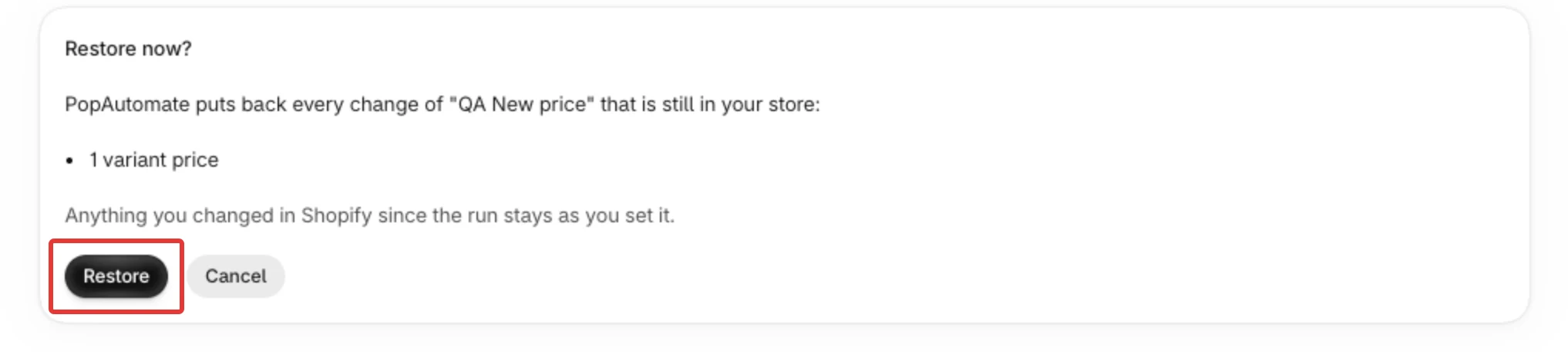
- Read the message at the top: "Restore started", "Restore will start when the current run ends" or "Nothing was left to put back". Click View restore run to follow it. The lines of the Apply run change to Put back when the restore is done.
The retry covers every change of the schedule that is still in your store, not only the lines that failed. A change you made yourself stays as you set it.
The store connection was lost
If the reason is "The store connection was lost.", or Home shows Reconnect your store, PopAutomate cannot change your products. Follow Reconnect your store: approve permissions or reopen the app, then use Retry restore as in Try the restore again.
Shopify was busy or not available
If the reason is "Shopify was not available." or "Shopify asked us to slow down; it was tried again.", wait a few minutes. PopAutomate tries again by itself after 15 minutes, 1 hour and 6 hours. When those are used up, or when you do not want to wait, use Retry restore as in Try the restore again.
The same reason comes back
If a retry gives the same reason, set the item back in your Shopify admin yourself. The details show each change as "before → after", so the first value is the one to go back to:
- Open the product in Shopify.
- For a price line such as "Price: 18.50 → 20.00", set the price to 18.50. For "Compare-at price: none → 18.50", clear the compare-at price.
- For "Online Store: shown → hidden", show the product on the Online Store again. For "Online Store: hidden → shown", hide it.
- For "Added to Summer", take the product out of that collection. For "Removed from Summer", add it back.
A discount or a price that is still wrong is also covered in Prices did not go back after the schedule ended. For an automated (smart) collection, see Smart collections cannot be used in a schedule.
Still stuck?
Contact PopAutomate support as described in Get help with PopAutomate on Shopify. Send:
- the name of the schedule and the number of the run, for example Run #12;
- the reason on one line that could not be put back, word for word;
- your store's myshopify.com address.
Did this article answer your question?