Install PopAutomate and what it can access
Approve PopAutomate on Shopify's permission screen, and the app opens on Home inside your Shopify admin. It asks for two permissions: your products and where they are published. There is no PopAutomate account, password or sign-up.
Steps
Path: Shopify admin > Apps > PopAutomate > Home
- Start the install of PopAutomate while you are signed in to your Shopify admin.
- Shopify shows its own permission screen. Among the access it lists for PopAutomate are your products and collections, and the publications of products on sales channels. Approve the install on that screen.
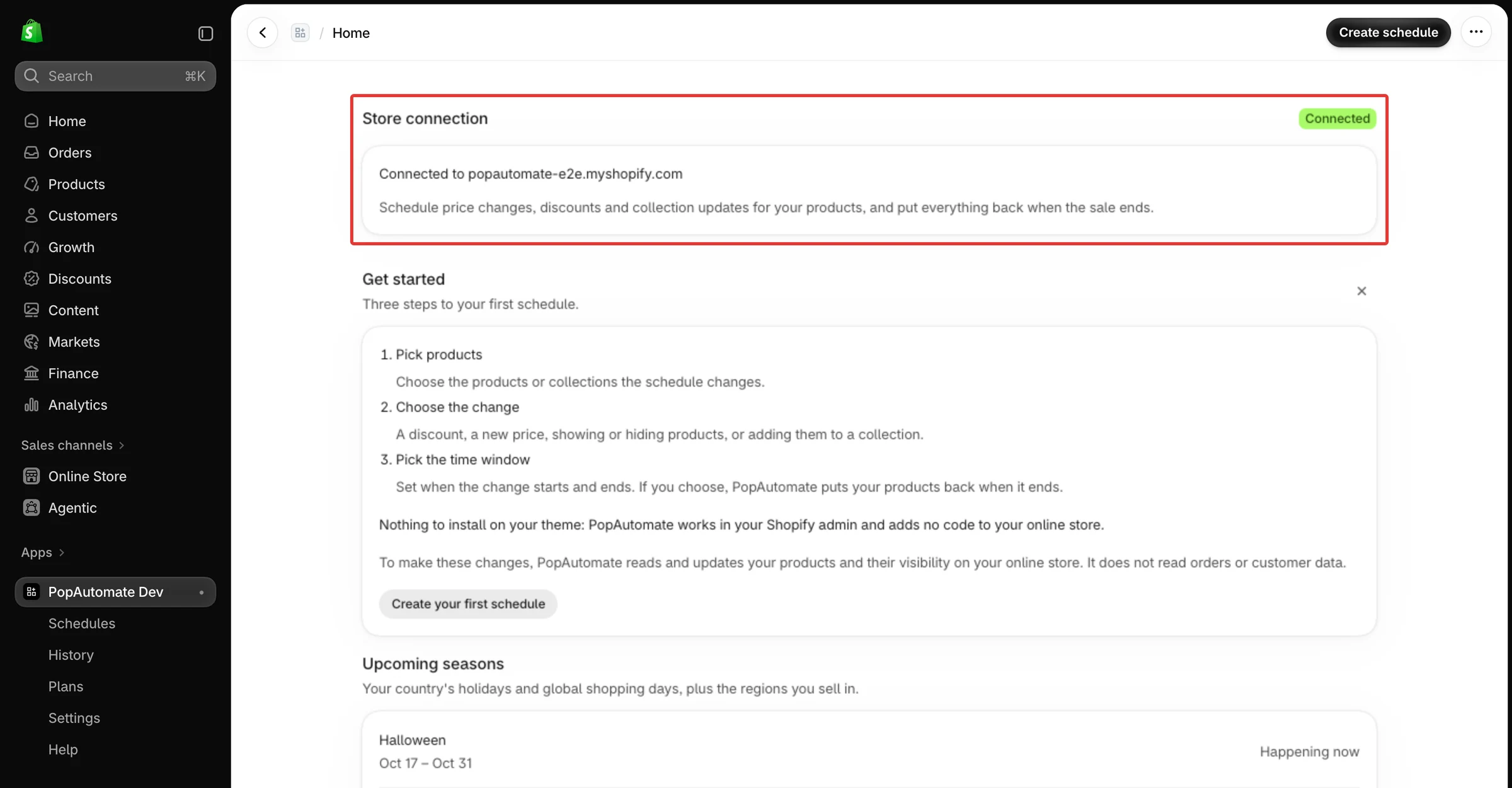
- PopAutomate opens inside your Shopify admin, on Home. Under Store connection you see the Connected badge and the line "Connected to" followed by your store's myshopify.com address.
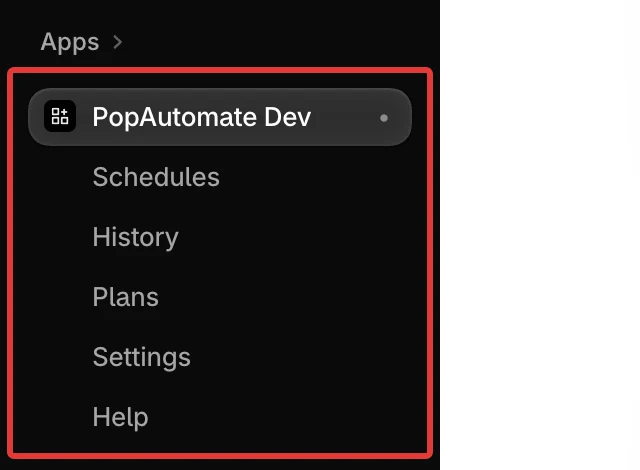
- To open PopAutomate later, go to Apps in your Shopify admin and choose PopAutomate. Its menu shows Schedules, History, Plans, Settings and Help under the app name.
Result
- PopAutomate is installed and connected to your store. Nothing in your store has changed: products change only when a schedule you turned on reaches its start time.
- PopAutomate reads your store's country, time zone and currency from Shopify when you first open it. Home then shows the seasons for your country, and the schedule builder shows your store's time zone.
- Home shows the Get started guide with three steps to your first schedule. What each part of Home shows is in The Home page: what each section shows.
What PopAutomate can access
- Products (
write_products, which includes reading them): PopAutomate reads your products, variants, prices and collections so you can pick them in a schedule. During a run it changes variant prices and compare-at prices, and adds or removes products in manual collections. - Publications (
write_publications): PopAutomate shows or hides products on your Online Store sales channel. Other sales channels stay as they are. - No orders, no customers. The setup guide says so: "It does not read orders or customer data."
- Nothing to add to your theme. PopAutomate "adds no code to your online store".
- No sign-in. You open PopAutomate only from your Shopify admin. A link opened outside it says "PopAutomate runs inside your Shopify admin. Open it from Apps in your Shopify admin." and the app itself says "Open PopAutomate from your Shopify admin."
- Language: PopAutomate opens in Arabic when your Shopify admin is in Arabic, and in English for every other admin language. Once you save App language in Settings, your saved choice is used from then on, even when your admin language differs: see Settings: language, time zone and regions.
What happens to your data when you remove the app is in Uninstall PopAutomate and what happens to your data.
If it did not work
- You see "PopAutomate could not load" or "Your store is still being connected. Try again in a moment." → PopAutomate could not load
- Home shows "Approve new permissions" or "Reconnect your store" → Reconnect your store: approve permissions or reopen the app
- You see "This store cannot be connected right now. Please contact PopAutomate support." Its banner has no Try again button, only Open the help center. → Get help with PopAutomate on Shopify
Next
Did this article answer your question?