Settings: language, time zone and regions
Settings has four parts: Language for the app language, Country and time zone for what PopAutomate read from your store, Before you uninstall, and Regions I sell in. You save changes with Save in Shopify's save bar at the top.
Open it from the app menu in your Shopify admin: Settings. There is no email section for Shopify stores: PopAutomate has no email address for your store, so it sends you no emails.
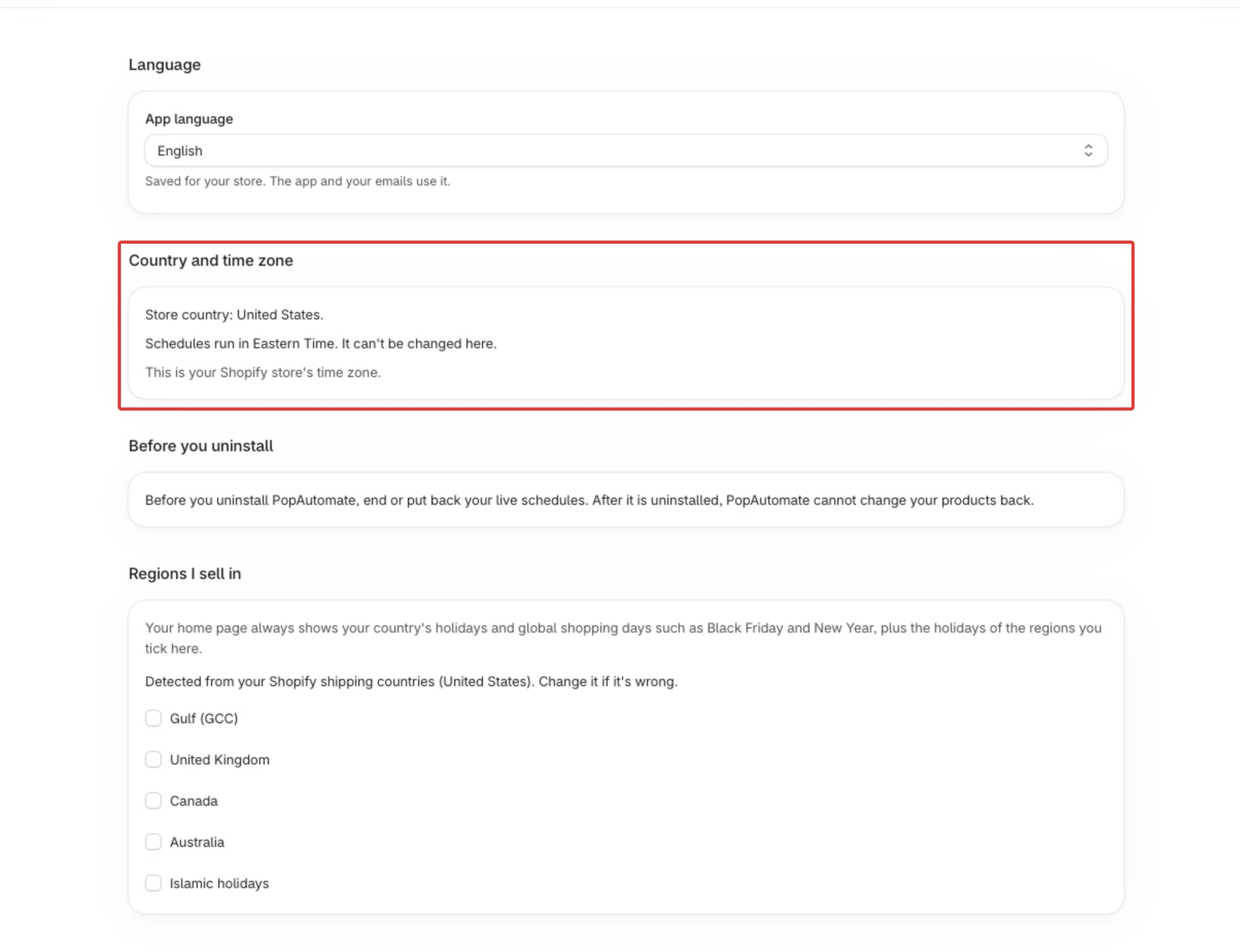
Language
Under App language, choose English or العربية, then select Save. The toast Settings saved confirms it.
- The language is saved for your store. PopAutomate opens in it every time, even when your Shopify admin uses another language.
- Until you save a language, PopAutomate follows your Shopify admin language: Arabic when the admin is in Arabic, English for any other language.
- In Arabic, the app reads right to left. Dates use the Gregorian calendar and Latin digits.
Country and time zone
This part has two lines you only read: "Store country: United States." with your country, and "Schedules run in Eastern Time. It can't be changed here." with the name of your time zone. When the zone is the one Shopify has, a third line says "This is your Shopify store's time zone."
You cannot change them in PopAutomate. Both come from your Shopify store, and PopAutomate follows them when they change there:
- Country: the country of your Shopify store's address. If PopAutomate does not have it yet, it says "Store country: not known yet. It comes from your Shopify store's address."
- Time zone: your Shopify store's time zone. Schedule times are in it.
The times you pick on a schedule are in this zone, and schedules start at those times in this zone. If a schedule starts at a different hour than the one you set, see A schedule ran at the wrong time. For where PopAutomate gets these values and what happens when your Shopify time zone changes, see Your store's time zone, country and currency.
Before you uninstall
This part says: "Before you uninstall PopAutomate, end or put back your live schedules. After it is uninstalled, PopAutomate cannot change your products back." See Uninstall PopAutomate and what happens to your data.
Regions I sell in
Tick the regions you sell in, then select Save. The list can include: Gulf (GCC), United States, United Kingdom, Canada, Australia, Islamic holidays, Global shopping days (Valentine's Day, Christmas).
- What they change: the holidays and shopping days under Upcoming seasons on Home. They are added to your country's own holidays and the global shopping days. They change nothing else.
- Which boxes you see: the list leaves out the regions your store already gets from its country. A store in the United States does not see United States, for example. A store in the Gulf sees Global shopping days (Valentine's Day, Christmas), because a Gulf store does not get those two unless you tick it.
- Ticked for you: until you save your own choice, PopAutomate ticks the regions it finds from the countries your store ships to in Shopify. A line says so: "Detected from your Shopify shipping countries (United States). Change it if it's wrong." Under each ticked box, "Detected from:" names the countries. Shipping to Saudi Arabia or another Gulf country ticks Islamic holidays, and shipping to the United Arab Emirates, Kuwait, Qatar, Bahrain or Oman also ticks Gulf (GCC).
- After you save: your choice wins, even when you tick nothing. The "Detected from" line goes away and PopAutomate stops changing the ticks.
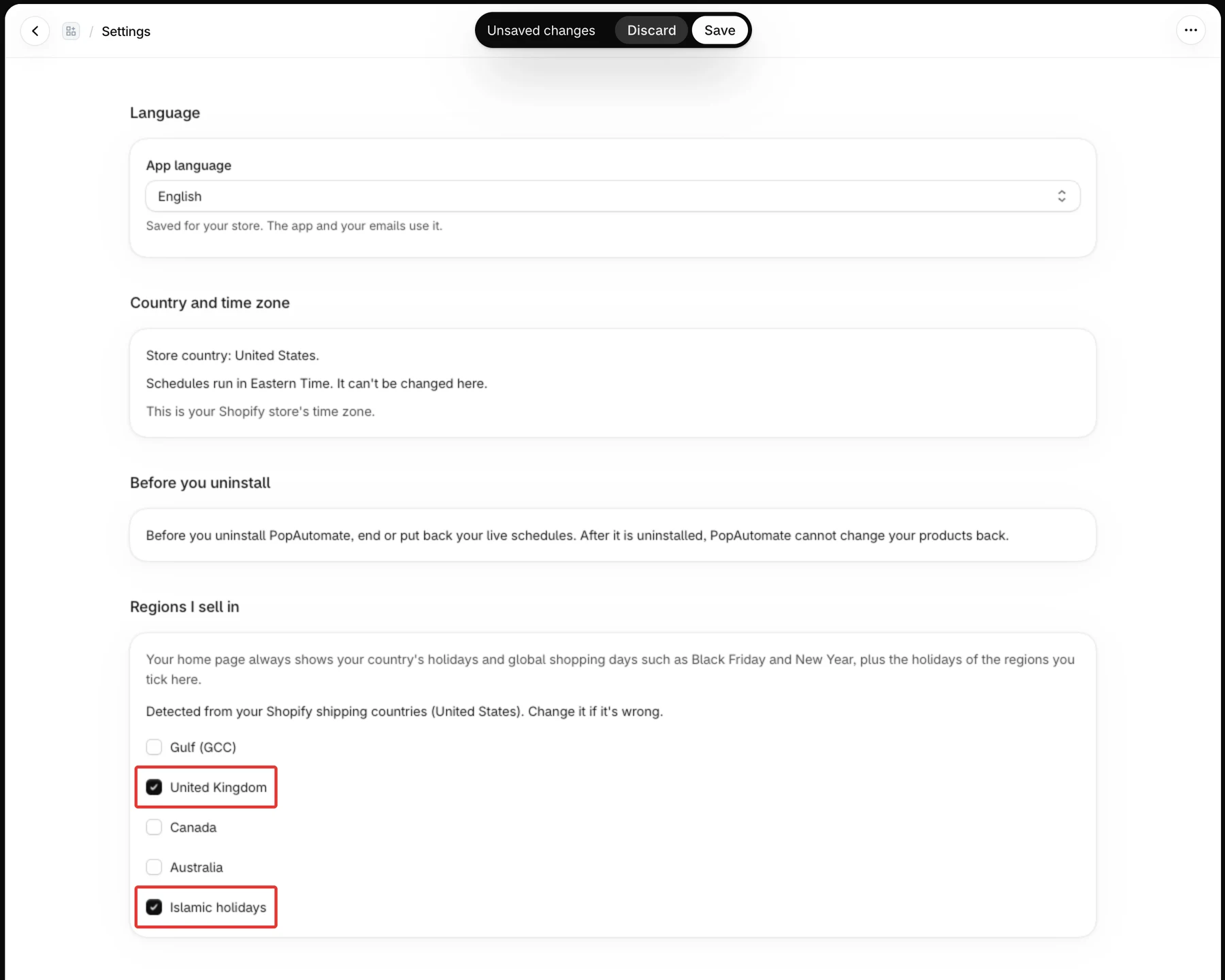
Save and Discard
- Your changes are kept on the page until you select Save in Shopify's save bar. Discard drops them.
- If you leave the page with unsaved changes, Shopify asks whether to leave or stay.
- Settings were not saved: "Your changes are still on this page. Try saving again." Select Save again.
- Settings could not load: "Nothing was changed. Try again in a moment." Select Try again.
Your plan is on the Plans page, not in Settings: see Plans and billing: Free, Pro and the trial.
Next
Uninstall PopAutomate and what happens to your data
Or go back to Your plan, settings and data.
Did this article answer your question?