Your store's time zone, country and currency
PopAutomate reads three things from your Shopify store: its time zone, its country and its currency. You do not type them in. Settings shows the country and the time zone, and you cannot change either one there.
Where they come from
- Time zone: your Shopify store's time zone.
- Country: the country of your Shopify store's address.
- Currency: your Shopify store's currency.
PopAutomate asks Shopify when you open the app: right away the first time, and again when the last read is more than a day old. A read that fails does not stop the app from opening, and PopAutomate keeps what it already has.
Where Settings shows them
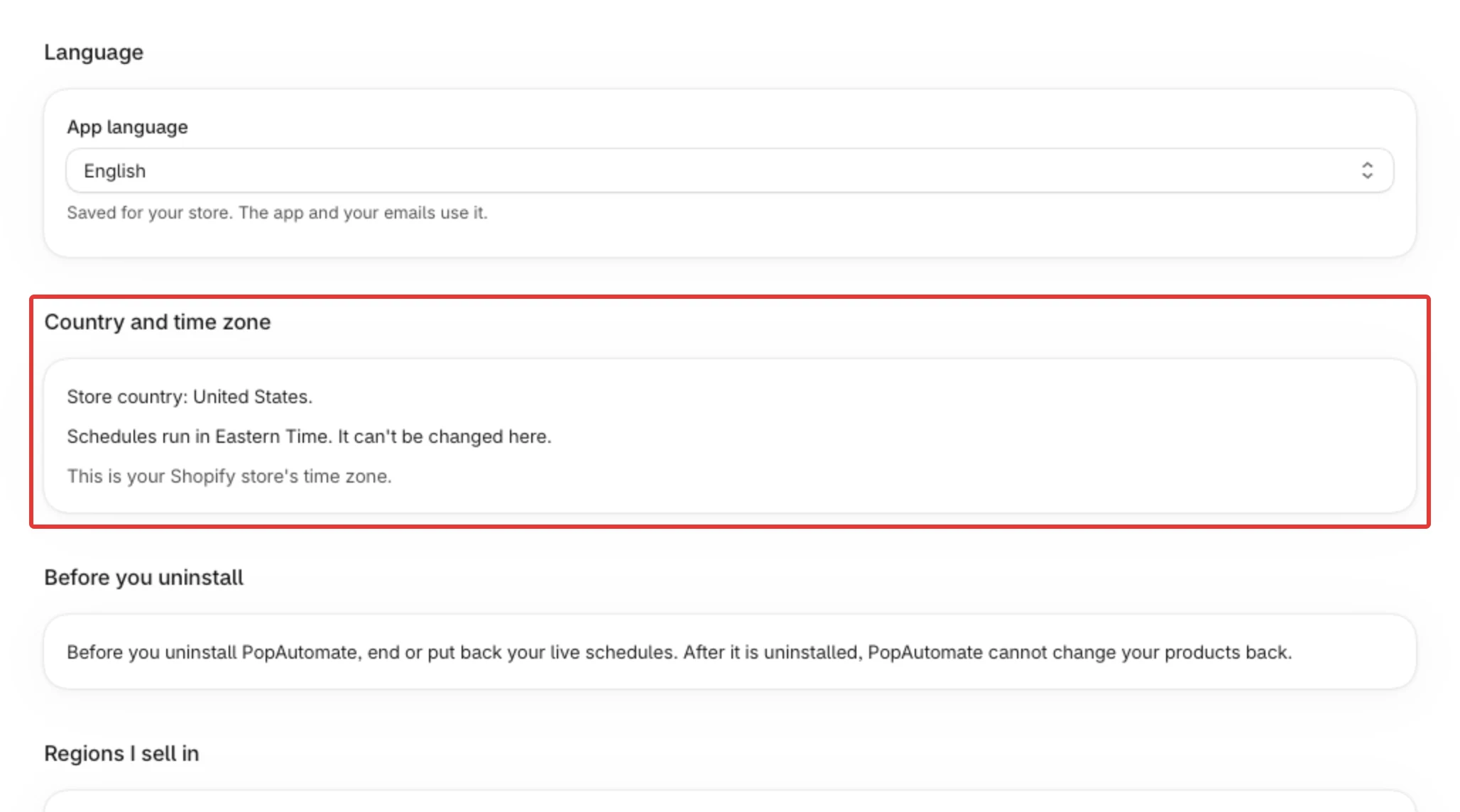
Open Settings in the app menu. The Country and time zone section has two lines:
- Store country: United States. With the name of your country. If PopAutomate has not got it yet, it says "Store country: not known yet. It comes from your Shopify store's address."
- Schedules run in Eastern Time. It can't be changed here. With the name of your time zone in place of "Eastern Time". Under it, "This is your Shopify store's time zone." tells you the zone is the one Shopify has.
The currency is not shown in Settings. You see it in the schedule builder, where amounts are written in your store's currency.
What each one changes
Time zone: your schedule times
The start and end times you pick in a schedule are in this zone, and the schedule starts at those times in this zone. Step 3. When shows it: "Times use Eastern Time." with your zone's name. The summary on the last step says "Times are in Eastern Time." If a schedule starts at a different hour than you set, see A schedule ran at the wrong time.
Home also uses it: it counts today, your next runs and the upcoming seasons in this zone.
Country: your seasons on Home
Upcoming seasons on Home shows "Your country's holidays and global shopping days, plus the regions you sell in." The country decides the first part: your country's holidays, and the global shopping days.
- Saudi Arabia gets the Saudi calendar, and the United Arab Emirates, Kuwait, Qatar, Bahrain and Oman get the Gulf calendar. All of them also get the Islamic holidays.
- The United States, the United Kingdom, Canada and Australia each get their own holidays.
- A Gulf store does not see Valentine's Day and Christmas unless it ticks Global shopping days (Valentine's Day, Christmas) under Regions I sell in.
- A store whose country is not in this list, or not known yet, gets the global shopping days.
The regions you tick in Settings add holidays on top of the country's own. See Settings: language, time zone and regions.
Currency: amounts and rounding
Amounts in the schedule builder are in your store's currency, and a discounted price is rounded to that currency's decimals. If PopAutomate does not know your currency yet, the builder uses US dollars until Shopify answers.
When your Shopify time zone changes
PopAutomate does not notice at once. It reads your store when you open the app and the last read is more than a day old, so the new zone shows from the next time you open the app after that.
Then PopAutomate switches to the new zone and moves the next start of your schedules that are turned on:
- A schedule set for 9:00 AM still starts at 9:00 AM, now in the new zone. Its start moves by the difference between the two zones.
- A start that would now fall in the past is not changed, so a zone change never starts a schedule at once.
- A schedule that was already due and had not started yet is left for the normal start check.
- Paused schedules are not changed.
Check your schedules after a change: open Schedules and look at the start times. See Start, end and repeat: how schedule timing works.
If it looks wrong
- Settings says "Store country: not known yet.": PopAutomate has not read your store's address. Close the app and open it again from your Shopify admin. It tries again each time you open it, at most once a minute.
- The line "This is your Shopify store's time zone." is missing: the zone shown is not read from your store yet. It follows your store's zone as soon as a read works.
- Your country is right but Home shows holidays you do not expect: the regions under Regions I sell in add holidays. Untick the ones you do not sell in and select Save. See Settings: language, time zone and regions.
Next
Settings: language, time zone and regions
Or go back to Your plan, settings and data.
Did this article answer your question?