Start, end and repeat: how schedule timing works
Step 3. When sets when the change starts, when it ends, and whether it repeats every week. Times are in the time zone named at the top of the step.
Path: Home > Create schedule > 3. When
Repeat
- Once: the change starts at one date and time. This is the default.
- Every week on chosen days: the change starts on each day you tick, at the same time, for example a weekend sale every Friday.
- There is no daily or monthly repeat.
- The steps for a weekly schedule are in Make a schedule repeat every week.
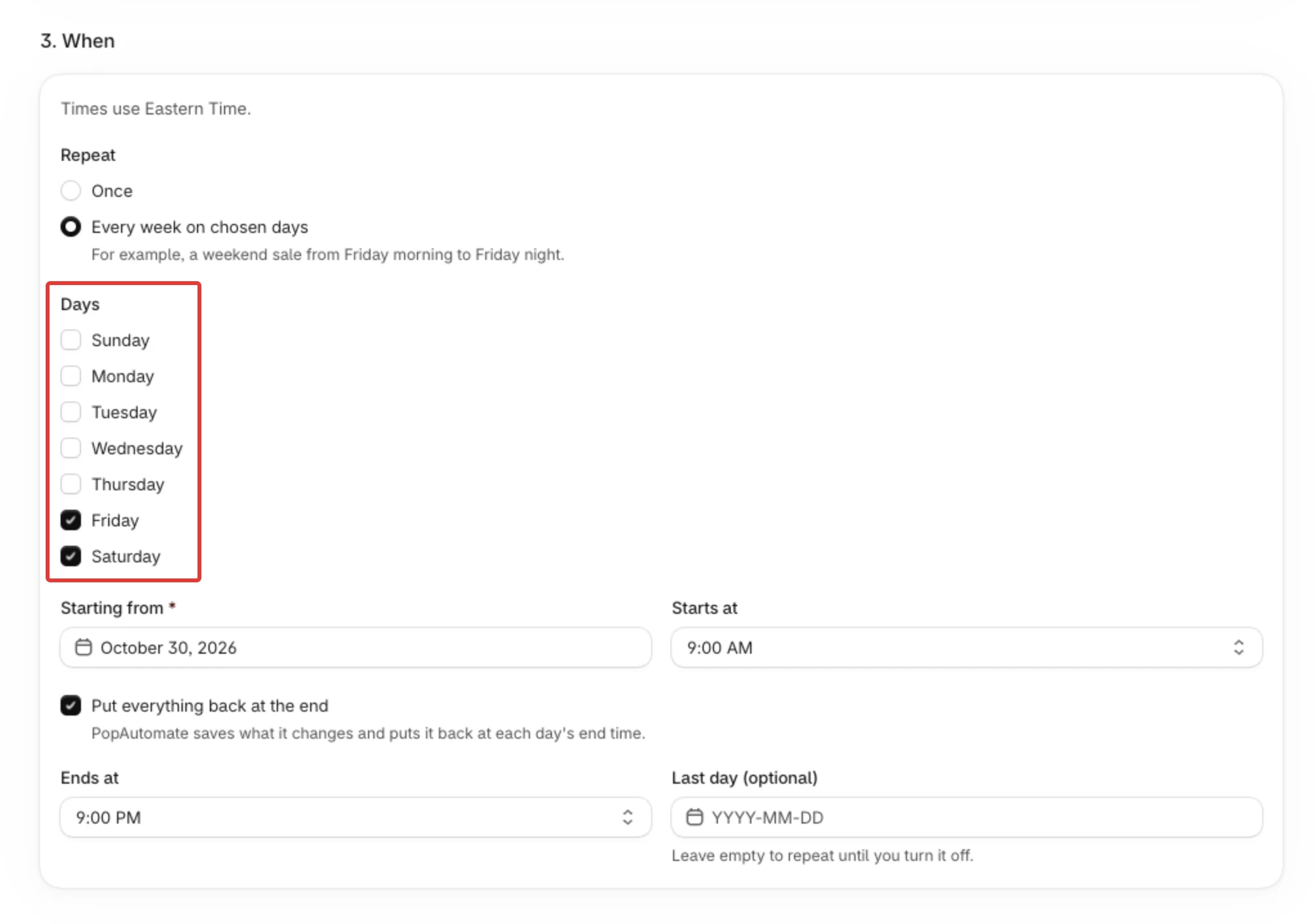
Days
Shown for a weekly schedule. Tick at least one day. The list starts on Sunday.
Start
- A one-time schedule has Start date and Start time. A weekly schedule has Starting from (the first day it can run) and Starts at (the time on each chosen day).
- Times come in 15-minute steps. A new schedule starts at the first whole hour at least 30 minutes from now, unless you change it.
- A one-time start cannot be in the past ("The start has passed. Pick a later time."). A weekly Starting from cannot be a day before today; today is accepted. When you edit a schedule and leave its start as it was, the start is accepted, except in the case below.
- A one-time schedule that never ran, with a start that has already passed, cannot be turned on as it is: it says "This schedule's time has passed. Edit the dates first." See Save a draft, turn a schedule on, and edit it.
- Saving does not change your store. The change starts at the start time.
End
- Once: End date and End time. A new schedule ends 7 days after the start, at the same time, unless you change it. The end must be after the start ("The end must be after the start.").
- An end is required for a discount, and for any other change while Put everything back at the end is ticked. Otherwise a one-time schedule shows Set an end date, which you can untick.
- Every week on chosen days: Ends at is the time each day's change ends. It must be later than Starts at on the same day, so a window cannot run past midnight. No end time is offered only when no end is required.
- Last day (optional): the weekly schedule stops after this day, and that day's run still happens. Leave it empty to repeat until you turn the schedule off.
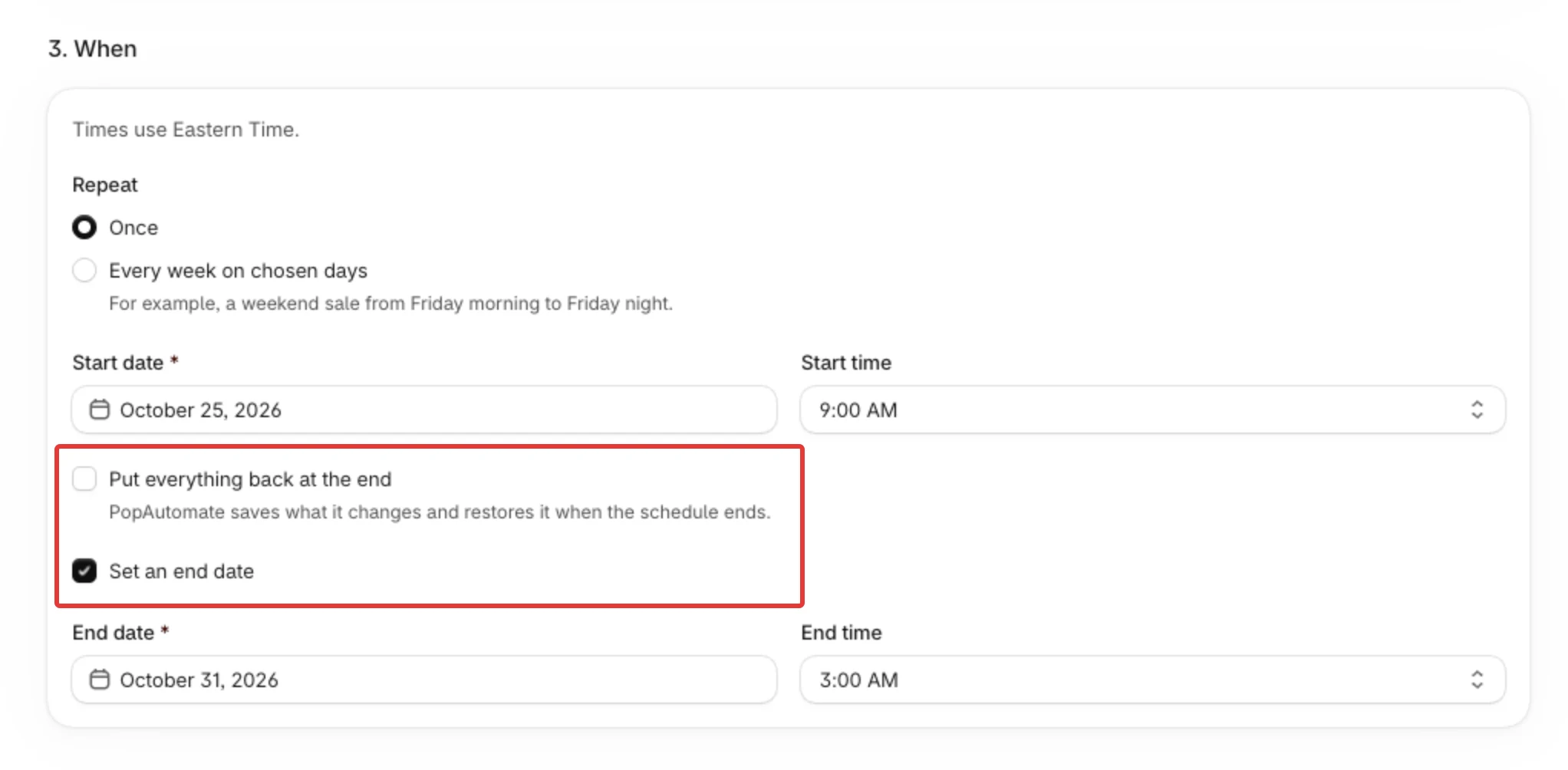
Put everything back at the end
- Shown for New price, Hide from the Online Store, Show on the Online Store, Add to a collection and Remove from a collection. It is ticked by default.
- For a Discount, the step shows "A discount always ends: at the end time the original prices come back." instead.
- On a weekly schedule, the put-back and the end of a discount happen at each day's end time, not once at the end of the schedule. The step says so: "PopAutomate saves what it changes and puts it back at each day's end time." With a Discount it says: "A discount always ends: at each day's end time the original prices come back."
- When it is unticked, the change stays after the schedule ends. On a weekly schedule, the step writes under Ends at: "Not used while “Put everything back at the end” is off."
- More in Put everything back at the end of a schedule.
Time zone
- The line at the top of the step names the zone, for example "Times use Eastern Time." The review repeats it as "Times are in Eastern Time." The zone name comes from your browser.
- PopAutomate takes the time zone and country from your Shopify store. It reads them the first time you open the app, and again when you open it and what it saved is more than a day old. You cannot change them in PopAutomate: Settings only shows them. See Your store's time zone, country and currency.
- The schedule runs by that zone: a start at 9:00 AM starts at 9:00 AM on your store's clock. When the clocks change in your zone, the start stays at the clock time you picked.
- If your store's time zone changes in Shopify, the next start of each schedule that is on moves to the same clock time in the new zone. A start that would then be in the past is not changed, so a zone change never starts a schedule at once.
If a schedule started at a different hour than the one you set, see A schedule ran at the wrong time.
Did this article answer your question?