Schedule a discount that starts and ends on time
Choose Discount in 2. The change, enter the percentage or the amount, and pick a start and an end in 3. When. At the end time, PopAutomate puts the original prices back.
Shopify has no end date for a sale. The discount ends when PopAutomate puts the prices back at your end time, so every discount needs an end.
Steps
Path: Home > Create schedule > 1. What to change > 2. The change > 3. When > 4. Review and save
- In PopAutomate, open Home and click Create schedule. While the Get started guide shows on Home (before your first schedule, unless you hid it), you can also click Create your first schedule there.
- In 1. What to change, keep Products and click Select products, or choose Collections and click Select collections. Tick the items in the Shopify list and confirm. The discount applies to every variant of each product. More in Choose the products or collections a schedule changes.
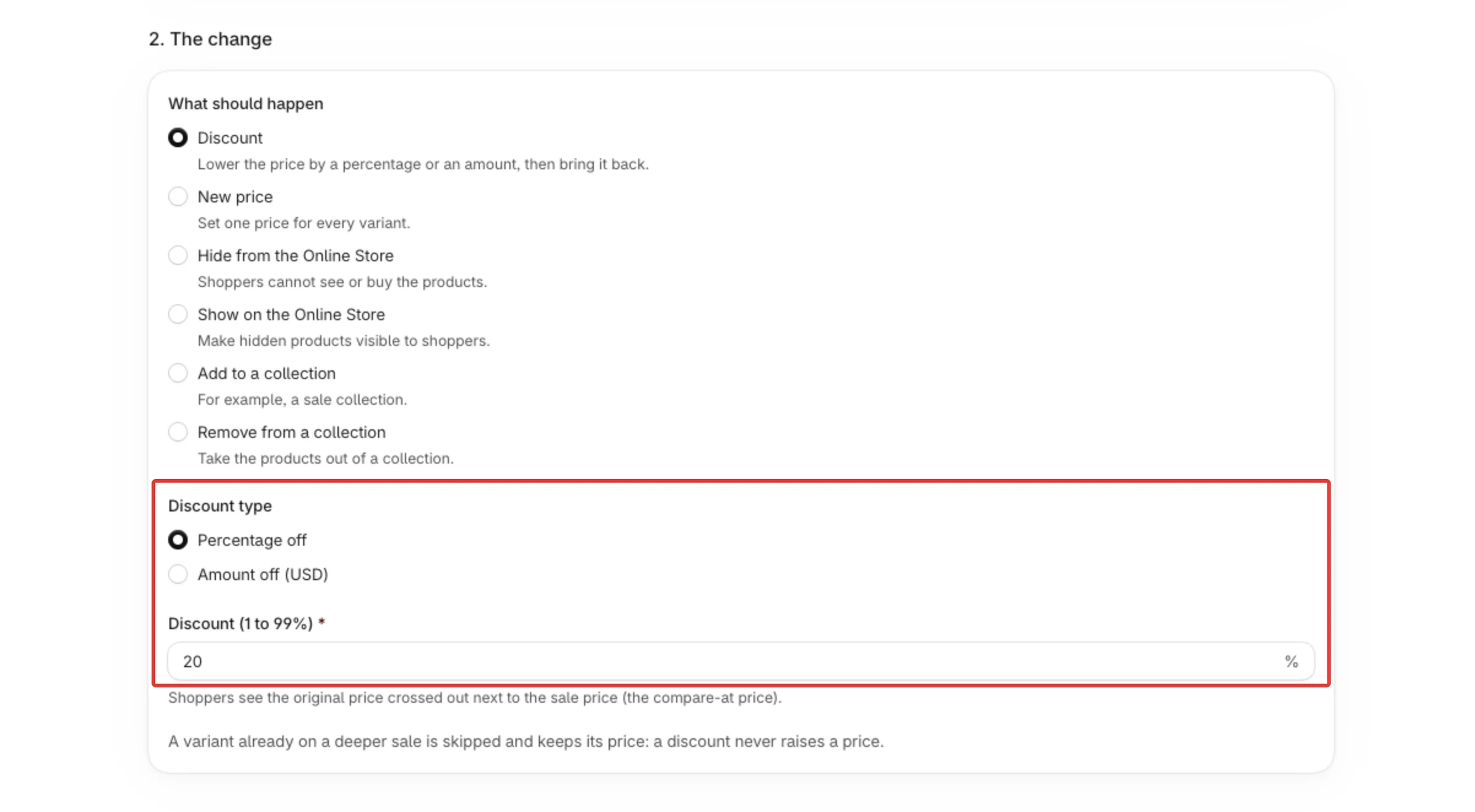
- In 2. The change, keep Discount. Under Discount type, keep Percentage off and fill in Discount (1 to 99%). For a fixed amount, choose Amount off (USD), where USD is your store's currency, and fill in Amount off each price.
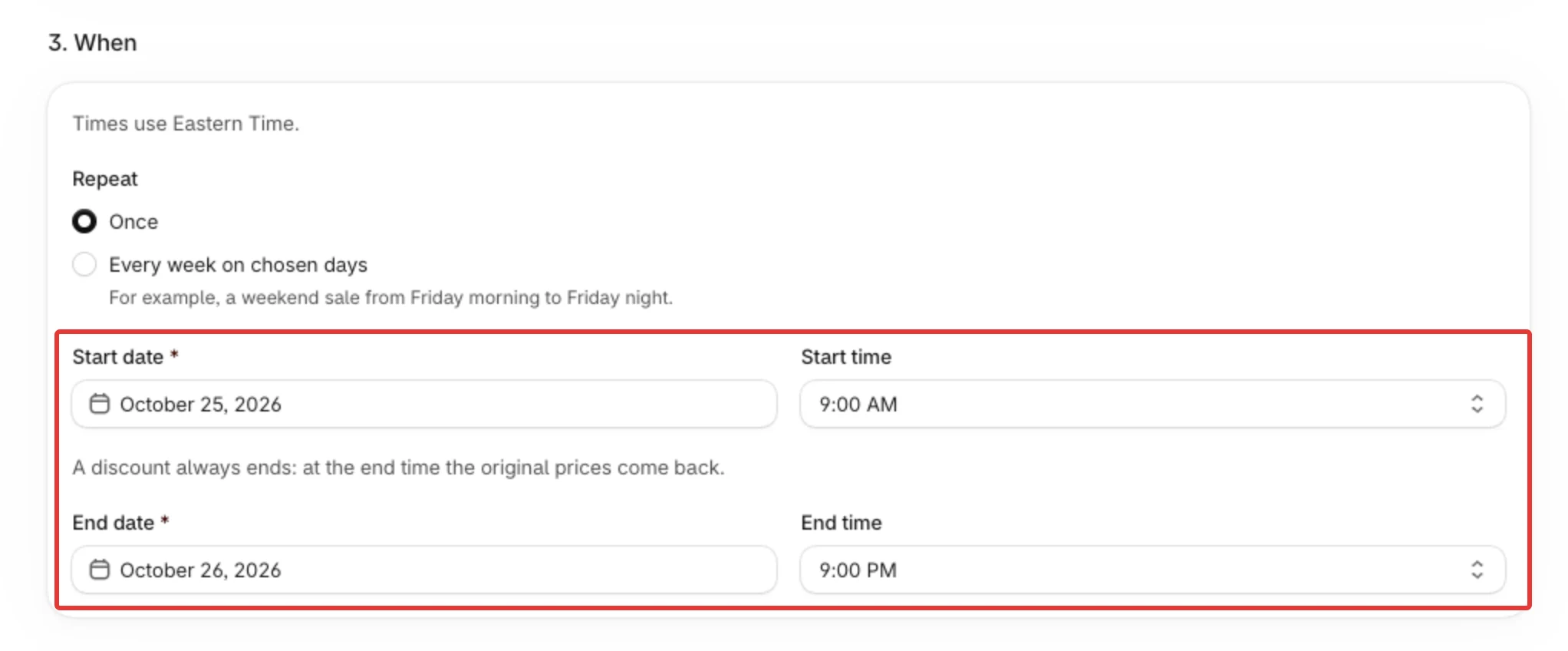
- In 3. When, keep Once and pick the Start date, Start time, End date and End time. Times are in your store's time zone, named at the top of this step. For a sale on the same days every week, choose Every week on chosen days: see Make a schedule repeat every week and Start, end and repeat: how schedule timing works.
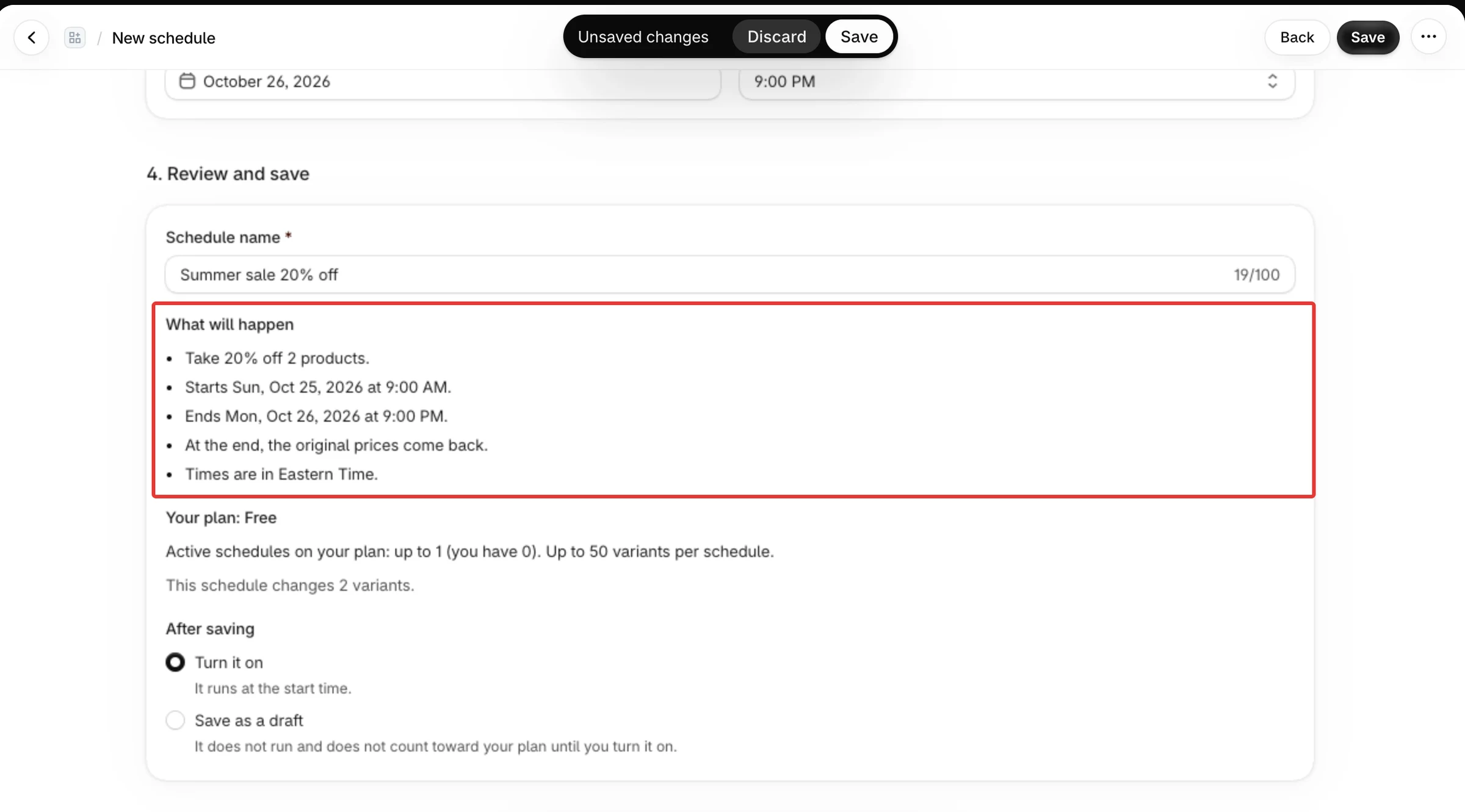
- In 4. Review and save, type a Schedule name and read What will happen. Check the discount, the dates and the time zone there.
- Under After saving, keep Turn it on and click Save. Saving does not change your store: the discount starts at the start time.
Result
- After Save, the message Schedule saved and on appears briefly and the page becomes Edit schedule.
- At the start time, each variant gets the lower price, and its compare-at price is set to the original price. Shoppers see the original price crossed out next to the sale price.
- New prices are rounded to your currency's decimals: none for currencies such as JPY, three for KWD, BHD, OMR, IQD, JOD, LYD and TND, two for the rest.
- At the end time, PopAutomate puts back the price and the compare-at price each variant had before. A variant that was already on sale gets that sale back. If that earlier sale came from another PopAutomate discount that was still on, it ends instead.
Rules
- The discount is taken off the regular price. If a variant already shows a sale (its compare-at price is above its price), the discount is taken off the compare-at price. A discount never raises a price: if the result would not be below the variant's current price, that variant is skipped and keeps its price. For example, a variant with price 45.00 and compare-at 60.00, with 20% off, would become 48.00, so it stays at 45.00. The builder says so under the discount fields: "A variant already on a deeper sale is skipped and keeps its price: a discount never raises a price."
- A skipped variant is listed in the run's details with the reason "The product already sells at or below the discounted price, so we left it as is."
- A variant is not changed when the discount would bring its price to 0 or less.
- Discount (1 to 99%) takes up to 2 decimals. An amount must be above 0, with no more decimals than your currency has. Use a dot for decimals: a comma, as in 12,50, is refused with "Use a dot as the decimal mark, like 12.5." Arabic digits are accepted too.
- If you change a variant's price or compare-at price in Shopify while the discount is on, PopAutomate leaves that variant as you set it at the end.
- Your plan limits how many schedules are on at the same time and how many variants one schedule changes. The variant limit is checked when you save the schedule turned on or turn it on, and again at each run: a run that finds more variants than your plan allows changes nothing. See Your schedule is over the plan limit.
If it did not work
- A banner Check the schedule appears when you save: fix each line listed under Fix these before saving:, then click Save again.
- A red banner Shopify is not responding says "PopAutomate could not check your products with Shopify, so nothing was saved. Try again in a moment.": Shopify did not answer in time, so the schedule was not saved. Wait a moment, then select Save again on the banner or at the top of the page.
- A banner says your plan limit is reached → Your schedule is over the plan limit
- The edit page says The last run stopped: over your plan limit → Your schedule is over the plan limit
- The discount started at the wrong time → A schedule ran at the wrong time
- The prices did not go back after the end time → Prices did not go back after the schedule ended
- The edit page says Some price changes could not be confirmed → Some price changes could not be confirmed
Next
Put everything back at the end of a schedule
Or go back to Create a schedule: what you can change and when.
Did this article answer your question?