Choose the products or collections a schedule changes
In 1. What to change, choose Products or Collections and click the select button. The change applies to every variant of each product: you cannot pick single variants.
Steps
Path: Home > Create schedule > 1. What to change
- In PopAutomate, open Home and click Create schedule.
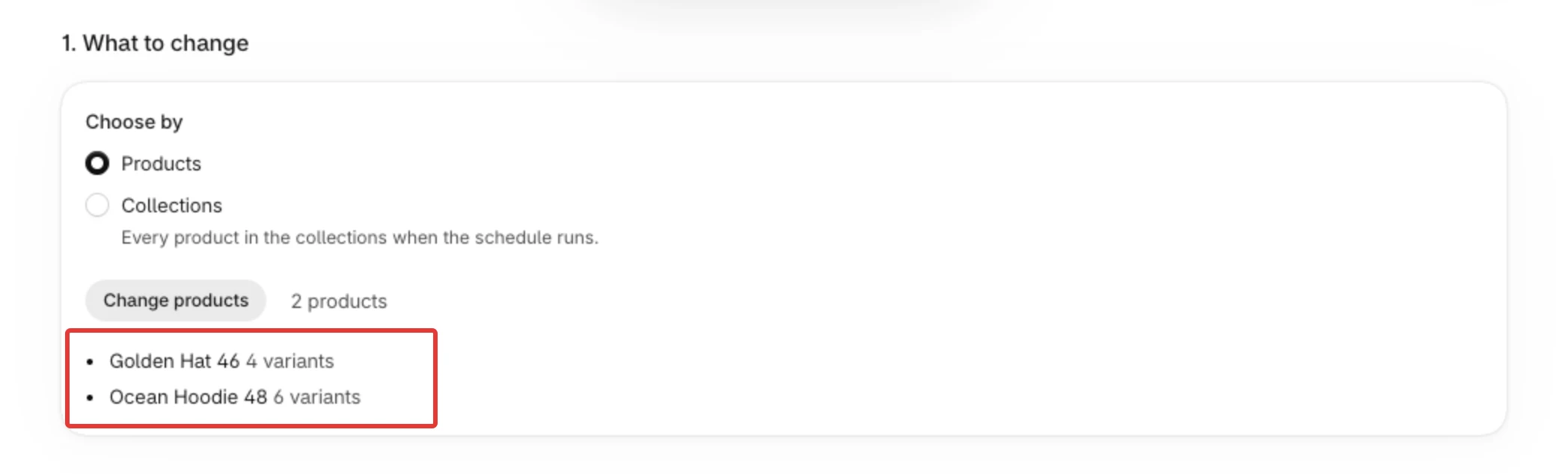
- Under Choose by, keep Products, or choose Collections to change every product in the collections you pick.
- Click Select products (or Select collections). Tick the items in the Shopify list and confirm.
- Check the list under the button: each product shows its number of variants. To add or remove items, click Change products (or Change collections).
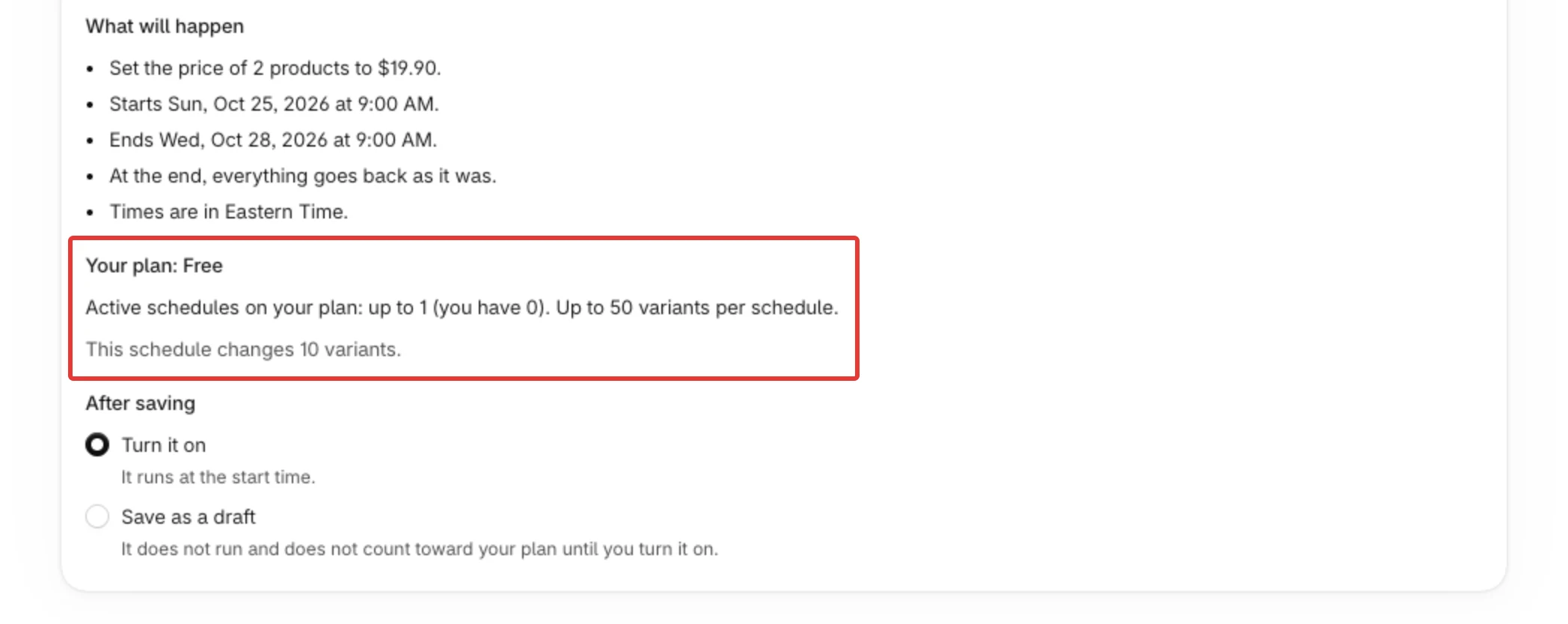
- Fill in the other steps. In 4. Review and save, the plan block shows how many variants this schedule changes and how many your plan allows.
Result
- Products: when the schedule runs, a price change or discount is planned for every variant of each picked product. A variant that already has the new price, or that a discount would not lower, is left as it is. Hiding or showing works on the whole product.
- Collections: PopAutomate reads the products of each collection when the schedule runs. Products you add to the collection later are changed too, and smart collections can be picked here.
Rules
- One schedule takes up to 250 products or up to 10 collections, on every plan.
- Switching between Products and Collections clears what you picked.
- Your plan limits the variants in one schedule: up to 50 on the Free plan, up to 5,000 on Pro. Over the limit, saving shows a banner that asks you to select fewer products or upgrade.
- The variants of a collection are counted when you save. Every time the schedule runs, PopAutomate counts the variants again, so a collection that has grown can put the schedule over your plan's limit. That run changes nothing, and the edit page says "The last run stopped: over your plan limit". A repeating schedule moves on to its next run.
- A draft is not checked against the plan. The check happens when you turn it on. See Save a draft, turn a schedule on, and edit it.
If it did not work
- The select button is greyed out and the page says "Open PopAutomate from your Shopify admin to select products.": open the app from Apps in your Shopify admin, not from a direct link.
- Saving says "Some of these are no longer in your store. Select them again.": a product or collection was deleted in Shopify. Click Change products (or Change collections) and pick again.
- A banner says your plan limit is reached → Your schedule is over the plan limit
- The edit page says The last run stopped: over your plan limit → Your schedule is over the plan limit
Next
Start, end and repeat: how schedule timing works
Or go back to Create a schedule: what you can change and when.
Did this article answer your question?