Add or remove products from a collection on a schedule
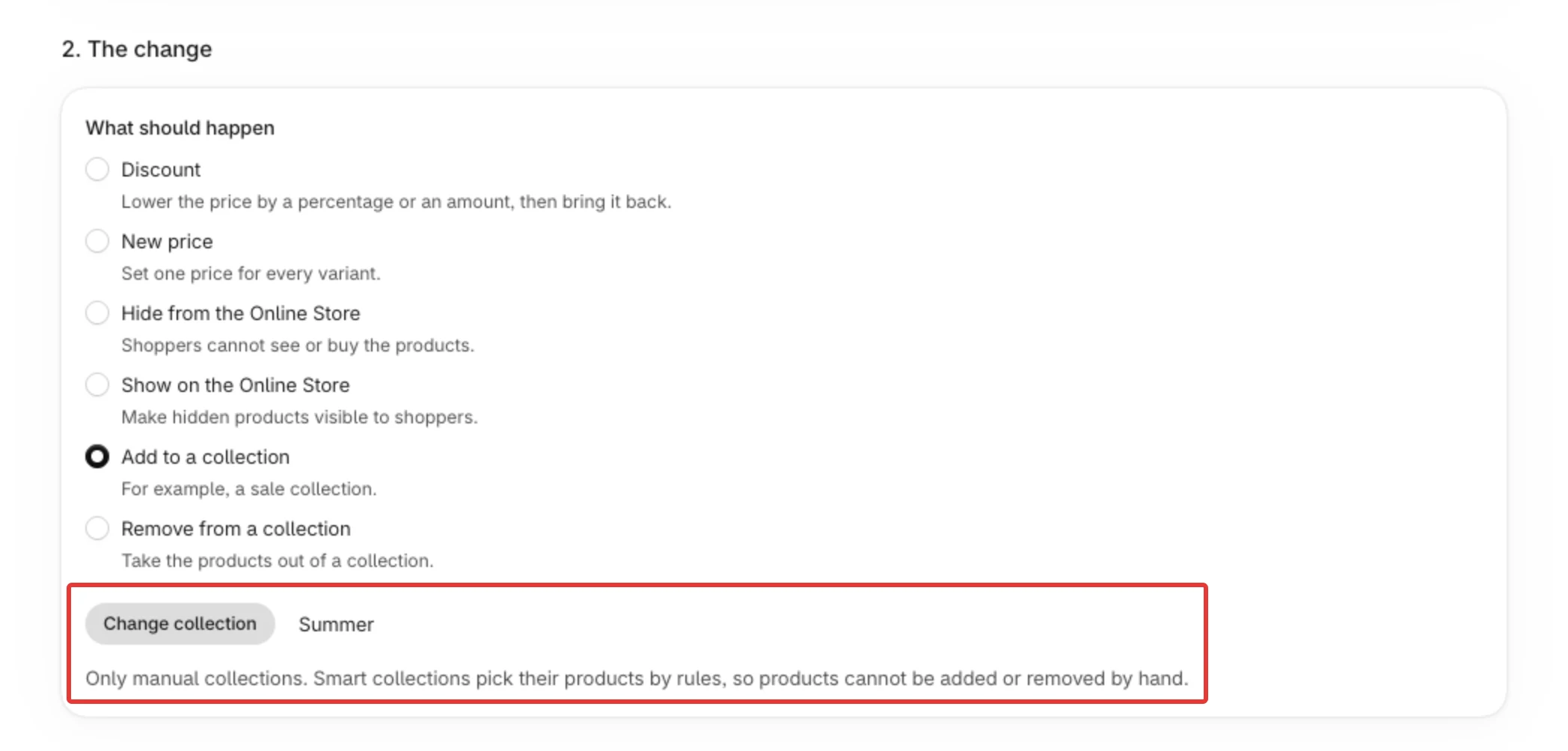
Choose Add to a collection or Remove from a collection in 2. The change, click Select a collection, and pick one manual collection. Smart collections cannot be used here.
Steps
Path: Home > Create schedule > 1. What to change > 2. The change > 3. When > 4. Review and save
- In PopAutomate, open Home and click Create schedule.
- In 1. What to change, click Select products and tick the products to add or remove. You can also choose Collections to take every product of other collections.
- In 2. The change, choose Add to a collection (for example, a sale collection) or Remove from a collection. Click Select a collection and pick one collection in the Shopify list.
- In 3. When, pick the start. Times are in your store's time zone, named at the top of this step. Keep Put everything back at the end ticked and pick the end: at the end time, the products added are taken out again, or the products removed are put back.
- In 4. Review and save, type a Schedule name, check What will happen, keep Turn it on, and click Save.
Result
- At the start time, the products are added to the collection (or removed from it).
- A product that is already in the collection is skipped when adding. A product that is not in it is skipped when removing.
- With Put everything back at the end ticked, PopAutomate undoes only its own change at the end time. Products you added to the collection yourself stay. On a weekly schedule, this happens at each day's end time.
Rules
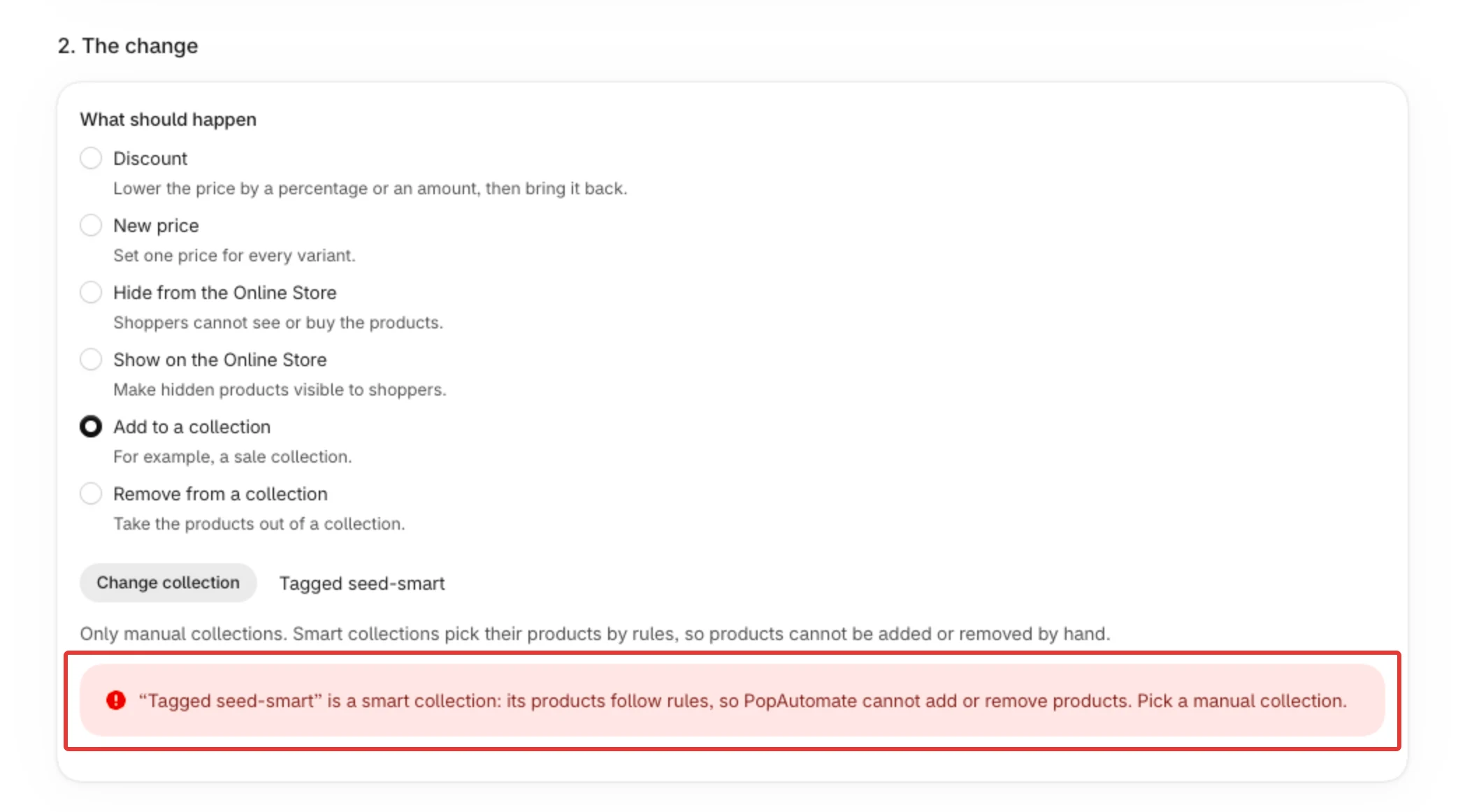
- Only manual collections can receive or lose products. A smart collection picks its products by rules, so it is refused with a message that names it.
- PopAutomate remembers the collection itself, not its name. If you rename the collection in Shopify, the schedule still uses it, and the edit page shows its current name.
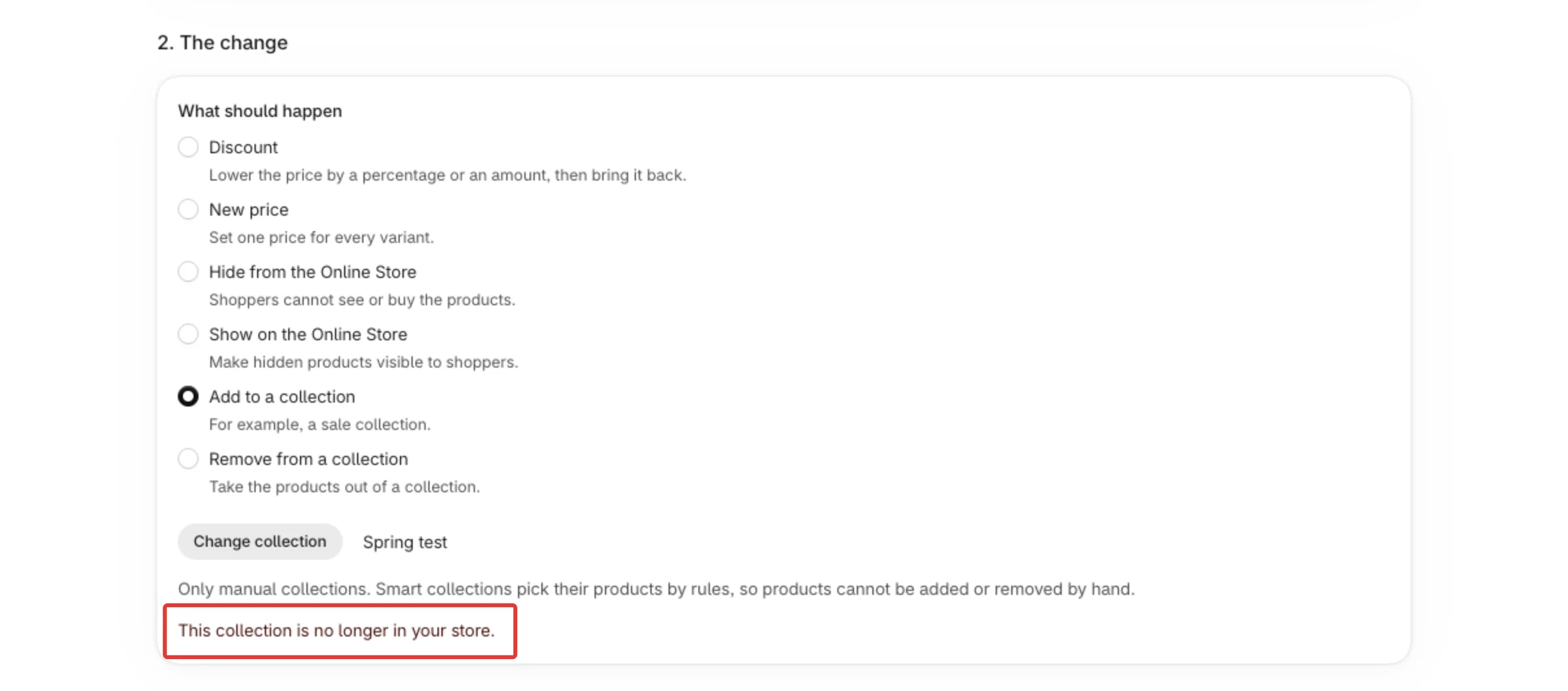
- If you delete the collection in Shopify, the schedule keeps pointing at it and PopAutomate never creates a new collection in its place. The edit page says "This collection is no longer in your store." and saving is refused until you pick another collection. At run time, adding fails for each product, and removing skips each product because it is not in a collection that no longer exists.
- To change the products of a smart collection, choose Collections in 1. What to change and pick it there: every product in it at run time is changed.
- Your plan limits how many schedules are on at the same time, checked when you save a schedule that is on or turn one on, and how many variants one schedule changes, checked at save and at each run. A collection counts its variants when you save and again when the schedule runs. See Your schedule is over the plan limit.
If it did not work
- The message says the collection is a smart collection → Smart collections cannot be used in a schedule
- The edit page says This collection is no longer in your store.: the collection was deleted in Shopify. Click Change collection, pick another manual collection, and save.
- The run's details say "The schedule's collection was deleted in Shopify, so we didn't create a new one. Pick another collection in the schedule." Pick another collection as above.
- The products were not taken out (or put back) at the end → Put everything back at the end of a schedule
Next
Smart collections cannot be used in a schedule
Or go back to Create a schedule: what you can change and when.
Did this article answer your question?