Hide or show products on your Online Store on a schedule
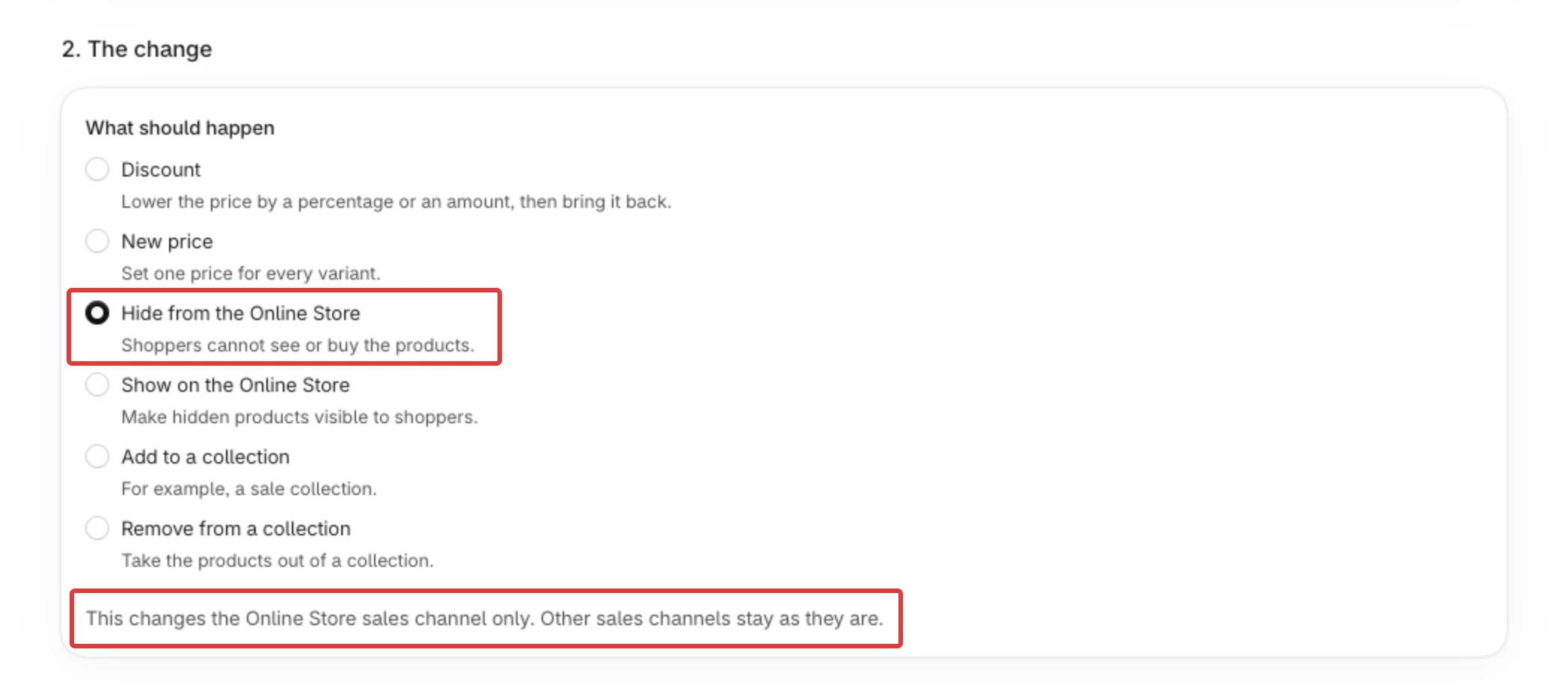
Choose Hide from the Online Store or Show on the Online Store in 2. The change, then pick when in 3. When. Only the Online Store sales channel changes. Your other sales channels stay as they are.
Steps
Path: Home > Create schedule > 1. What to change > 2. The change > 3. When > 4. Review and save
- In PopAutomate, open Home and click Create schedule.
- In 1. What to change, click Select products (or choose Collections and click Select collections), tick the items and confirm.
- In 2. The change, choose Hide from the Online Store to take the products off your Online Store, or Show on the Online Store to make hidden products visible.
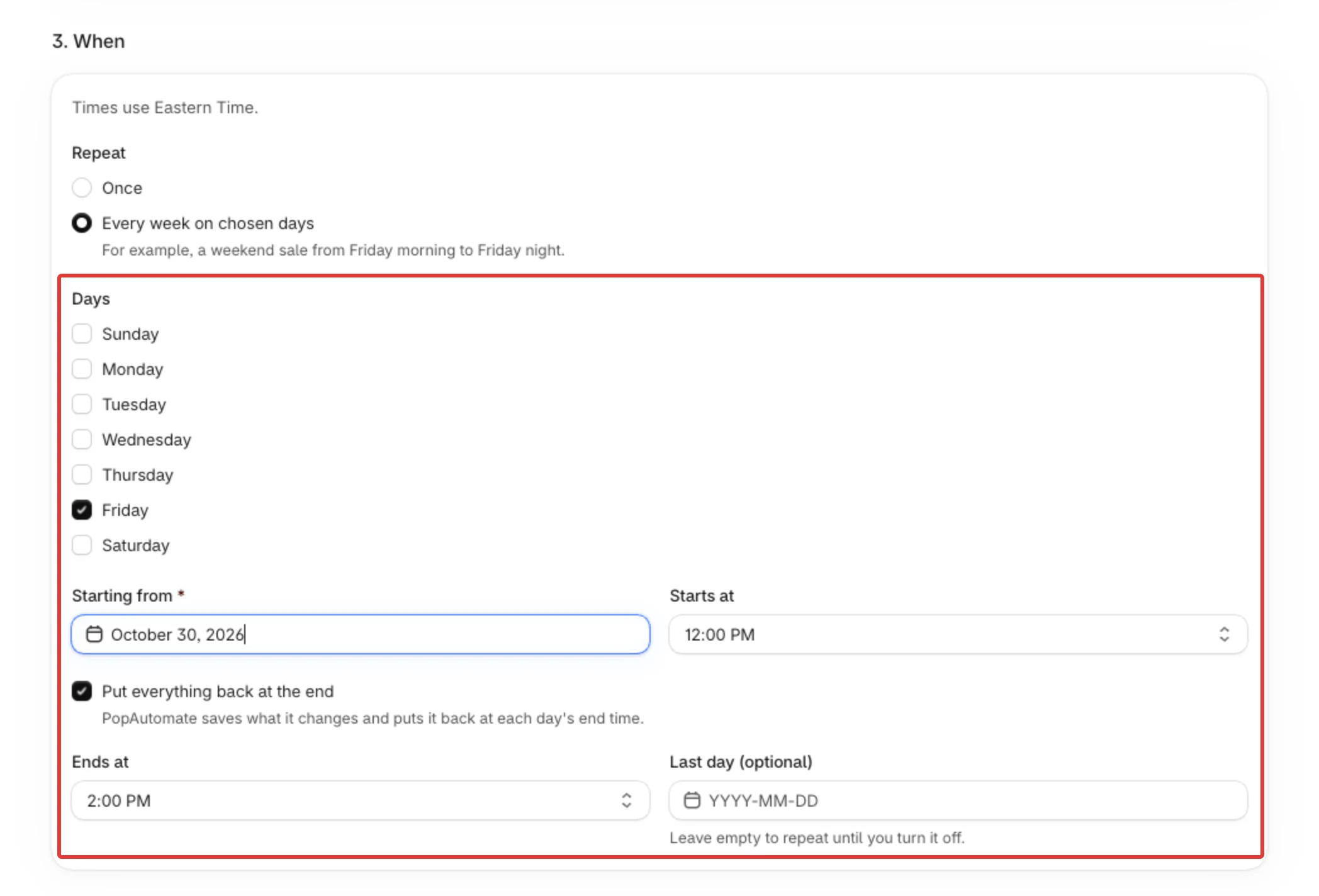
- In 3. When, keep Once and set Start date and Start time, or choose Every week on chosen days, tick the Days and set Starting from, Starts at and Ends at. Times are in your store's time zone, named at the top of this step. Keep Put everything back at the end ticked to switch the products back at the end time; a one-time schedule then also needs End date and End time. For the weekly steps see Make a schedule repeat every week.
- In 4. Review and save, type a Schedule name, check What will happen, keep Turn it on, and click Save.
Result
- At the start time, hidden products leave the Online Store: shoppers cannot see or buy them there. Shown products appear on the Online Store.
- A product that is already hidden (or already shown) is left as it is.
- The products stay in your Shopify admin and on your other sales channels.
- With Put everything back at the end ticked, each product goes back to how it was on the Online Store at the end time. On a weekly schedule, that happens at each day's end time.
Rules
- Your store needs the Online Store sales channel. Without it, the run stops and nothing is changed.
- If you show or hide one of these products by hand in Shopify after the start, PopAutomate keeps your choice at the end.
- On a weekly schedule, an end time is required while Put everything back at the end is ticked, and it must be later than the start time on the same day.
- With Put everything back at the end unticked, the products stay hidden (or shown) after the schedule ends.
- Your plan limits how many schedules can be on at the same time (checked when you turn one on) and how many variants one schedule changes (checked when you turn it on and at each run). A draft is not checked. See Your schedule is over the plan limit.
If it did not work
- The edit page says The last run stopped: no Online Store → Schedule blocked: add the Online Store sales channel
- The products changed at the wrong time → A schedule ran at the wrong time
- The products did not switch back at the end → Put everything back at the end of a schedule
Next
Schedule blocked: add the Online Store sales channel
Or go back to Create a schedule: what you can change and when.
Did this article answer your question?