Save a draft, turn a schedule on, and edit it
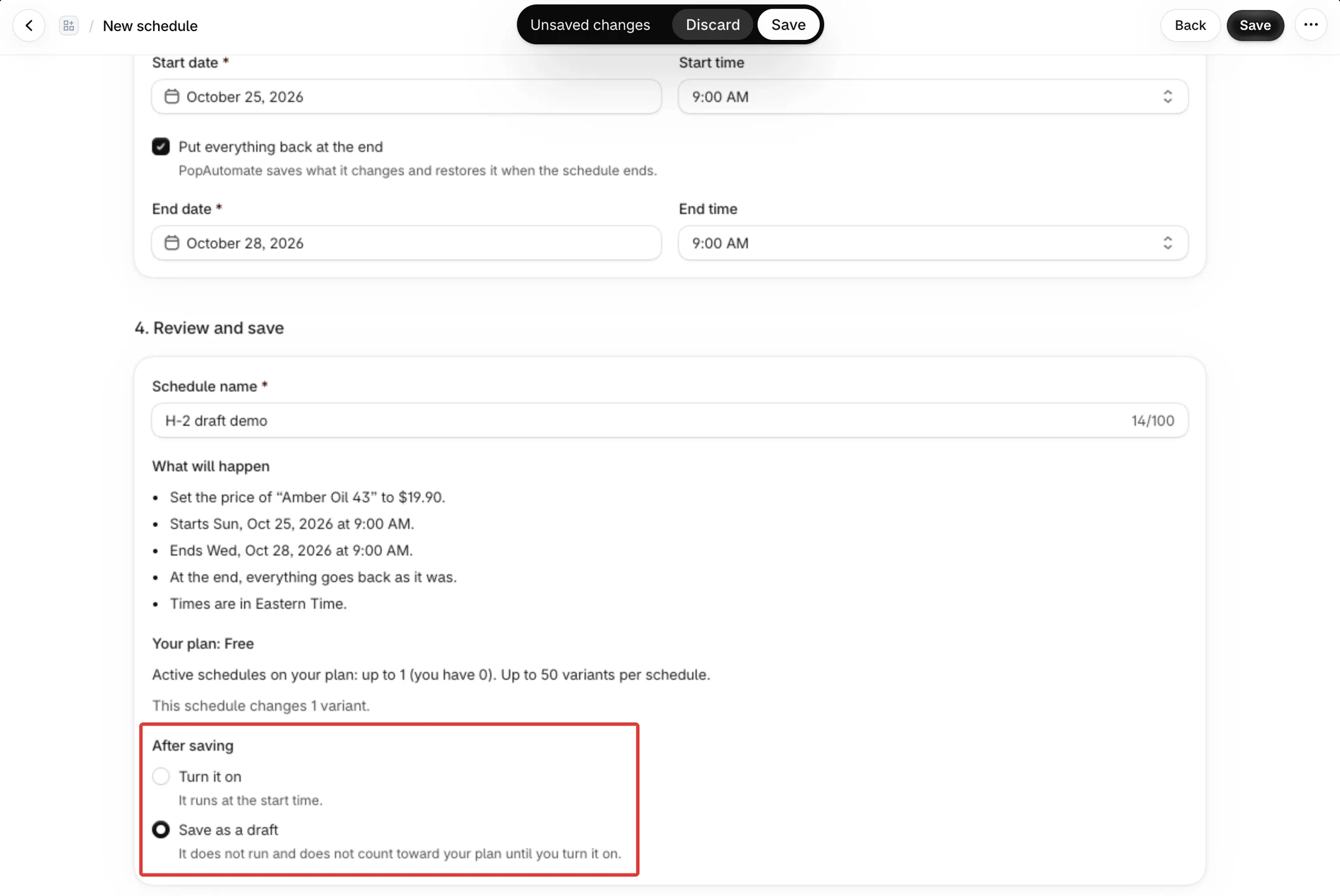
Under After saving in 4. Review and save, choose Save as a draft to keep a schedule without running it, or Turn it on to run it at its start time. You can switch between the two each time you save.
Steps
Path: Home > Create schedule > 4. Review and save > After saving
- Fill in the four steps. In 4. Review and save, under After saving, choose Save as a draft and click Save. A message, Draft saved, appears for a moment and the page becomes Edit schedule.
- To come back to the schedule later, open Schedules and click Edit on its row, or click its name. A schedule that is off, has never run and was never paused shows the status Draft.
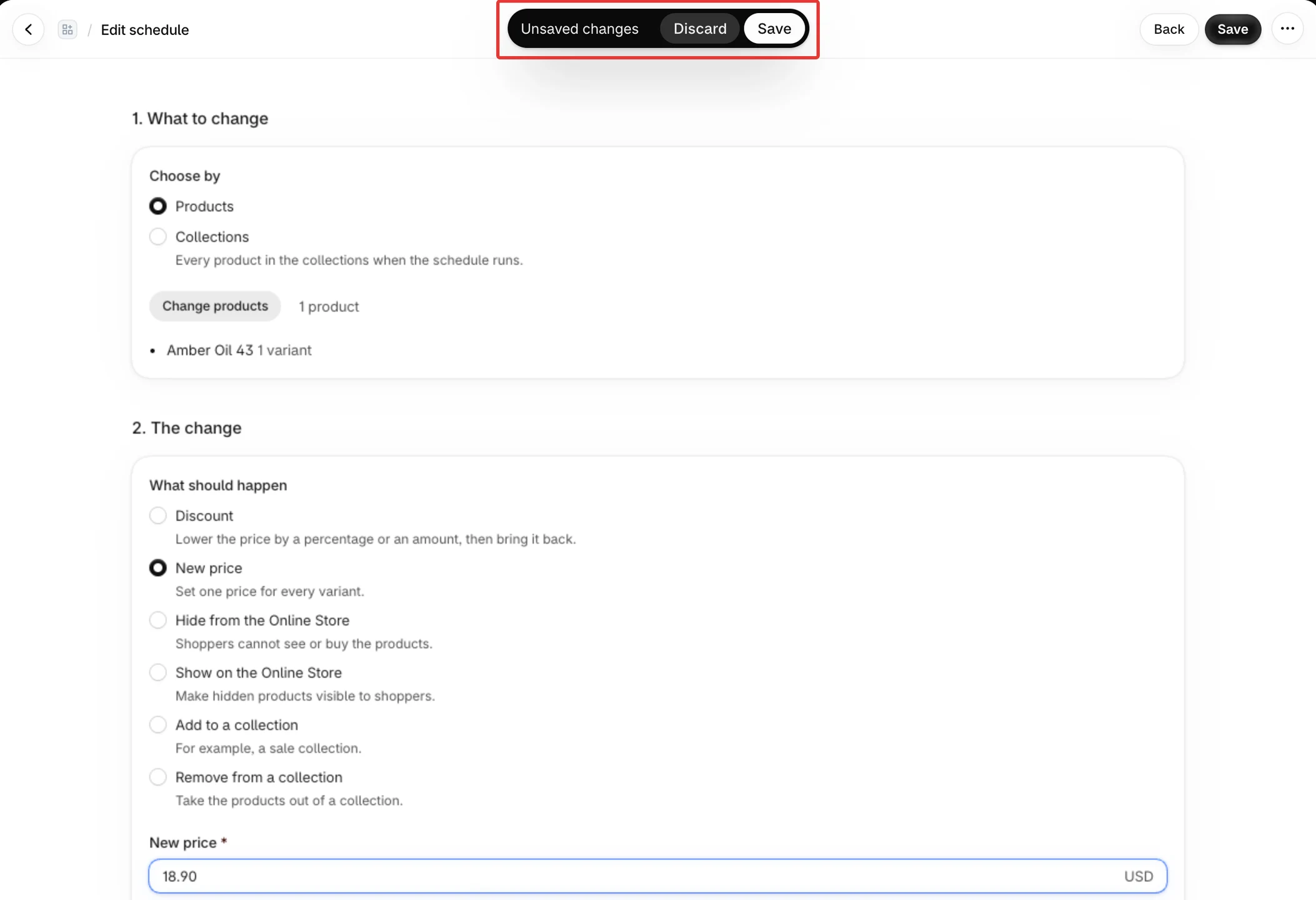
- Change what you need in any step. Shopify's save bar appears at the top with Save and Discard. Discard puts the page back to the last saved version.
- To turn the schedule on, choose Turn it on under After saving and click Save. The message Schedule saved and on appears. It runs at its start time. You can also click Activate on its row in Schedules.
- To turn the schedule off, choose Save as a draft and click Save, or click Pause on its row in Schedules.
Result
- A draft does not run and does not count toward your plan.
- Saving never changes your store by itself, whether the schedule is a draft or on. A schedule that is on changes your store at its start time.
- A schedule that is off and has run before, or that you stopped with Pause, shows the status Paused instead of Draft.
Rules
- A draft is checked like any schedule: it needs a name, products and valid times. Only the plan limits are skipped.
- When you turn a schedule on, your plan is checked: how many schedules are on, and how many variants this one changes.
- Each schedule needs its own name. A name already used by another schedule is refused with "Another schedule has this name."
- A one-time schedule that is off and has never run keeps its start. If that start has passed, turning it on is refused: saving it as on says "This schedule's time has passed. Edit the dates first.", and Activate on its row shows "This schedule's time has passed" with the button Edit dates. Pick a new start in 3. When, then turn it on. A start you type that is already in the past says "The start has passed. Pick a later time."
- An edit applies from the next run. A one-time schedule that has already run runs again only if you save it with a new start in the future. If you keep its old start, it stays done and does not run again. The run history stays.
- Turning a schedule off does not undo a change that is already in your store. The row in Schedules lists what is still changed under "Changes still in your store".
- A schedule you stopped with Pause opens with Keep it paused chosen ("It does not run until you turn it on."). Click Save to keep it paused: the message is Schedule saved. It is still paused. To start it again, choose Turn it on and click Save.
If it did not work
- A banner says your plan limit is reached when you turn it on → Your schedule is over the plan limit
- The page shows Schedule not found with the button Go to schedules: the schedule is not among your schedules, usually because it was deleted.
- A red banner Shopify is not responding says "PopAutomate could not check your products with Shopify, so nothing was saved. Try again in a moment.": Shopify did not answer in time, so the schedule was not saved. Wait a moment, then select Save again on the banner or at the top of the page.
- Your schedules are paused or you cannot find them → My schedules are paused or missing from Home
Next
What happens when a schedule runs
Or go back to Create a schedule: what you can change and when.
Did this article answer your question?