Plans and billing: Free, Pro and the trial
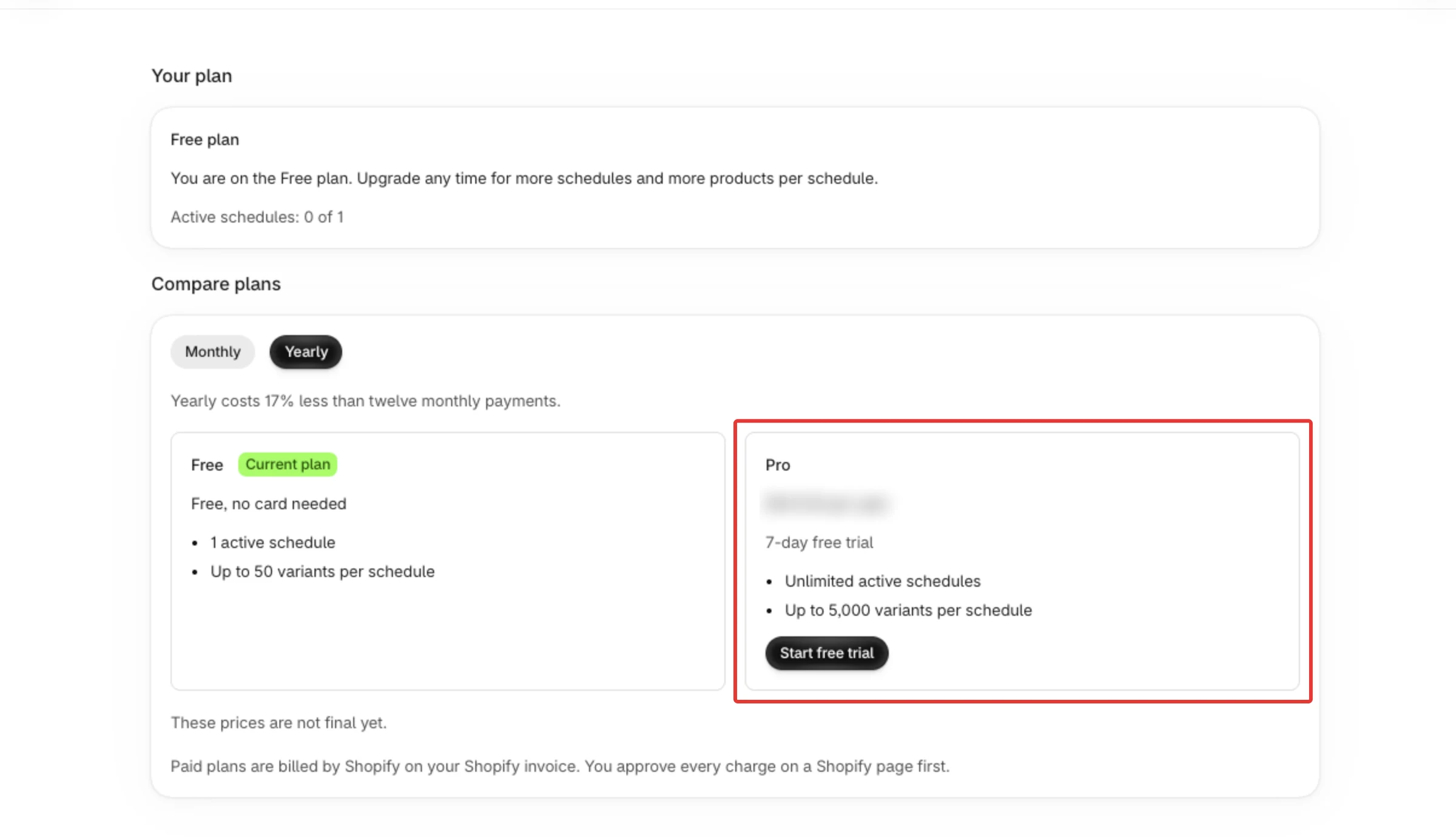
You choose your plan on the Plans page in PopAutomate. The Free plan allows 1 active schedule with up to 50 variants per schedule. Pro allows unlimited active schedules with up to 5,000 variants per schedule. Shopify bills Pro on your Shopify invoice, and only after you approve the charge on a Shopify page.
Steps
Path: Plans > Compare plans > Start free trial or Upgrade to Pro
- In your Shopify admin, open PopAutomate and select Plans in the app menu.
- Under Your plan, check the plan you are on and the Active schedules line, for example "Active schedules: 1 of 1". On Pro the line shows only how many you have, for example "Active schedules: 3".
- Under Compare plans, choose Monthly or Yearly. The page opens on Yearly, or on Monthly if you already pay monthly. When yearly costs less than twelve monthly payments, the page says so under the buttons.
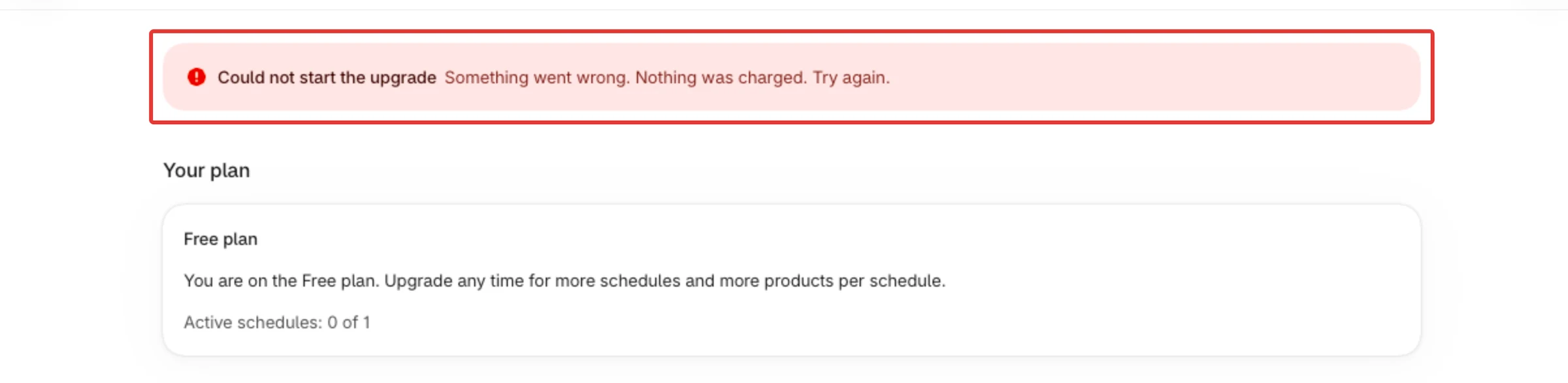
- On the Pro card, select Start free trial. If your store cannot get a trial, the button says Upgrade to Pro instead. Shopify then opens its own approval page in the full browser window. If Could not start the upgrade shows instead, see the section below.
- On Shopify's page, check the plan name and the price, then approve the charge. Shopify brings you back to the Plans page in PopAutomate, and PopAutomate reads your new plan from Shopify.
Result
- Your plan shows Pro plan, free trial with the days left in your trial, or Pro plan when you pay from the start.
- You can turn on as many schedules as you want, each with up to 5,000 variants.
- The charge is on your Shopify invoice. With a trial, Shopify starts billing when the trial ends, unless you cancel first.
- A Test charge badge next to your plan means Shopify created your plan as a test charge.
Rules
- A schedule counts toward your plan while it is turned on and has not ended. Drafts and paused schedules do not count.
- The limit counts variants, not products: every variant of every product the schedule changes. For collections, the variants are counted when you save.
- The limits are checked when you save a schedule that is turned on, or turn one on. Saving a draft is never blocked. When a limit stops you, the schedule page shows Your Free plan limit is reached (with your plan's name) and a See plans button.
- The variant limit is checked again each time a schedule runs. If a collection has grown past your plan's limit since you saved, the run stops before it changes anything. The run shows as Blocked in History, nothing needs restoring, and a repeating schedule moves on to its next start time. A one-time schedule does not run again on its own. To fix it, select fewer products or collections, or upgrade.
- On every plan, a schedule can target at most 250 products or 10 collections.
- The Free plan needs no card.
- The price is shown on the Plans page in the app. While prices are not final, the page says "These prices are not final yet."
The free trial
- Each store gets one free trial. There is no new trial after an earlier Pro plan or trial, and none when you switch between monthly and yearly.
- Reinstalling the app does not give a new trial while PopAutomate still keeps your store's data.
- The trial line on the Pro card and the Start free trial button show only when your store can still get a trial.
- On a trial, Your plan shows the days left, down to "1 day left in your free trial." on the last day.
Switch between monthly and yearly
On Pro, choose the other period under Compare plans and select Switch to this plan. Shopify asks you to approve the new charge. On the period you are already on, the button reads Current plan and does not work.
Cancel Pro and go back to Free
There is no downgrade button: to go back to Free, you cancel Pro.
- On Plans, under Your plan, select Cancel plan.
- In Cancel your Pro plan?, select Cancel plan. To stay on Pro, select Keep my plan.
The text in the window depends on where you are:
- On a free trial it says your plan stays Pro until the day your free trial ends, and that you will not be charged.
- On a paid plan it says your plan stays Pro until the end of the period you paid for, and that there are no further charges.
- Either way, it then says the Free plan applies after that date and schedules over the Free limit are paused. The window shows the date when PopAutomate has it.
What happens next:
- Your plan stays Pro until that date, and there are no more charges. Your plan shows Pro plan, cancelled, and the line "Pro until" followed by the date, then "You cancelled, so there are no more charges, and the Free plan applies after that date."
- After that date the Free plan applies. If more schedules are turned on than Free allows, PopAutomate keeps the ones running now and the ones that run soonest, and pauses the rest. Nothing is deleted.
- A schedule in the middle of a run is paused only after that run ends.
- Paused schedules do not turn back on by themselves, also not after you upgrade again. See Schedules paused by your plan.
- Changed your mind before the date? Select Subscribe again on the Pro card and approve the charge on Shopify's page.
Schedules paused by your plan
When the Free plan applies and schedules were over its limit, Plans shows Some schedules are paused: "1 schedule is paused because it is over your plan limit. Upgrade to turn it back on." With more than one it says how many. In Schedules, each of those rows says "Paused by your plan limit. Upgrade, then turn it back on with Activate." After you upgrade, select Activate on that row in Schedules. PopAutomate does not turn it back on for you. The banner goes away once you have turned the schedule back on or deleted it. For how to read and turn on a paused schedule, see My schedules are paused or missing from Home.
Subscription on hold
If Shopify puts your charge on hold, Plans shows Your subscription is on hold and the Free limits apply. Update your payment details in your Shopify admin to continue. Cancel plan is still on the page while the subscription is on hold.
When you uninstall
Shopify cancels the subscription when you uninstall PopAutomate. If you install it again, you start on Free and a paid plan needs a new approval. See Uninstall PopAutomate and what happens to your data.
If it did not work
Could not start the upgrade
The page says Could not start the upgrade with "Shopify did not open the payment page, so the upgrade is not available for this store yet. Nothing was charged." Sometimes the line under the heading reads "Something went wrong. Nothing was charged. Try again." instead; the next step is the same. The Pro card can also say "Paid plans are not open for this store yet." Paid plans cannot be bought for your store yet. You stay on Free and nothing is charged.
Showing your last known plan
An information banner says Showing your last known plan: "Shopify could not be reached just now, so this may be a little out of date." PopAutomate normally keeps your plan from its last check with Shopify and re-reads it from time to time when you open Plans. The banner shows when that re-read could not finish: Shopify did not answer, or another update to your plan was still being saved. The page then shows the plan PopAutomate has stored, and the limits PopAutomate applies to your schedules use that same stored plan. Nothing changes on your side. Open Plans again in a few minutes.
Other messages on Plans
- Your plan could not load: "PopAutomate could not read your plan. Nothing was changed. Try again in a moment." Select Try again.
- "You already have this plan.": you already pay for that plan and period. Nothing changed.
- "Shopify is not responding right now. Nothing was changed. Try again in a moment.": the upgrade or the cancel did not start. Try again later.
- Could not cancel the plan with "Shopify could not cancel the plan. Your plan is unchanged. Try again." Your plan stays as it was. Select Cancel plan again.
- "There is no paid plan to cancel.": your plan is already Free, or already cancelled.
- "Something went wrong. Nothing was charged. Try again.": try again in a moment.
- "This store is not connected. Open PopAutomate from your Shopify admin again.": follow Reconnect your store: approve permissions or reopen the app.
- A schedule will not turn on because of your plan: see Your schedule is over the plan limit.
Next
Settings: language, time zone and regions
Or go back to Your plan, settings and data.
Did this article answer your question?