The Home page: what each section shows
Home shows whether PopAutomate is connected to your store, your schedules at a glance, the next runs and the upcoming seasons for your country. From it you create a new schedule.
Path: Shopify admin > Apps > PopAutomate. The app name opens Home.
From top to bottom: the Create schedule button, at most one banner, Store connection, a notice when schedules are paused, then either the Get started guide or your schedule counts with Next runs, then Upcoming seasons and the help links.
Create schedule
Create schedule, at the top of the page, opens a new schedule. Nothing changes in your store until you save a schedule with Turn it on and its start time comes. How to build one: Schedule a discount that starts and ends on time.
Banners
A banner shows at the top only when something needs you, and only one banner shows on the whole page at a time: if Home could not load, that banner shows; otherwise the connection banner, if there is one. While a connection banner is on screen, the notice about paused schedules is hidden: see Paused schedules.
| Banner | What it means | Button |
|---|---|---|
| Approve new permissions | PopAutomate needs your approval for updated permissions before it can change your products | Reopen PopAutomate |
| Reconnect your store | PopAutomate lost access to your store, so scheduled changes cannot run | Reopen PopAutomate |
| Your store is not connected | PopAutomate is not connected to this store right now | Reopen PopAutomate |
| Connection not confirmed | PopAutomate could not reach Shopify to confirm the connection just now | Check again |
| Your home page could not load | Home could not load its data. Your schedules are not affected | Try again |
Reopen PopAutomate reloads your whole Shopify admin on the PopAutomate page, so Shopify can ask you to approve the permissions again. Check again and Try again load the Home data again. What to do for each banner: Reconnect your store: approve permissions or reopen the app.
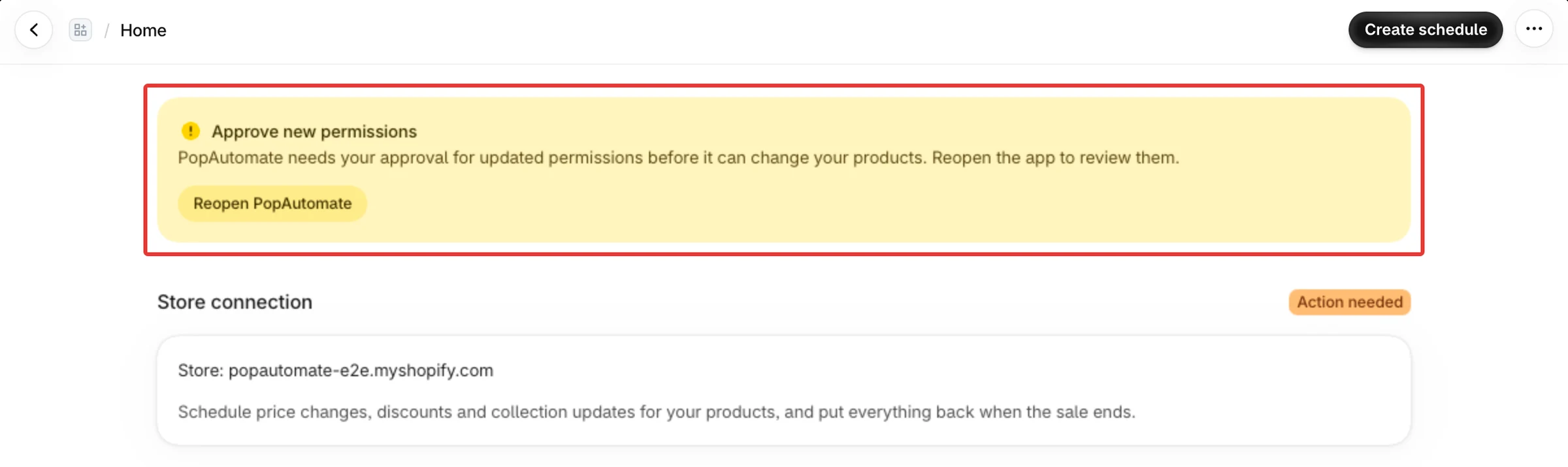
Store connection
Store connection shows a badge and your store's myshopify.com address:
- Connected: PopAutomate can change your products. The line reads "Connected to" and your address.
- Action needed: approve permissions or reconnect, as the banner above says.
- Not connected: PopAutomate is not connected to this store.
- Not confirmed: the connection could not be confirmed this time. It also shows while Your home page could not load is on screen.
- Checking: shows for a moment while Home loads.
In every state except Connected (and the moment of loading), the line reads "Store:" and your address, because the connection was not checked or is not good.
Under the badge, one line sums up what PopAutomate does: "Schedule price changes, discounts and collection updates for your products, and put everything back when the sale ends."
While at least one schedule is Active now, a third line reminds you: "Before you uninstall PopAutomate, end or put back your live schedules. After it is uninstalled, PopAutomate cannot change your products back." What happens to your store and your data when you remove the app: Uninstall PopAutomate and what happens to your data.
Paused schedules
When at least one schedule is paused, a notice below Store connection says how many, for example 2 schedules are paused. It stays until you turn them back on, and it is hidden while a connection banner is on screen. Its text depends on why they were paused:
- After an uninstall, or when you paused them: "Paused schedules do not run. Schedules paused when the app was uninstalled stay paused after you reinstall it. Turn them back on from Schedules."
- When your plan limit paused some: "Your plan allows fewer active schedules, so some were paused. Upgrade, then turn them back on from Schedules."
View paused schedules opens Schedules with the Paused filter. Click Activate on a schedule's row to turn it back on. More: My schedules are paused or missing from Home.
Get started
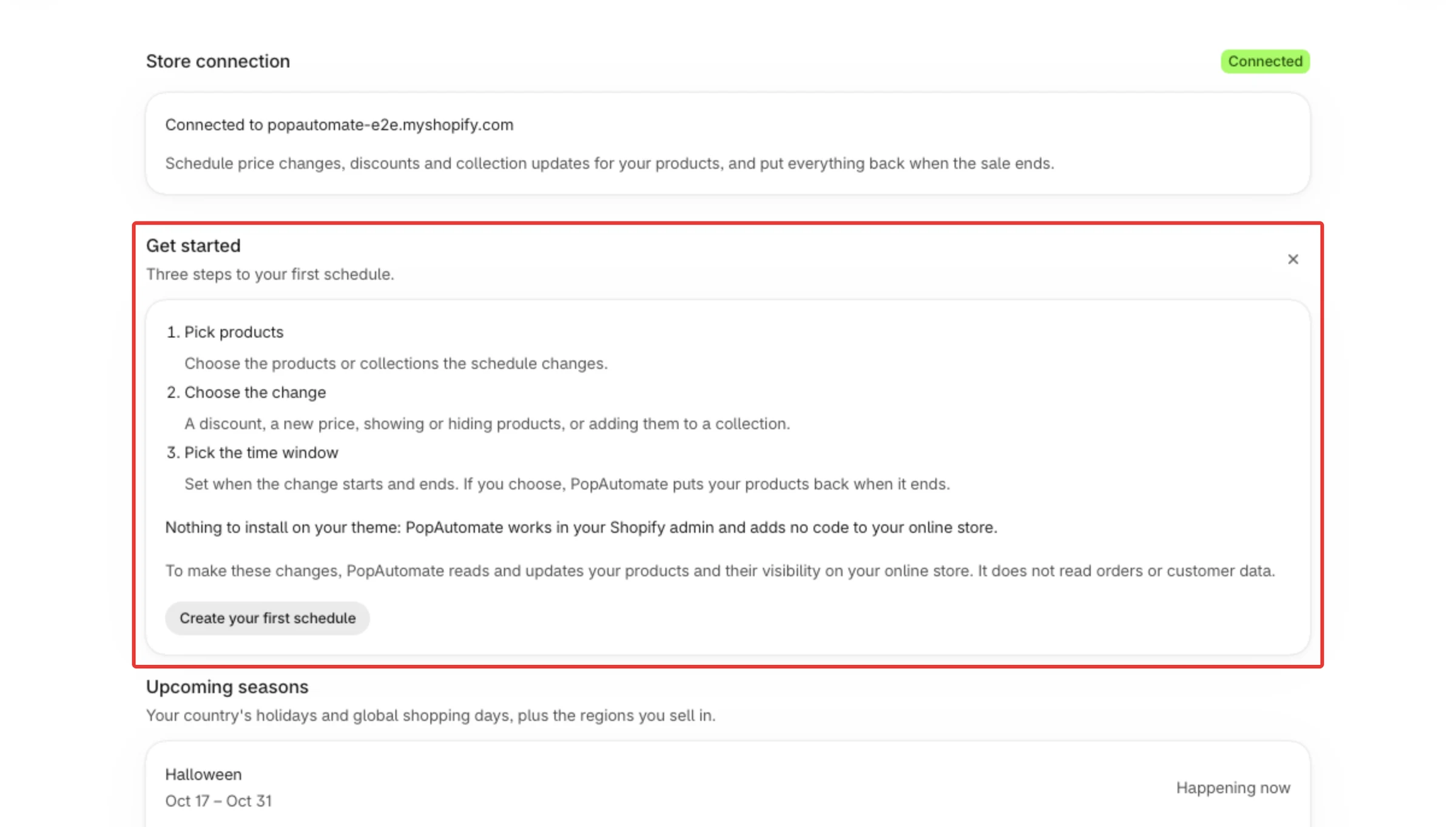
Until you have a schedule that is not a draft, Home shows the Get started guide: "Three steps to your first schedule." A draft alone keeps the guide on screen.
- The three steps are Pick products, Choose the change and Pick the time window. They explain the steps and have nothing to tick.
- Two lines below them say that nothing needs installing on your theme, and that PopAutomate "does not read orders or customer data".
- Create your first schedule opens a new schedule, the same as Create schedule.
- The X at the top of the guide, named "Dismiss setup guide", hides the guide for your store. A message says "Setup guide hidden. The same steps are in the help center." and the schedule counts and Next runs take its place. The guide does not come back after that. If hiding could not be saved, the message says "Could not hide the setup guide. Try again." and the guide stays.
Schedule counts
Once you have a schedule that is not a draft, or after you hide the guide, Home shows four counts:
| Count | Schedules it counts |
|---|---|
| Active now | Running now, or live: their change stays in your store until their end time. To end one early, use End now: End a live discount early with End now |
| Upcoming | Turned on and waiting for their next start time, including a weekly schedule between its days |
| Ended | Finished, including a one-time schedule after its run and a schedule you ended with End now |
| Need attention | Blocked (a store to reconnect, a run that stopped, or a repeating schedule paused after two runs in a row failed), or a one-time schedule whose run changed no product |
- Drafts are in no count. Paused schedules are in no count either: the paused notice counts them, and they are not in Next runs. After you remove and install PopAutomate again, your schedules are paused: Home then shows the paused notice, and the counts can be four zeros although your schedules are still there. See My schedules are paused or missing from Home.
- If Home could not load, the counts show a dash "–" instead of a number.
Next runs
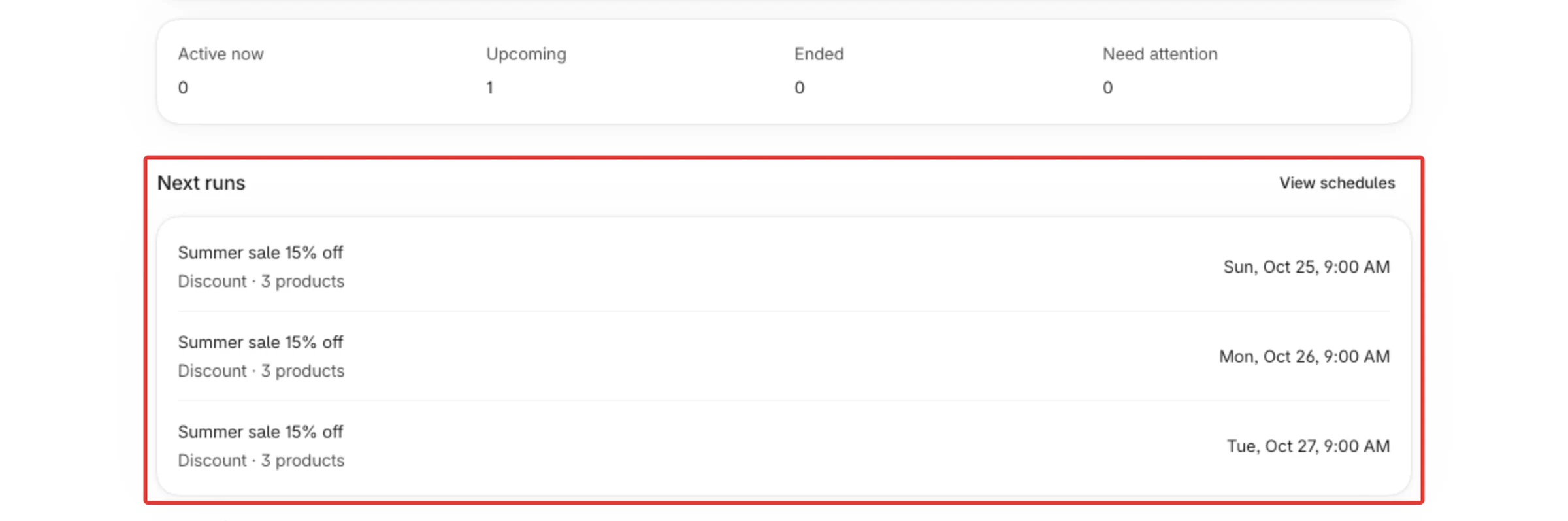
Next runs lists up to 3 starts in the next 60 days, soonest first. Each row shows the schedule name, the change and a count (for example "Discount · 2 products"), and the start day and time. For a schedule that targets collections, the count is the number of collections, although the row still says "products". A weekly schedule shows its next start days, one row per day.
- The times use the time zone of your Shopify store, the same zone the schedule builder shows in 3. When ("Times use" and the zone). PopAutomate reads it from Shopify when you first open the app and again at most once a day, so a change in your Shopify store settings is followed. If Shopify cannot be read at that moment, the last known zone stays. Settings shows the zone and country and does not let you change them.
- The rows are not links. View schedules opens the Schedules page, the list of all your schedules with their status, next run and last run: see Follow your schedules: Home, history and restore.
- With nothing coming up, the section says "No runs are coming up. Once you create a schedule, its next runs show here."
Upcoming seasons
Upcoming seasons lists up to 4 holidays and shopping seasons that are happening now or start within the next 12 months: "Your country's holidays and global shopping days, plus the regions you sell in."
- The calendar follows your Shopify store's country, which PopAutomate reads from Shopify and Settings shows. Saudi Arabia, the United Arab Emirates, Kuwait, Qatar, Bahrain, Oman, the United States, the United Kingdom, Canada and Australia each have their own country calendar. A store in another country sees the global shopping days and the regions below.
- The regions you sell in come from Regions I sell in in Settings. Until you save your own choice there, they are detected from the countries your Shopify store ships to.
- Stores in Saudi Arabia and the other Gulf countries see White Friday in place of Black Friday, and do not see Valentine's Day and Christmas unless Global shopping days (Valentine's Day, Christmas) is ticked in Settings.
- Each row shows the name and dates, and when it starts: "Happening now", "Starts tomorrow" or "Starts in" a number of days.
- Expected date marks a date that is an estimate.
- Seasons are for planning only: they are not links and they create nothing. Hijri dates are not shown on Home.
- If there is nothing in the next 12 months, the section says "No seasons in the next 12 months."
Help links
At the bottom, "Questions? Visit the PopAutomate help center" opens the help center in a new tab. When your PopAutomate has a support channel set up, the line continues "or contact support", which also opens in a new tab. The Help page in the app menu shows the same two links: a button Open the help center, and a Contact support section.
Did this article answer your question?