Summarize this article with
To schedule a sale on Shopify, create a discount with a start date and an end date. Shopify has no single sale scheduler for every store. Discounts take dates, and products can get a publish date. Prices typed into a product have no dates at all. Launchpad times whole sales events, but only on Shopify Plus.
This guide compares every route, gives the steps for each part, and shows how to end a sale and put prices back.
Key takeaways
-
A Shopify discount can start and end on dates you set, in the time zone selected in your admin.
-
Prices set with the price and compare-at price fields have no end date, so you restore them yourself.
-
Future publishing shows a product on a date, but Shopify describes no date to hide it again.
-
Launchpad schedules whole sales events, but Shopify says it is available only to Shopify Plus stores.
-
Plan the end first, because each route handles the end differently.
What does it mean to schedule a sale on Shopify?
A scheduled sale has three parts: a start, an end and a restore. The start puts the discount or the sale prices in place. The end stops the offer. The restore puts every price back where it was.
Shopify does all three for a discount, because a discount has its own active dates. It does none of them for sale prices typed into a product. Shopify's sale price page describes the price and compare-at price fields, and it describes no start or end date for them.
That difference shapes every choice in this guide. A sale that ends on its own is a discount. A crossed-out price on a product page is a compare-at price. Doing both on time takes more than one tool.
Customers plan around the time you promise. If the page says the sale ends on Sunday at 11:00 PM, prices must change at that minute in your store's time zone.
Before you schedule anything, settle four things:
- The original price of every product in the sale, and whether any variant already has a sale price.
- The exact start and end, written in the time zone of your Shopify admin.
- The products or collections in the sale.
- Who checks the storefront at the start and at the end.
Every route below needs the same four answers. A missing one is how a clean sale turns into a late restore.
Which ways can you schedule a sale on Shopify?
You have five routes. The table compares what each one does at the start, at the end and in front of customers.
| Route | Start | End | What customers see |
|---|---|---|---|
| Price and compare-at price fields | By hand | By hand | A crossed-out price on product pages, depending on your theme |
| Automatic discount with dates | A start date | Set end date | The saving at checkout. Product pages need a discount app or a custom build |
| Future publishing | A publish date | No end date described | The product appears on the Online Store |
| Launchpad (Shopify Plus only) | The event start | An end date, or by hand | Sale prices in your online store and other sales channels |
| Scheduling app | Depends on the app | Depends on the app | Depends on the app |
A second table shows what each Shopify route can do, row by row.
| Capability | Price fields | Discount | Future publishing | Launchpad |
|---|---|---|---|---|
| Starts on a date | No | Yes | Yes | Yes |
| Ends on a date | No | Yes | No end date described | Yes, with an end date |
| Crossed-out price on product pages | Yes, depending on the theme | Needs an app or a custom build | No | Yes, it sets compare-at prices for the event |
| Restores prices by itself | No | Not needed | Not a price change | Yes |
| Hides a product at a set time | No | No | No | No, released products stay published |
| Plan limit stated by Shopify | None on the page | None on the page | None on the page | Shopify Plus only |
No single column does everything on every plan. The discount column comes closest, but it does not show the crossed-out price on product pages. The price fields show that price, but they never end on their own.
Most stores combine two routes. A common pair is a discount for the saving that ends on time, and the compare-at price for the crossed-out price on product pages.
How do you set the sale price and compare-at price?
Enter the original price as the compare-at price and the new price as the price. The sale shows only when the compare-at price is higher than the price. Use this route when you want the crossed-out price on product pages.
- In your Shopify admin, go to Products and click the product.
- If the product has variants, click the variant in the Variants section.
- In the Price section, click the Compare-at chip to open Additional display prices.
- In Compare-at price, enter the original price.
- In the Price input (it has no label), enter the new price.
- Click Save.
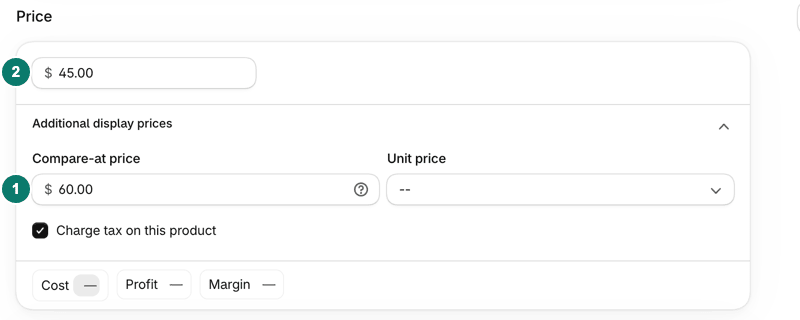
Enter the original price in Compare-at price and the new price in the Price input.
Each variant has its own pair of fields. For many products, tick them in Products, click Bulk edit, and add the compare-at column next to Base price. Shopify's bulk editing page suggests a CSV file for larger changes.
Two cautions apply. Shopify says fixed prices for a market override the price and compare-at price in your admin. And a variant that already had a compare-at price should go back to that earlier sale, not to the original price. Note both fields for every variant before you start.
The fields have no start time and no end time. The price changes the moment you save, and it stays until you change it again. That is why this route needs a reminder at both ends of the sale. Our compare-at price guide lists the display rules and the fixes when the strikethrough does not show.
How do you schedule a sale with a discount?
Create an automatic discount and give it a start date and an end date. This is the route that ends on its own. These steps follow Shopify's amount off products page.
- Go to Discounts and click Create discount.
- Click Amount off products.
- Under Method, choose Automatic discount.
- In Title, name the discount.
- In Discount value, enter a percentage or an amount.
- In Applies to, choose the products or collections.
- In the Schedule card, set the start date and time.
- Click Set end date, then set the end date and time.
- Click Save.

A discount takes a start date and time and, with Set end date, an end date and time.
Shopify says the start and end follow the time zone selected in your admin. Choosing the same calendar day for both dates makes a one-day discount.
The same page lets you limit who gets the offer. In Eligibility, choose All customers, Specific customers, Customer segments or Markets. Under Minimum requirements, add a minimum purchase amount or a minimum quantity of items if the offer needs one.
A Combinations section decides which other discount classes this one can combine with. If you sell in person, Shopify says automatic discounts apply only at retail locations with a POS Pro subscription. Settle these before the start date.
Discount savings always show crossed out at checkout. Showing them on product and collection pages needs a third-party discount app or a custom build, according to Shopify. Our guide to running a flash sale puts these steps into a day-by-day timeline.
Here is a weekend sale as an example. Build the discount on Wednesday with a Friday start date and a Sunday end date. On Thursday, reopen it and recheck the products, the value and the dates. On Friday after the start, add a sale product to a cart and check the saving at checkout. After the end on Sunday, check that checkout shows the full price again.
How do you hide and show products on a schedule?
Shopify can show a product on a date, but it describes no way to hide one at a set time. That matters for sales that start with a hidden product, such as a launch or a members-only range.
To hide a product now, remove the Online Store in its Publishing section, or change its status. Draft stops sales in every channel. Unlisted keeps it on sale only through its direct link. Archived hides it from your storefront and from the main product list in your admin. Shopify's product status page explains each status.
Unlisted suits a private preview. Shopify says an unlisted product is hidden from internet search, collection pages, search results and recommendations, but its page still opens from the direct link. Share that link with early customers, then set the status to Active when the sale opens.
To show a product on a date, use Future publishing:
- Go to Products and click the product.
- In the Product status section, confirm the status is Active.
- In Publishing, click the Adjust icon.
- In Manage publishing, turn off the Online Store toggle, then click the calendar icon next to it.
- In Schedule publishing, choose a date and time, then click Done.
- Click Done, then click Save.
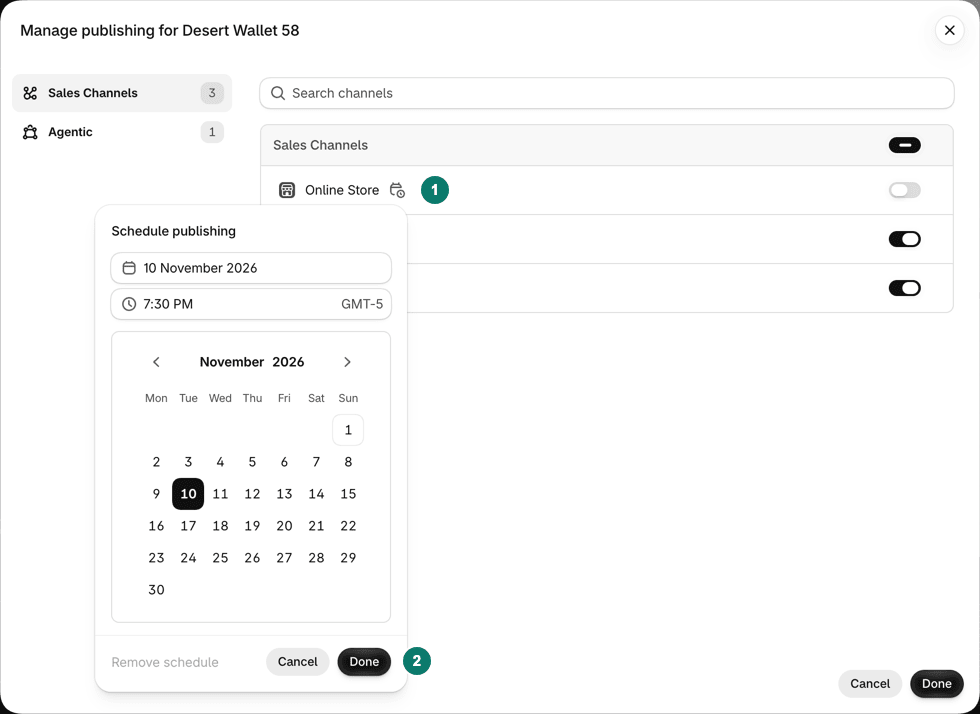
Future publishing sets the date a product appears on the Online Store.
A launch is the common case. Add the new product as Active, set its publish date for the Online Store, and set the discount to start at the same time. Check the time zone in Store defaults so both start together. To hide a product when the sale ends, remove the Online Store by hand at that time, or use a scheduling app that supports it.
A Draft product at the scheduled time will not publish, and variants cannot have their own dates. Shopify's Future publishing page describes no unpublish or end date. Our guide to hiding products on Shopify compares the four ways to hide a product.
Can you schedule a sale with Launchpad?
Yes, if your store is on Shopify Plus. Shopify's help center says the Launchpad app is available only to stores on the Shopify Plus plan. On any other plan you cannot use it.
An event has a title and a start date. You can add discounts for products and collections, publish products to sales channels, switch themes and lock the store before the start. An end date is optional. Without one, you must end the event by hand.
Shopify's help pages also list line item and shipping scripts as event options. Shopify's developer changelog says all Shopify Scripts stopped running on June 30, 2026, so do not plan an event around them.
To create an event, go to Apps, open Launchpad and click Create event. Enter a Title and a Start date, choose the options you need, and click Save. To end one early, open the event, click End event, and click OK.
Each event has a dashboard with total sales, orders placed and best-selling products. Every action has a status such as Active or Failed. Shopify says a failed action is not retried, so you have to do it by hand.
Launchpad has limits worth knowing:
- Events cannot overlap, and one must begin at least five minutes after the last one ends.
- A price you edit during an event returns to its pre-event price at the end.
- Products the event made available to sales channels stay available afterward.
The last point means Launchpad is not a timed hide. Our Shopify Launchpad guide lists the options, the limits and what changes before, during and after an event.
How do you choose the offer and keep the price honest?
Pick the offer first, then the dates. Shopify's discount types are amount off products or an order, buy X get Y, and free shipping. A fixed new price on a product is a fourth option, using the price fields.
Match the offer to the goal. Use a percentage or a fixed amount off to move a chosen product or collection. Use buy X get Y to sell a second unit. Use free shipping to remove a hurdle at checkout. Use a fixed new price when you want one clean number on the page.
The offer decides whether the sale pays. A discount only helps when the extra units earn more profit than the margin you give away. Our guide to promotional pricing strategies compares six offers with the margin math for each.
Keep a crossed-out price honest. In the United States, the Federal Trade Commission's pricing guides accept a former price when it is the actual, bona fide price offered to the public. It must have been offered on a regular basis for a reasonably substantial period.
The same guide calls an inflated price, set only to allow a large reduction later, fictitious. The rules differ by country, so check the current rules where you sell. Never enter a compare-at price you did not really charge.
How do you end a sale and put prices back?
A discount ends on its end date. Prices set by hand end only when you change them. Do the restore at the exact end time you promised, and check afterward.
Before the sale starts, copy each variant's current price and compare-at price into a spreadsheet. A variant that was already on sale should go back to that earlier sale, not to the original price. This step is easy to skip and hard to rebuild later. Set a calendar reminder for the end time with the product list attached.
For a sale made with price fields, work through this list at the end time:
- Go to Products, tick the sale products, and click Bulk edit.
- Add the compare-at column if it is not shown.
- Set Base price on every variant back to its original price.
- Clear the compare-at price on every variant. Do not type 0.00.
- Click Save.
- Open two or three products on your storefront and check the prices.

Use the bulk editor to put prices back on many products at once.
Open the storefront in a private window for the last check, so you see what a new customer sees. Shopify's help page says a compare-at price of $0.00 is not the same as an empty one. For a discount, check that it has ended and that checkout no longer shows the saving.
Reusing an old sale discount needs one extra step. Shopify's page on managing discounts says a reactivated discount that had expired has no set end date. Set a new end date before you save it.
Why did the sale not start or end on time?
Check these causes first:
- The admin time zone is not the zone you expected. Shopify applies discount dates in it.
- The discount has no end date, so it never expires.
- A variant kept its compare-at price because only the first variant was edited.
- The theme does not show the strikethrough, so customers never saw the sale.
- A fixed price for a market overrides the admin price in that market.
Fix the cause, then check again on the storefront. If only some variants show a sale, open each variant and compare its two fields. The compare-at price guide has the fixes for display problems. For a timed sale, the biggest risk is a missed reminder at the end.
How does a scheduling app run the start and the end?
A scheduling app changes products at a start time and puts them back at an end time, so nobody has to be at the keyboard. What it changes depends on the app, so read its help pages before you rely on it.
Ask four questions. Does it put prices back at the end time? Does it keep a change you make by hand during the sale? Does it say which plan limits apply? Is it listed on the Shopify App Store?
PopAutomate is a scheduling app made by Grovlix, the publisher of this blog. PopAutomate is not on the Shopify App Store yet. Its help center describes how it works, so you can compare it with the other routes. A schedule makes one of six changes: a discount, a new price, hiding products, showing products, adding them to a collection or removing them from one. Hide and show change the Online Store sales channel only.
Its help page on how it works gives an example: 20% off a collection for one weekend, from Friday 9:00 AM to Sunday 11:00 PM. At the start, each variant's price goes down and the old price becomes the compare-at price. At the end, the earlier price and compare-at price are put back.
A discount never raises a price. A variant that already sells at or below the discounted price is skipped and keeps its price. Hiding and showing need the Online Store sales channel. Without it, the run stops and nothing changes. While an offer is live, an End now button ends it early and puts back what it changed.
Three details from the same help center are worth comparing across any app:
- A weekly schedule repeats on chosen days. There is no daily or monthly repeat.
- If you change a price or a product's visibility yourself during the schedule, your change is kept.
- Removing the app during a schedule leaves your products changed.
The restore page describes what goes back at the end for each kind of change.
Which option should you choose?
Choose by the part of the sale you need to run on a clock. The table maps common situations to a route.
| Situation | Route |
|---|---|
| One sale, any plan, ends on its own, saving at checkout | Automatic discount with an end date |
| A crossed-out price on product pages | Price and compare-at price fields, restored at the end |
| A product that should appear on a date | Future publishing |
| A product that should disappear at a set time | By hand, or a scheduling app |
| Shopify Plus, with a theme change or a locked store before the event | Launchpad |
| Frequent or weekly sales on any plan | A scheduling app |
If you cannot decide, start with the route that ends on its own. A discount with an end date removes the riskiest step. Add the compare-at price only when you need the crossed-out price on product pages and have a reminder for the restore.
A small store with one sale a month can use a discount and a calendar reminder. A store that runs a sale every weekend spends more time on restores than on the sales themselves. That is when a scheduling app earns its place.
A simple setup works for most stores. Run the offer as an automatic discount with an end date. Use Future publishing for new arrivals that should appear when the sale opens. Add compare-at prices only when you need the crossed-out price. Keep one checklist for the start and one for the end, and tick both every time.
Whatever you pick, test the end before the start. Set a test discount to end in ten minutes, and check what checkout shows when it does.
Frequently asked questions
Can you schedule a sale on Shopify without an app?
Yes, for part of it. A discount takes a start date, and you can click Set end date to stop it. Future publishing shows a product on a date. Sale prices set with the price and compare-at price fields have no dates, so you change them by hand at the start and the end. Shopify has no built-in way to hide a product at a set time.
Does Shopify have a built-in sale scheduler?
Only for Shopify Plus stores. Launchpad, Shopify's app for timed sales events, is available only on the Shopify Plus plan. Every store can use discounts with start and end dates and Future publishing, but these cover parts of a sale. Neither changes the price fields on a date and then puts them back.
Which time zone does a scheduled Shopify discount use?
Shopify's discount page says the start and end times follow the time zone selected in your Shopify admin. Its Future publishing page tells you to check the date and time in the Store defaults section of the General settings, so products publish at the right time. Check that zone before you save a scheduled sale.
Does a compare-at price end by itself on Shopify?
No. Shopify describes a compare-at price as a product field with no end date. It stays until someone clears it. To end a sale made with the price and compare-at price fields, clear the compare-at price and set the price back for every variant. A discount is different, because it can have its own end date.
Do I need to restore prices after a Shopify discount ends?
Not for the discount itself. A discount with an end date stops applying on that date and does not edit the price fields. You do need to restore prices if you changed the price or compare-at price by hand for the sale. Check a few products and variants after the end time to be sure.
Pick the offer before you pick the dates
A schedule only decides when a sale runs. The offer decides whether it pays. Our guide to promotional pricing strategies compares six offers with the margin math for each, and works on any platform.