
Summarize this article with
The compare-at price is the original price that Shopify shows crossed out next to a product's current price. You set the new price in the Price field and the original price in the Compare-at price field. The sale shows only when the compare-at price is higher than the price.
This guide covers the field, the steps for one product and for many, and what to do when the sale does not show.
What is the compare-at price on Shopify?
The compare-at price is a product field that holds the price before the sale. Shopify's help center describes it as part of setting sale prices, next to the regular price field.
| Field | What it holds | What customers see |
|---|---|---|
| Price | The price the customer pays | Always shown |
| Compare-at price | The original price before the sale | Crossed out, only when it is higher than Price |
A product with a price of $45 and a compare-at price of $60 shows $45 with $60 crossed out. Your theme controls whether and where this appears, so check your theme's settings.
How do you set a compare-at price on Shopify?
Go to the product, open the Price section, enter the original price as the compare-at price, and enter the new price as the price. Then save.
Before you start, decide the two numbers. The compare-at price should be a price you genuinely offered the product at, which the section on crossed-out prices explains.
- In your Shopify admin, go to Products.
- Click the product you want to edit.
- If the product has variants, click the variant in the Variants section. Skip this step for a product without variants.
- In the Price section, click the Compare-at chip to open Additional display prices.
- In Compare-at price, enter the original price.
- In the Price input (it has no label), enter the new, lower price.
- Click Save.
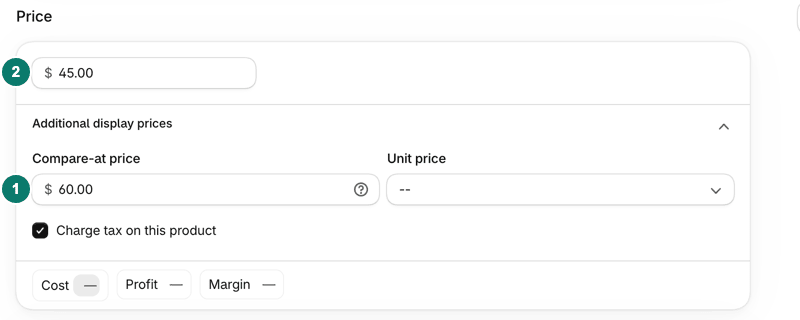
Open the Compare-at chip, enter the original price there, and enter the new price in the Price input.
Each variant has its own pair of fields. Shopify's help page warns that if variants have inconsistent compare-at prices, a collection page may not show the product as on sale. If the product is on sale, give every variant a compare-at price higher than its price. If it is not on sale, clear the field on every variant.
How do you set compare-at prices in bulk?
Use Shopify's bulk editor. Shopify's help center says you can select products in the Products list and click Bulk edit, then type into the table and click Save.
- In your Shopify admin, go to Products and tick the products.
- Click Bulk edit.
- If the compare-at price column is not shown, add it from the column options at the top of the table.
- Click a cell, type the value, and repeat for each row.
- Click Save. If Shopify reports invalid values, fix them and save again.

Add the Compare-at column next to Base price to edit many products in one table.
The price column is called Base price. At about 1366 px wide, the added column header shows as "Compare-at …".
Shopify's bulk editing page suggests a CSV file for larger changes.
How do you remove a compare-at price?
Clear the Compare-at price field completely and save. Do not type 0.00. Shopify's help page says a compare-at price of $0.00 is not the same as an empty compare-at price.
Do this for every variant that should stop showing a sale. Clearing only the first variant leaves the others crossed out.
Where does the compare-at price show?
The compare-at price shows on product and collection pages, depending on your theme, and not at checkout. Shopify's help page says that when you set both a sale price and a compare-at price, only the sale price is displayed at checkout.
A few related rules from the same page:
- Sale prices are separate from discounts. Discount savings show crossed out at checkout, but not on product or collection pages without a discount app or theme change.
- Automatic discounts and discount codes always show a crossed-out price at checkout.
- Fixed prices override the prices and compare-at prices in your admin.
- AI channels that use Shopify Catalog ignore your theme. If eligible, you choose whether the list price is the price or the compare-at price.
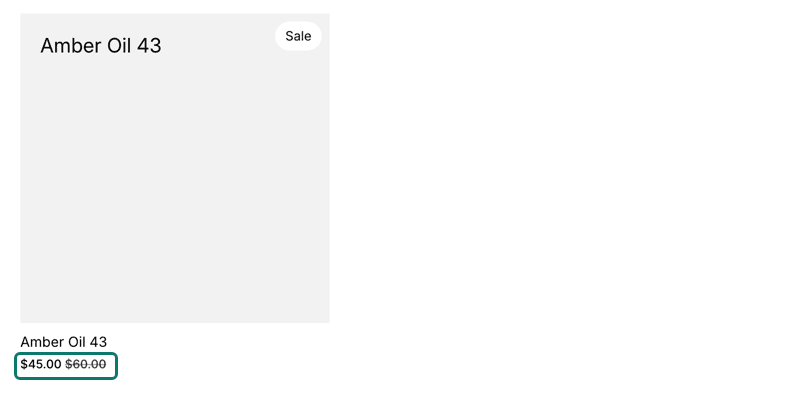
Customers see the compare-at price crossed out next to the sale price.
Why isn't my compare-at price showing?
The usual cause is that the compare-at price is not higher than the price. Check these in order:
- The compare-at price is equal to or lower than Price.
- The theme does not display it. Check the theme's settings or documentation.
- On a collection page only, some variants have a compare-at price and others are empty or 0.00.
- You entered 0.00 instead of leaving the field empty.
- A fixed Markets price overrides the admin value for that market.
How do you use a crossed-out price honestly?
A crossed-out price is safe to use only when the original price is genuine. In the United States, the Federal Trade Commission's Guides Against Deceptive Pricing (16 CFR 233.1) set the test. A former price must be the actual, bona fide price at which the article was offered to the public on a regular basis. It must also have been offered for a reasonably substantial period.
An inflated price set only to allow a large reduction is a fictitious price. The rules differ by country, so check the current rules where you sell. Never enter a compare-at price you did not genuinely offer the product at. To decide which kind of promotion to run, read how to choose a promotional pricing strategy.
How do you end a sale and restore the original price?
Shopify has no end date for a sale price, so you must restore the price yourself at the end time. Clear the compare-at price and set the price back to the original, for every variant.
To set the start and end times in advance, see how to put the sale on a schedule.
If you need a sale that ends on its own, an automatic discount with an end date does that. The trade-off: Shopify shows its crossed-out saving at checkout, not on product or collection pages, unless you add a discount app.
By hand, that means a calendar reminder and a bulk edit. PopAutomate, Grovlix's sale-scheduling app, is built for Shopify. PopAutomate is not on the Shopify App Store yet. Its help center explains how it sets the compare-at price when a scheduled discount starts. At the end, it puts back the price and compare-at price each variant had before. If a variant was already on sale, its earlier sale comes back.
If prices do not return, see prices that did not go back.
Frequently asked questions
Does the compare-at price show at checkout?
No. Shopify's help page says that when you set a sale price and a compare-at price, only the sale price is displayed at checkout. Customers see the crossed-out price on product and collection pages, depending on your theme. Discounts behave differently: automatic discounts and discount codes always show a crossed-out price at checkout.
Can the compare-at price be lower than the price?
You can enter one, but Shopify will not show a sale. Its help page says the compare-at price must be higher than the price for the sale price to display. Keep the compare-at price above the price on every variant. If it is equal or lower, the strikethrough does not appear, and customers see only the current price with no sale shown.
Is a compare-at price the same as a discount code?
No. A compare-at price is stored on the product and shows the sale on product and collection pages. A discount code is a separate rule applied in the cart and at checkout. Shopify's help page says discount savings always show crossed out at checkout, while a sale price shows at checkout without the compare-at price.
Can I bulk edit compare-at prices in Shopify?
Yes. Select products in the Products list, click Bulk edit, and add the compare-at price as a column. Shopify's bulk editor lets you type into the table and then save. For very large catalogs, Shopify's help pages point to a CSV file instead. Clear a field rather than entering 0.00 when a variant should show no compare-at price.
Put compare-at prices back when the sale ends
Shopify has no end date for a sale set with the price and compare-at price fields, so the original price has to be restored by hand or by a tool. PopAutomate, made by Grovlix (the publisher of this blog), schedules a sale on Shopify and puts the earlier prices back at the end. PopAutomate is not on the Shopify App Store yet. Its help center shows how a scheduled discount sets and restores compare-at prices.