Summarize this article with
Shopify Launchpad schedules a sale with a start and an end time, but only for stores on the Shopify Plus plan. If your store is on another plan, you cannot use it and need another route.
Launchpad is free on the Shopify App Store. Below: what it changes at the start and end of an event, its limits, and the options every store has instead.
How do Launchpad and the alternatives compare?
The table compares the main ways to run a timed sale on Shopify. The sections below explain each row.
| Option | Starts on time | Ends on time | What happens to prices |
|---|---|---|---|
| Launchpad (Shopify Plus only) | Yes, at the event start | Yes, with an end date; otherwise you end it by hand | Discounts end and compare-at prices go back |
| Native automatic discount | Yes, from a start date | Yes, with Set end date | The discount ends; price fields are untouched |
| Future publishing | Yes, a publish date | No end date is documented | Not a price change |
| Price and compare-at fields by hand | When you edit | When you edit | You restore them yourself |
| Scheduling app | Depends on the app | Depends on the app | Depends on the app |
Plan requirements differ. Shopify's help center says Launchpad is available only to stores on the Shopify Plus plan.
What does Launchpad do?
Launchpad is an app inside the Shopify admin for timing a sales event. Its App Store listing says you can schedule product visibility, Shopify Scripts, themes and discounts with a set start and end time.
You create an event with a title and a start date. Everything else is optional. According to Shopify's page on creating events, the options include:
- Publishing products across your sales channels.
- Applying discounts to products and collections.
- Switching to an event theme and back.
- Line item or shipping scripts.
- A password page before the event.
An end date is optional. Without one, you must end the event by hand.
Watch out: the script options no longer do anything. Shopify's help pages still list them, but Shopify's developer changelog says all Shopify Scripts stopped running on June 30, 2026. Shopify Functions and apps replace them.
How do you create and end a Launchpad event?
You need a Shopify Plus store. These steps follow Shopify's page on creating events.
- In your Shopify admin, go to Apps and open Launchpad.
- Click Create event.
- In Title, enter a name. In Start date, enter a date and time.
- Select the options you need, such as Apply discounts to your products and collections.
- To end on a schedule, select Set end date and choose it.
- Click Save.
If you leave Start date blank, Shopify says the event saves as a draft. The Publish products across your sales channels option releases new products or adds inventory. The discount option has buttons for Add products, Add collections and Bulk discounts.
To end an event early, Shopify's ending page says to go to Apps > Launchpad, click the event, click End event, and click OK.
What changes before, during and after a Launchpad event?
Shopify's page on event changes describes three stages. The table summarizes them.
| Stage | What changes |
|---|---|
| Before the start | Nothing changes in your store, unless you lock it with a password page |
| At the start | Selected products are published to the channels you chose, and their product status does not change. Inventory for selected products increases. Event sale prices appear in your online store and other sales channels. Compare-at prices change to the regular, pre-sale prices. The event theme goes live |
| At the end | Event discounts disappear from all sales channels, and compare-at prices return to their pre-sale values. Published products stay published. Inventory is not adjusted. The after-event theme replaces the event theme |
Read the end row carefully. Launchpad ends the discounts, but it does not unpublish products it released. If you used it to release products, hiding them again is a separate step.
How does Launchpad apply discounts?
Launchpad's discount behavior has details that are easy to miss. These come from Shopify's guidelines page:
- Percentage discounts apply to the price Shopify calls the regular price, not the compare-at price.
- A product added to a collection mid-event does not receive the discount.
- A product removed from a collection mid-event keeps the discount until the event ends.
- A discounted gift card loses value with its price: a $50 gift card at 50% off becomes a $25 gift card.
Set up your collections before the event starts. Shopify's page suggests shorter events if your product details change often, because details can be updated between events.
How do you monitor a Launchpad event?
Each event has a dashboard. Shopify's monitoring page gives the steps.
- In your Shopify admin, go to Apps > Launchpad.
- Click the event.
- In the Status section, click View event dashboard.
The Status section lists each action Launchpad takes at the start and end. Each action shows as Processing, Active, Ended or Failed. Shopify says a failed action is not retried, so you have to perform it by hand. Check the status at the start and again at the end. A failed action at the end can leave a discount or a theme in place longer than you planned.
The dashboard starts tracking purchases across supported sales channels when the event begins. It shows total sales, orders placed, average order value, best-selling products and inventory levels. It stops reporting when the event ends, or after four weeks for longer events.
What are Launchpad's limits?
Shopify lists several limits on its guidelines and limitations page:
- You cannot run or schedule overlapping events.
- An event must begin at least five minutes after the previous one has ended.
- No collection added to an event should contain more than 1,000 products.
- If you edit a product's price during an event, the product returns to its pre-event price when the event ends.
- You cannot use Launchpad to turn off discount codes during an event.
Two details matter for planning. Products that an event made available to sales channels stay available after it ends. Launchpad's option list does not include hiding products when an event ends.
Two more cautions come from the same page. Launchpad discounts stack with B2B catalog discounts on the same products. If you turn on a password page through Launchpad and your store already has one, Shopify says the existing page is removed at the start. It is not restored afterward.
What can you use instead of Launchpad?
Shopify gives every store some building blocks. None of them is a full replacement alone, so match each to the part of the sale it covers.
| Part of the sale | Launchpad (Plus) | Without Plus |
|---|---|---|
| Start a discount on a date | Yes, at the event start | Native discount start date |
| End a discount on a date | Yes, with an end date | Native discount, Set end date |
| Put compare-at prices back | Yes, at the event end | By hand or with an app |
| Show a product on a date | Yes, the publish option | Future publishing |
| Hide a product at a set time | Not in the option list | By hand or with an app |
Rows four and five show the gap. Shopify documents a way to show a product on a date, but not a way to hide it again at a set time on any plan.
A native discount with dates
An automatic discount takes a start date in its Schedule card, and you can click Set end date to stop it. Shopify says the start and end follow the time zone selected in your admin. The saving shows at checkout. You can limit it to chosen customers, set a minimum purchase, and choose which other discounts it combines with. Our guide to running a flash sale walks through the steps.

A native discount has a start date and an optional end date on any store.
Future publishing
Future publishing sets the date a product appears on the Online Store. The product must be Active, and variants cannot have their own dates. Shopify's page describes no unpublish or end date. You can type any valid hour and minute, and the time uses your store's time zone. See our guide to hiding products on Shopify for the options.
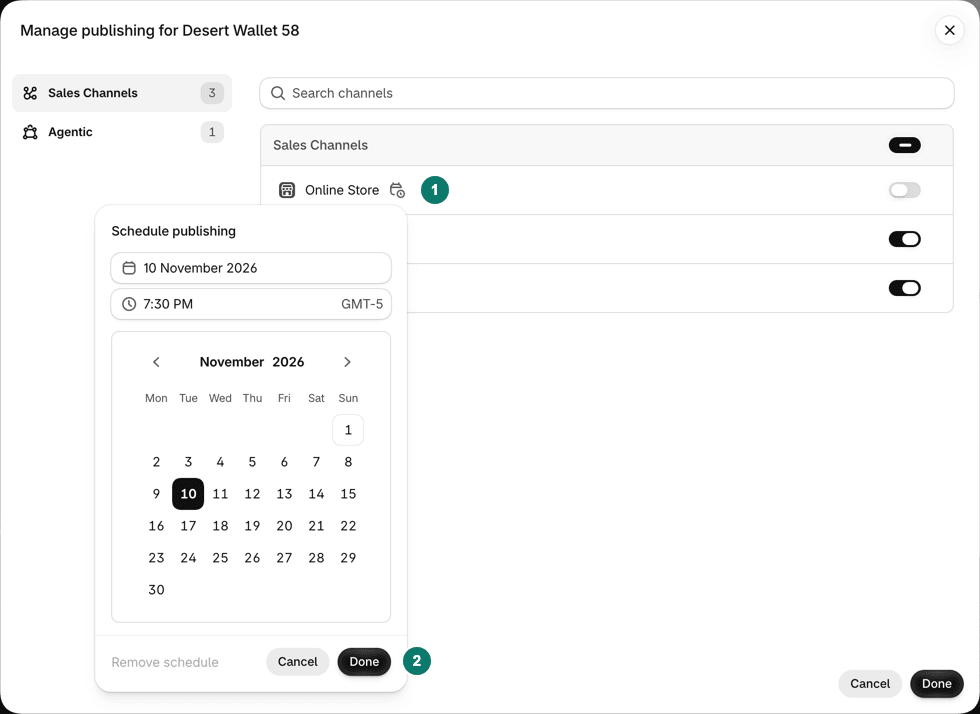
Future publishing sets a publish date for the Online Store, but not an end date.
Price and compare-at fields by hand
You can type the sale price and the original price into each product. This works on any plan and shows a crossed-out price on product pages, depending on your theme. It has no end date, so you restore every variant yourself. Clear the compare-at field instead of typing 0.00 when a variant should show no sale. See how the compare-at price works.
A scheduling app
A scheduling app can run the start and the end for you. Compare apps by what happens at the end, because that is where manual sales go wrong. Ask four questions:
- Does it put prices back at the end time?
- Does it keep a change you make by hand during the sale?
- Does it say which plan limits apply?
- Is it listed on the Shopify App Store?
Test any app on a development store before a real sale. Run a short test sale that ends in ten minutes. Include one product that already has a sale price and one with several variants. Check the prices at the start, at the end, and after you edit one price by hand in the middle.
PopAutomate is a scheduling app made by Grovlix, the publisher of this blog. PopAutomate is not on the Shopify App Store yet. Its help page explains how a scheduled discount works: it sets the sale price and compare-at price at the start and puts the earlier prices back at the end. A price you change yourself during the sale is left as you set it.
Which option should you choose?
Choose by your plan and by how much of the sale must run without you.
- On Shopify Plus, with a theme change or a locked store before the event: Launchpad covers those.
- You need a discount that ends by itself: use a native discount with an end date.
- You need a product to appear on a date: use Future publishing.
- You run one small sale and can be at the keyboard: edit the prices by hand.
- You run frequent sales on any plan: look at a scheduling app.
Launchpad earns its place when you are on Plus and the event is bigger than prices. A theme swap, a locked store before the start, and a sales dashboard are things the other options do not cover. For a sale that is only a price change, the lighter options are often enough, and they work on any plan.
Whatever you choose, test the end before the start. Each option handles the end differently, and the end is what customers notice when it goes wrong.
An example: the same weekend sale on two plans
Take a sale on one collection that runs from Friday morning to Monday night. This is an example, built from the steps above.
On Shopify Plus, you create a Launchpad event with a Friday start date. You add the collection under the discount option and click Set end date for Monday. At the end, the discounts disappear and compare-at prices go back. You check the Status section for any Failed action.
On another plan, you create an automatic discount with the same start date and Set end date. The saving shows at checkout. If you also want a crossed-out price on product pages, you edit price fields by hand, and you restore them yourself on Monday.
In both cases the discount ends on its own. What differs is everything around it. The event theme, the password page and the dashboard exist only with Launchpad, so choose it for those, not for the dates alone.
Frequently asked questions
Is Shopify Launchpad free?
The Launchpad listing on the Shopify App Store shows the app as free, but only merchants on the Shopify Plus plan can use it. Shopify's help pages say the Launchpad app is available only to stores on the Shopify Plus plan. If your store is on another plan, you cannot use Launchpad, whatever the app costs, and you need another route.
Can I use Shopify Launchpad without Shopify Plus?
No. Shopify's help center says Launchpad is available only to stores on the Shopify Plus plan, and the App Store listing says the same. On a different plan you can still schedule parts of a sale. Discounts take a start and an end date, Future publishing sets a publish date, and an app can handle the start and the end.
What happens to prices when a Launchpad event ends?
Shopify says Launchpad discounts end with the event, and compare-at prices go back to their earlier values. If you edit a product's price during an event, the product returns to its pre-event price at the end. Products the event made available to sales channels stay available, and inventory is not adjusted.
What can I use instead of Shopify Launchpad?
Pick by the part of the sale. A native discount starts and ends on dates you set. Future publishing shows a product on a date. Price and compare-at fields work on any plan but have no end date, so you restore them by hand. A scheduling app can run the start and the end for you. Check each app's own page for what it changes.
See every way to schedule a sale
Launchpad is one of several routes. The pillar guide compares them side by side and gives the start, end and restore steps for a sale on any Shopify plan.