PopAutomate on your phone: the tab bar and account menu
On your phone, Home, Calendar, Schedules and Activity log are in the tab bar at the bottom. Every other page is in the account menu at the top of the screen.
You get this layout on a phone and on any small screen. At the top are the PopAutomate logo, the bell, and a circle with the first letter of your name.
The tab bar
The tab bar stays at the bottom of every page. Its buttons, from left to right:
| Button | What it opens |
|---|---|
| Home | Active offers, upcoming schedules, and the cards that need your attention |
| Calendar | Occasions and your schedules on each day |
| + | A new schedule |
| Schedules | All your schedules. A red dot shows on it when a schedule needs your attention |
| Activity log | What happened in your account |
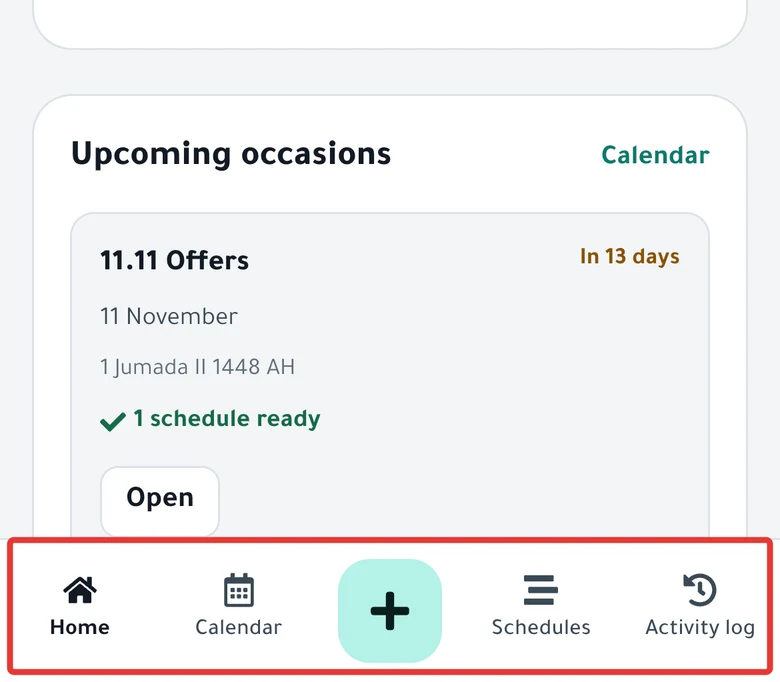
The + button for a new schedule
The round + button in the middle of the tab bar opens New schedule. It has the same four steps as on a computer. The full steps are in Schedule a discount on Salla and Zid.
Quick offer and New schedule are also under the page title on Home.
The account menu
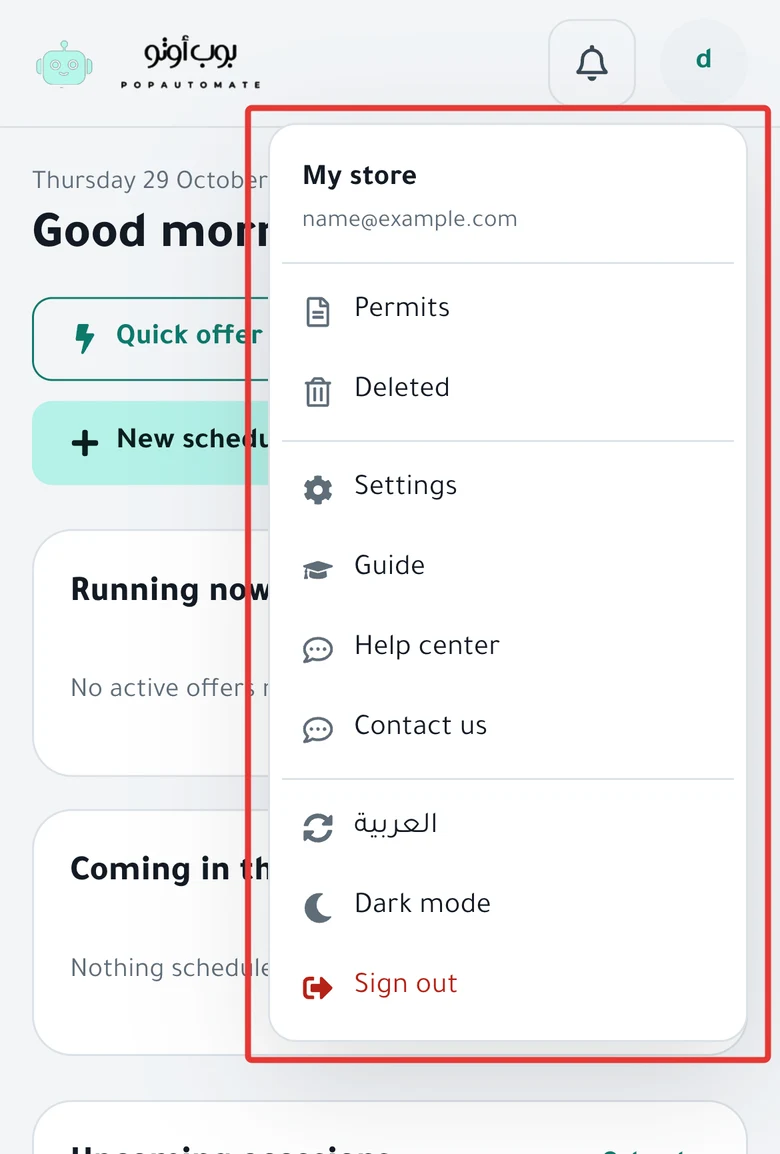
Tap the circle with the first letter of your name at the top of the screen. A menu opens with your name and email, then these items in this order:
- Permits and Deleted. On a computer, these are in the menu on the left.
- Settings, with your time zone, store connection and notifications.
- Guide, with short lessons inside the app.
- Help center, which opens this help center in a new tab.
- Contact us, which opens the support window. From there you can message us on WhatsApp.
- العربية, to switch the dashboard language to Arabic.
- Light mode or Dark mode.
- Sign out.
The language and the light or dark mode are saved in this browser only. If you open your account on another device, choose them again.
To learn step by step with lessons, read Learn PopAutomate with lessons inside the app.
No Help button on your phone
On a computer, Help and Support are at the bottom of the menu on the left. On your phone, the Help button does not appear.
To get help on your phone:
- Tap the question mark next to a heading on a page, such as Running now on Home.
- Open Guide from the account menu and scroll down to Quick answers.
- Or tap Help center in the account menu to open this help center in your phone's browser.
To message support from your phone, read Contact PopAutomate support on WhatsApp.
The time zone badge at the top of the computer screen does not appear on your phone. Your time zone is in Settings. See Change the schedule time zone in PopAutomate.
Go back to Get started with PopAutomate on your store to see every getting-started article.
Did this article answer your question?