Schedule a discount on Salla and Zid
Click New schedule, choose Discount, the products, and the start and end times, then click Enable scheduling. The discount ends on its own at the end time.
On Zid, every option of a product gets the main product's sale price, for both Percentage (%) and Fixed amount (SAR). If your options have different prices, use Final offer price.
If you set the start between 12:00 AM and 3:00 AM Riyadh time (GMT+3), the discount appears on Zid at 3:00 AM.
Steps
Path: Schedules > New schedule > What happens? > Which products? > When? > Review & activate
- Click New schedule in the menu on the left. On your phone, tap the + button in the bottom bar.
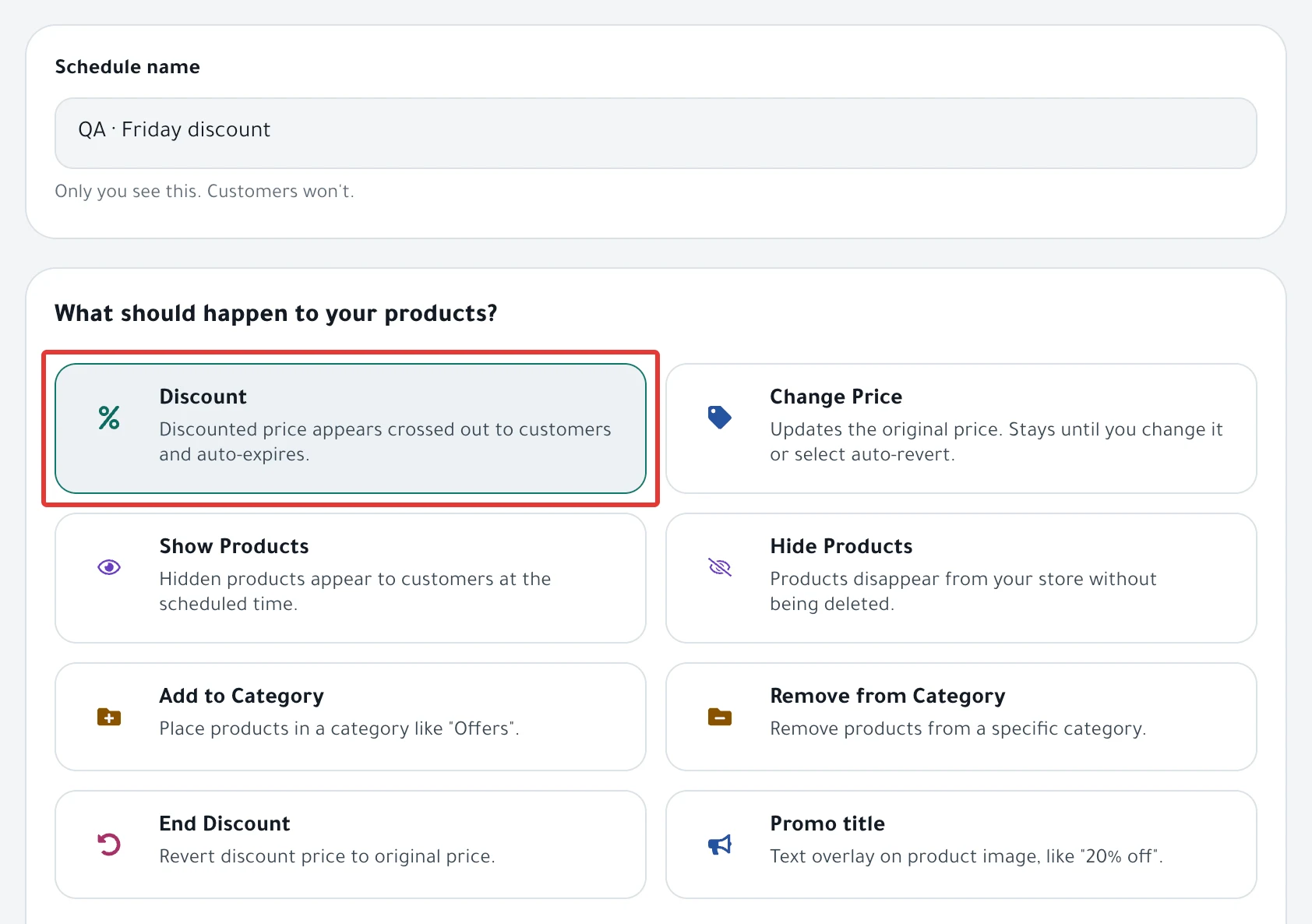
- Enter a name in Schedule name. Only you see the name, not your customers. Each of your schedules needs a different name.
- Under What should happen to your products?, choose the Discount card.
-
Under How much?, choose Percentage (%), Fixed amount (SAR) or Final offer price, and enter the number. Then click Next.
-
In Which products?, choose Products and check the products you want, or choose Categories. Then click Next.
Not sure which one to use? Read Choose discount products: products, categories or CSV?.
-
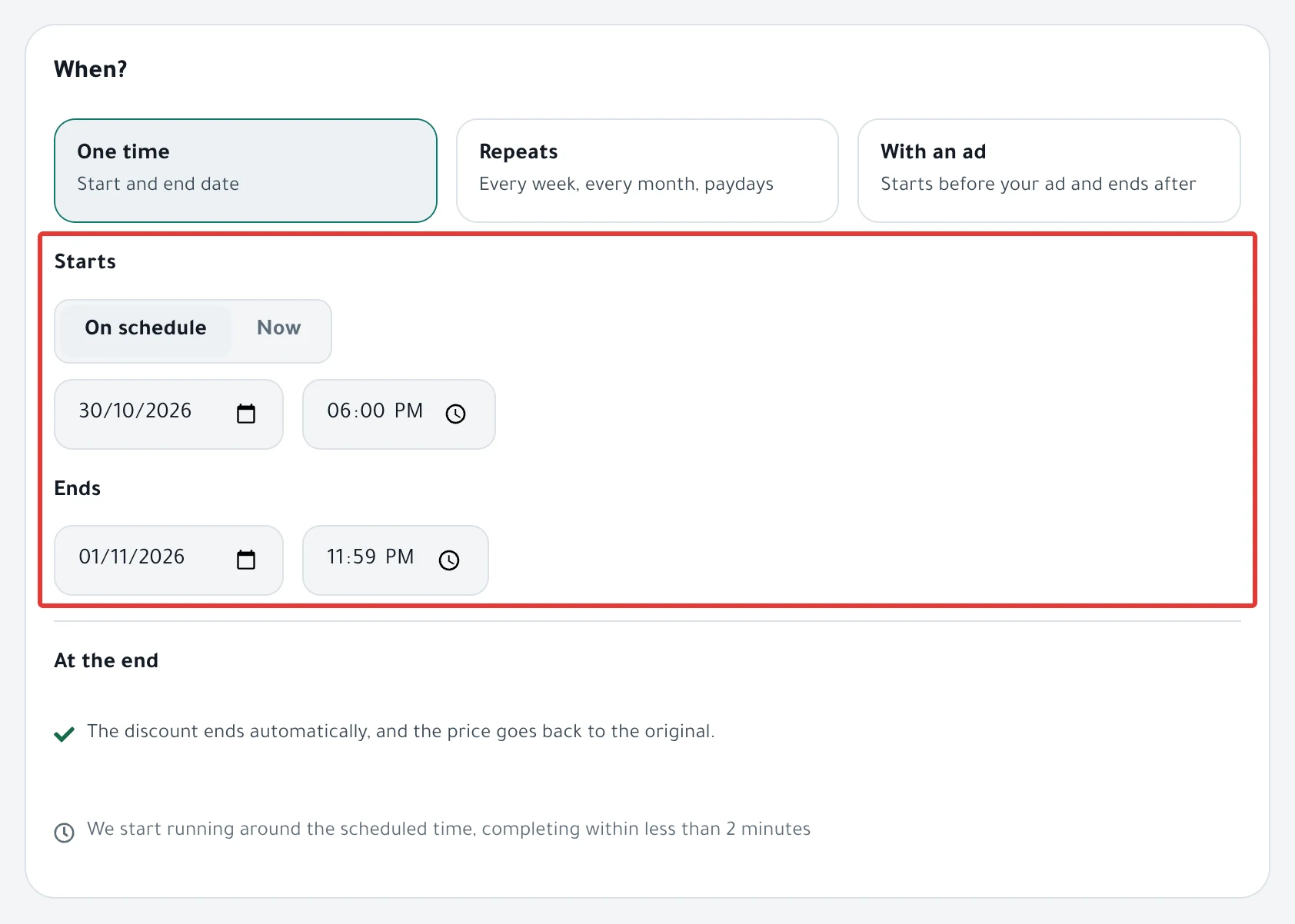
In When?, choose One time. Under Starts, choose On schedule and set the date and time, or choose Now.
-
Under Ends, set the end date and time, then click Next.
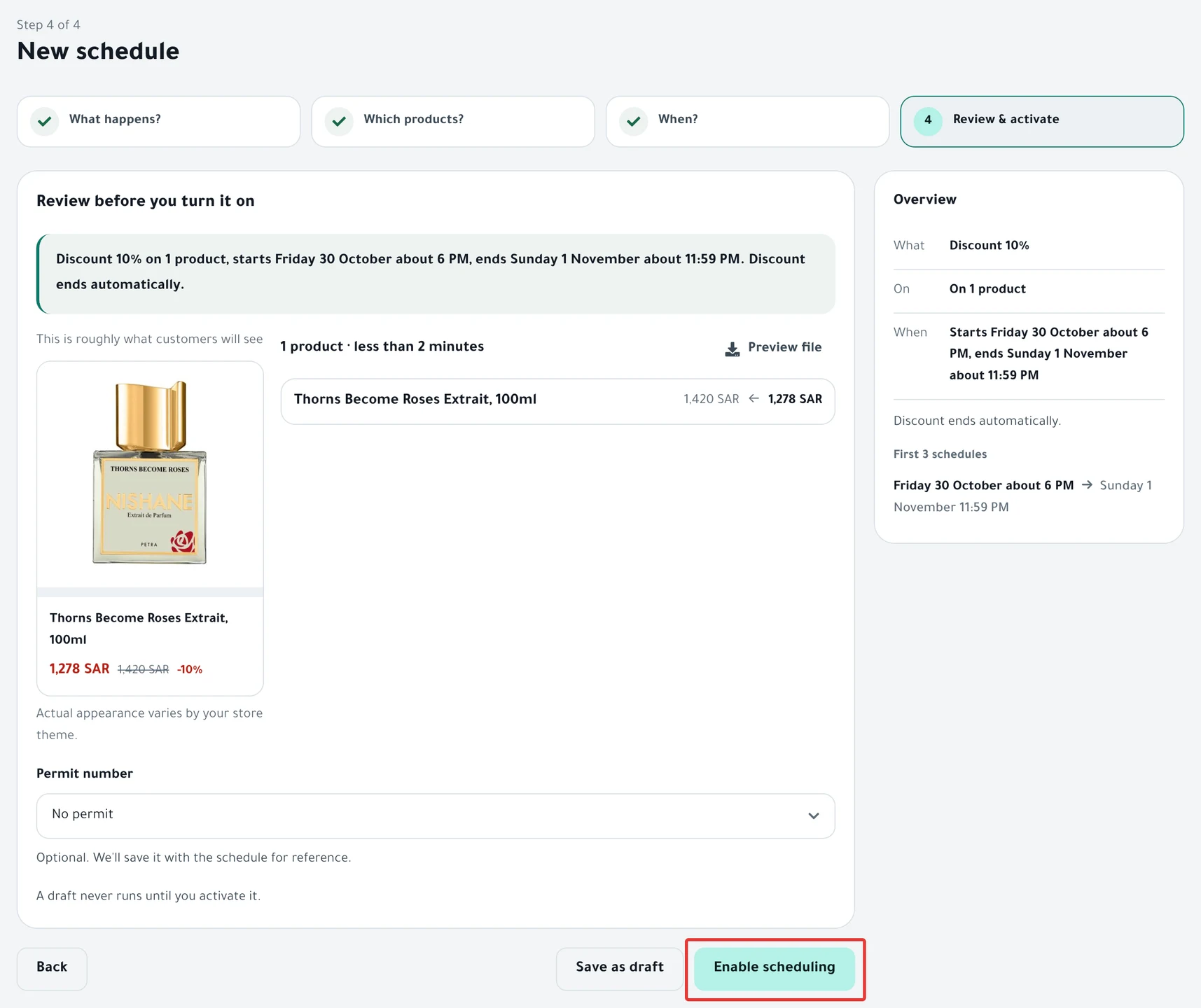
- Under Review before you turn it on, check the summary sentence and each product's price before and after, then click Enable scheduling. If you chose Now, the button reads Activate and run now.
What your customers see
The message "Schedule saved." appears and the schedule page opens.
- At the start time, PopAutomate starts the run within about a minute.
- PopAutomate changes the products one after another, at about 10 minutes per 100 products.
- Customers see the sale price, with the original price crossed out next to it. The look depends on your store theme.
- At the end time, the discount ends on its own and the original price comes back.
Rules
- Nothing changes in your store before you click Enable scheduling. Save as draft only saves the schedule: "A draft never runs until you activate it."
- Every discount has an end time, and you cannot activate one without it.
- Enter a percentage from 1 to 99, such as 10 or 15. If you enter less than 1%, you see "Enter a percentage from 1 to 99. A percentage below 1% isn't accepted." and you cannot go to the next step until you fix it.
- If a product already had an earlier sale price, your discount replaces it. When the discount ends, the earlier sale price does not come back, so set it again yourself in Salla or Zid.
- If a product's price would become zero or less, or would not be lower than its original price, you see "Price becomes zero or less" or "Offer price isn't lower than the original" next to it. You cannot activate until you change the value or remove the product.
- For an offer that repeats every week or every month, read Repeat an offer every week on Salla and Zid.
If it did not work
- The discount did not appear on time: A schedule did not run on time: why and how to fix it
- Some products kept their price: Some products did not change after a schedule ran
- The sale price is not what you calculated: Wrong discount price in your store: causes and fixes
- The discount started or ended at a different hour: A discount started or ended at the wrong time
Next
Schedule run results: what changed in your store?
Or go back to Schedule Salla and Zid products: discount, price, visibility.
Did this article answer your question?