Exclude products from a discount: skip some in a category
Choose a category in the Which products? step, then click Exclude it next to each product you do not want to change. The schedule does not change it, even if it stays in the category.
Steps
Path: Schedules > New schedule > What happens? > Which products? > Categories
- Click New schedule in the menu on the left, or the + button in the bottom bar on your phone. For an existing schedule, open it and click Edit.
- In What happens?, enter the schedule name and choose what you want, such as Discount, then click Next.
- In Which products?, click Categories and choose one category or more.
- The category's products appear under the line "In the selected categories now …". Click Exclude it next to each product you do not want.
- Check that the excluded product is faded, that the button next to it now reads Put it back, and that the number in the line went down by one. To undo the exclusion, click Put it back.
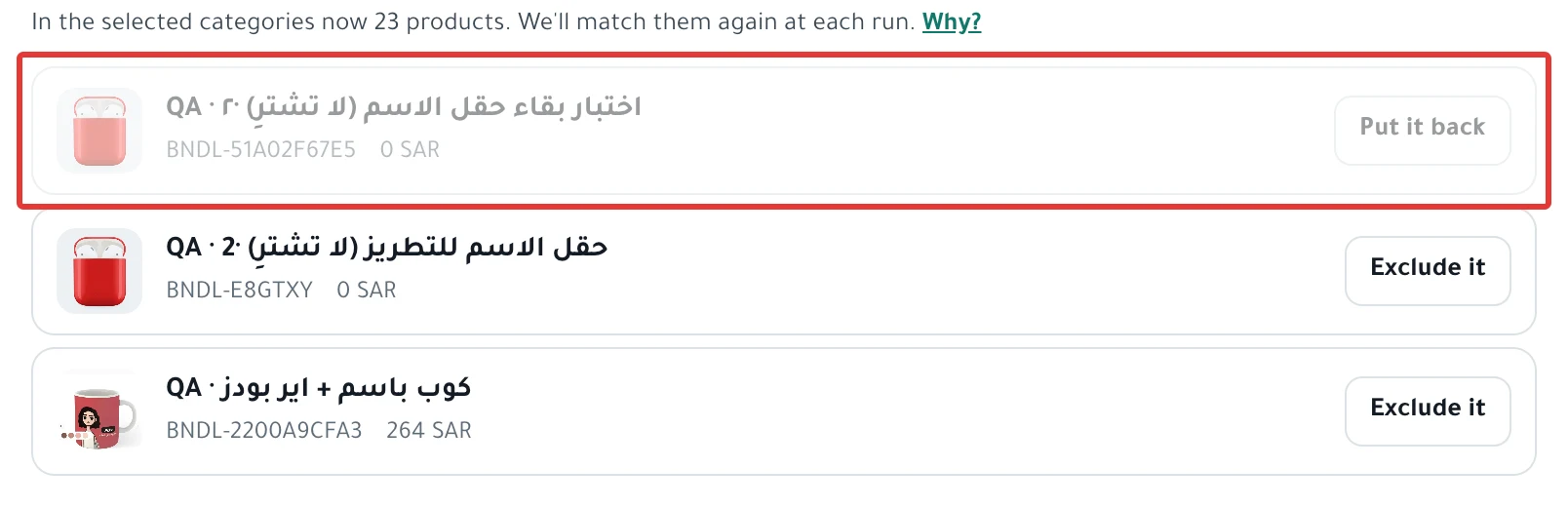
- Click Next, set the time in When?, then click Next again.
- Under Review before you turn it on, check that the excluded product is not in the list of prices before and after. Then click Enable scheduling, or Activate and run now if you chose to start Now. When you edit a schedule, the button is Save changes.
What your customers see
- At every run, PopAutomate gets the category's products from your store, then skips the excluded products. It sends no change for them to your store.
- Your customers see the excluded product with its price and status unchanged, and the rest of the category with the change you chose.
- The excluded product is skipped in every category you chose in the schedule, even if it is in more than one of them.
Rules
- Exclusion is available in Categories only. With Products, do not choose the product you do not want.
- You can exclude up to 1,000 products in one schedule.
- The list shows up to 20 products from each category you choose, and it may show fewer on Zid. If you do not find the product in it, choose Products instead of Categories and choose the products yourself.
- If you add or remove a category, PopAutomate clears all your exclusions. Check the list and exclude again before you activate.
- The exclusion is saved with the schedule. It is still there when you click Edit.
- Duplicate does not copy the excluded products. After you duplicate, exclude them again before you activate the copy. To learn how to duplicate, read Duplicate a schedule: same settings, new dates.
- If you edit a schedule that has already run and add an exclusion, PopAutomate does not restore what changed on that product when you save. The exclusion applies from the next run.
- If the schedule restores products at the end, PopAutomate restores this product with the others, because it changed in an earlier run.
Go back to Schedule Salla and Zid products: discount, price, visibility.
If it did not work
- The excluded product changed anyway: another schedule may have changed it. Read Wrong discount price in your store: causes and fixes.
- The run finished and no product changed: you may have excluded every product in the category. Read Empty category: the schedule found no products in it.
- You duplicated the schedule and the excluded product changed: the copy does not carry the exclusion. Open the copy, click Edit, exclude the product, then click Save changes.
Next
Choose discount products: products, categories or CSV?
Or read Schedule a discount on Salla and Zid.
Did this article answer your question?