Edit a saved schedule: change the time, value or products
Open the schedule, click Edit, change what you need, then click Save changes. A one-time schedule that has already run and whose offer has ended does not run again, so duplicate it instead.
Steps
Path: Schedules > the schedule name > Edit > Review & activate > Save changes
- In Schedules, open the schedule and click Edit. The Edit schedule page opens with the saved settings.
- Change what you need: the name or the value under What happens?, the products under Which products?, or the time under When?. Click Next to move between the steps.
- Under Review before you turn it on, click Save changes. To leave without saving, click Back until you reach the first step, then click Cancel.
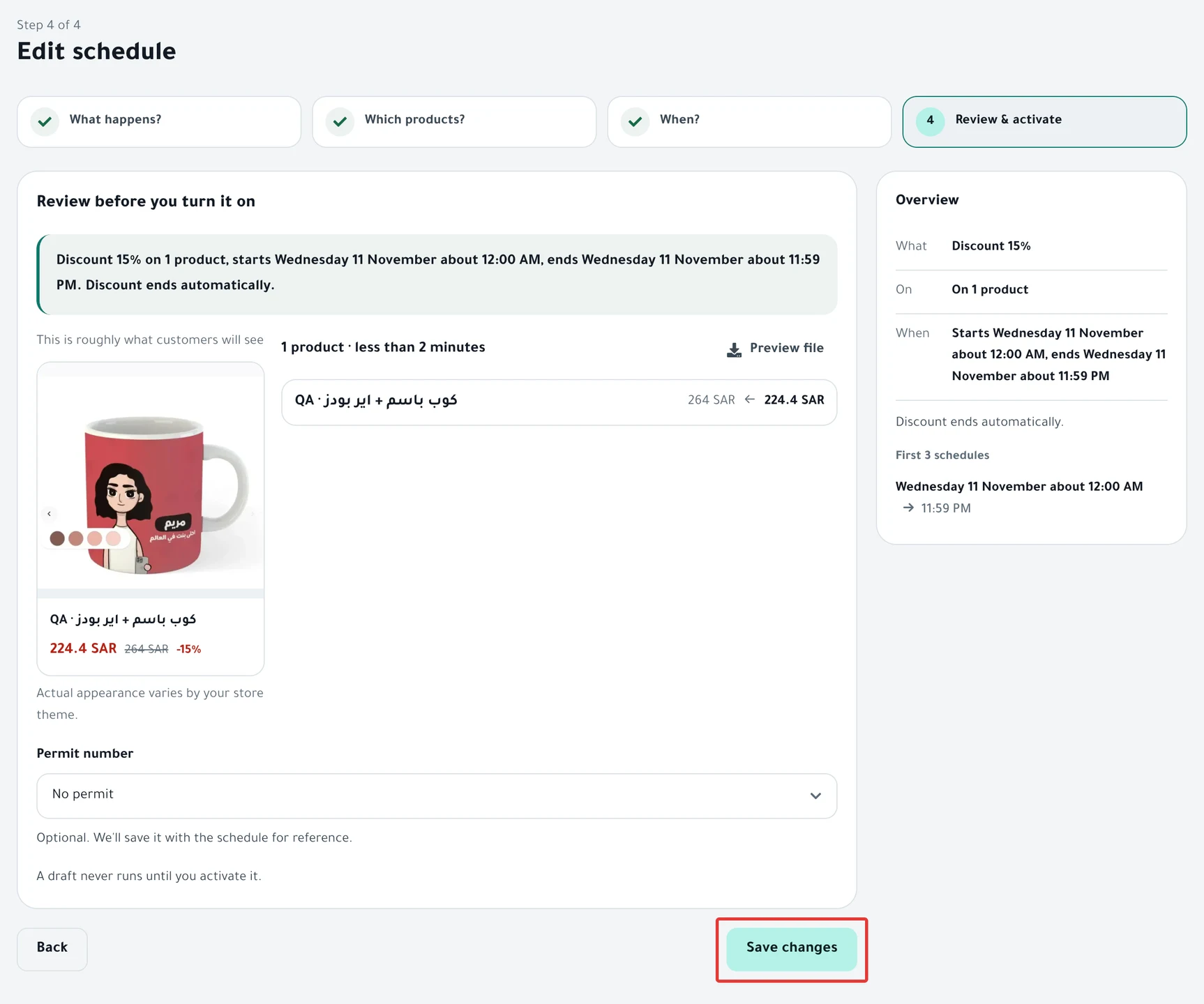
Result
You see the message "Schedule saved." and the schedule page opens. What happens in your store depends on the state of the schedule:
- A schedule that has not run yet: it runs at its set time with the new settings.
- A repeating schedule: the edit applies from the next run.
- A schedule that starts Now and has already run: PopAutomate does not run it in your store again, and you see "Edit saved. We didn't run it in your store again because it already ran. …"
- A schedule that starts Now, has the status Offer Active, and whose value, products or categories you changed: PopAutomate runs it in your store again with the edit.
- A one-time schedule with a set date that has already run: it does not run again, and the new value or products do not reach your store.
- A price change by a percentage or an amount that is still in your store: the price in your store keeps its old value, and you see "Edit saved. The price change already in your store keeps its old amount. …" To apply the new value, end the offer as in End an offer and restore prices now, then duplicate the schedule and activate the copy.
Rules
- A one-time schedule that has run does not run again if you change its time. For a new time, click Duplicate and set the time in the copy, as in Duplicate a schedule: same settings, new dates.
- A Paused schedule stays paused after Save changes.
- On a draft, Save changes activates it. To keep it a draft, click Save as draft, and read Save a schedule as a draft: set it up now, activate later.
- If an older schedule has a different value for each product, do not edit it: the edit gives all products the same value. Create a new schedule instead.
- A schedule that uses a CSV file cannot be edited. Delete it and create a new schedule with the new file.
- If you choose a name that another schedule already uses, you see "You already have a schedule with that name. Choose another."
If it did not work
- You changed the time and the schedule did not run: Duplicate a schedule: same settings, new dates
- You want to know what each button on the schedule page does: Schedule page guide: every button, status and run
Next
Duplicate a schedule: same settings, new dates
Or go back to Schedule Salla and Zid products: discount, price, visibility.
Did this article answer your question?