Save a schedule as a draft: set it up now, activate later
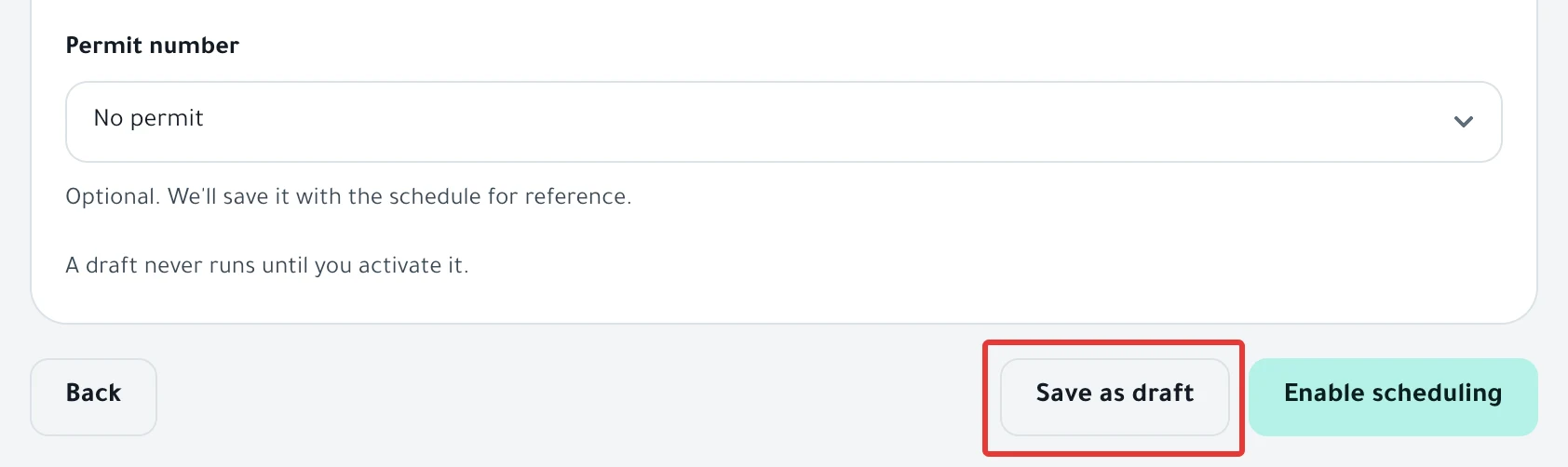
On the last step, click Save as draft instead of Enable scheduling. PopAutomate saves the schedule with the Draft status and changes nothing in your store until you activate it.
Steps
Path: Schedules > New schedule > Review & activate > Save as draft
Save the draft
- Set up the schedule as in Schedule a discount on Salla and Zid, up to the Review & activate step.
- If you chose Now under Starts, change it to On schedule and set the date and the time. A draft needs a start time, and Save as draft stays disabled until you set one.
- Click Save as draft. You see the message "Draft saved."
Activate the draft later
- In Schedules, choose the Draft filter and open the draft.
- Click Continue and enable in the bar at the top of the page, or click Activate. The schedule steps open so you can review them.
- Under Review before you turn it on, click Save changes. This button activates the draft, and it becomes a schedule that runs at its set time.
Result
After Save changes, you see "Schedule saved." and the status changes from Draft to Scheduled. At the start time, PopAutomate changes your products.
To learn what this status and the others mean, read The Draft status in the statuses guide.
Rules
- On a draft, Save as draft saves only your edit. Save changes activates the draft.
- If the draft starts Now, Save changes starts the run in your store right away. This is the case for a quick offer of Until midnight or 3 days that you saved with Check details first.
- If the start time passes before you activate the draft, the app shows: "Start date has passed. Pick a future date or "Now"." Choose a new time, then activate the draft.
- You also see this message for a quick offer of 24 hours that you saved with Check details first. Its start time is the moment you saved it. Choose Now or a new time, and check the end time.
- Quick offer and the Check details first button are explained in Run a quick discount on Salla and Zid from Home.
- The Draft filter and the rest of the list are covered in Schedules list guide: search, filters and the switch.
- To change something in an active schedule, read Edit a saved schedule: change the time, value or products.
If it did not work
- The draft did not run at its time: A schedule did not run on time: why and how to fix it
- The Save as draft button is disabled: change Now to On schedule, as in step 2.
Next
Schedule a discount on Salla and Zid
Or go back to Schedule Salla and Zid products: discount, price, visibility.
Did this article answer your question?