Duplicate a schedule: same settings, new dates
Open the schedule and click Duplicate. A new schedule opens with the change type, the value, the products and the dates. Change the dates, add what the copy does not keep, then activate it.
Steps
Path: Schedules > the schedule name > Duplicate > Review & activate > Enable scheduling
- In Schedules, open the schedule and click Duplicate. You also find Duplicate on the schedule's row in the list.
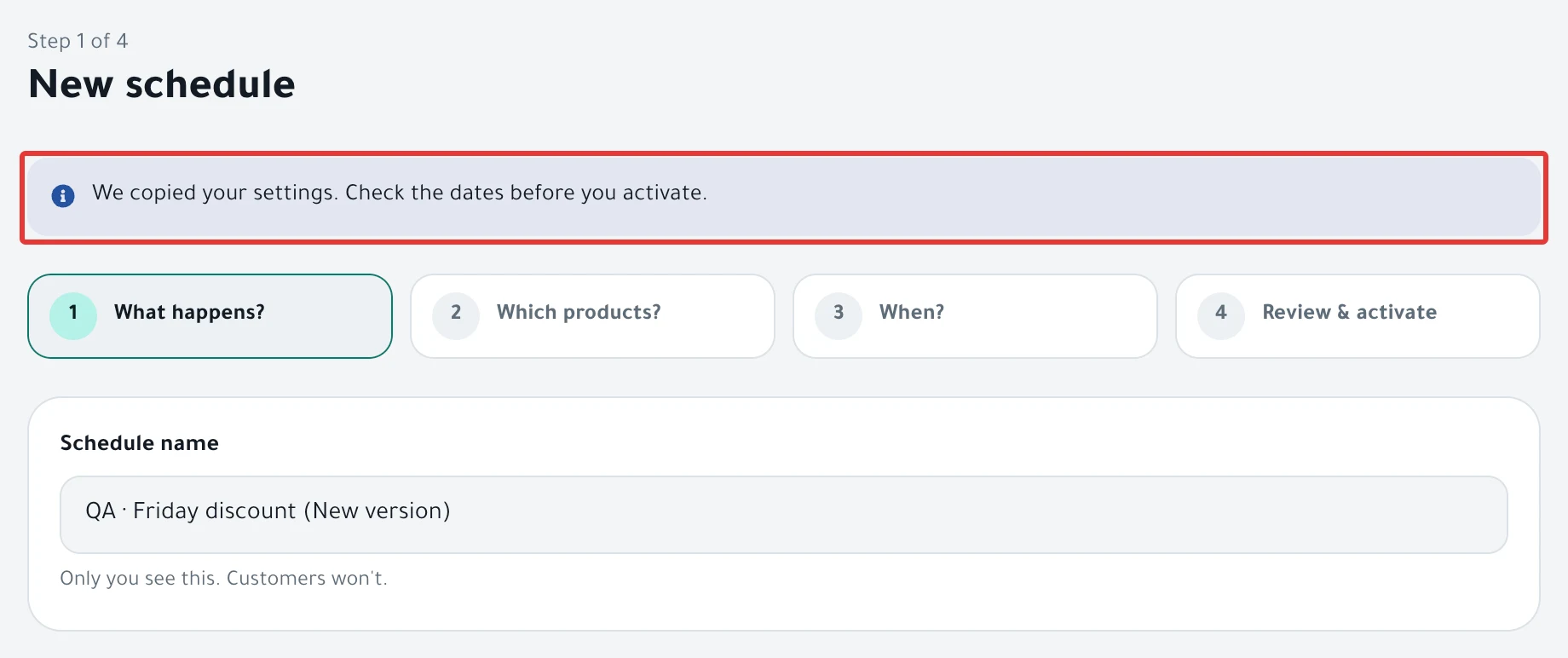
- A new schedule opens, with the notice "We copied your settings. Check the dates before you activate." at the top. Its name is the old name followed by "(New version)". Change the name if you want.
- Check What happens? and Which products?, and add what is missing from the list under Rules below. To choose products, read Choose discount products: products, categories or CSV?.
- Under When?, set the new start and end. The copy keeps the dates of the original schedule. If the start has already passed, it becomes today, and the end moves by the same number of days.
- If At the end appears, choose Restore it or Changes stay again. Then click Next.
- Under Review before you turn it on, check each product's price before and after, then click Enable scheduling.
Result
You see the message "Schedule saved." and the copy becomes a separate schedule. The original schedule stays as it is, and its history does not move to the copy.
Rules
The copy keeps the change type, the value, the products or categories, and the dates. It does not keep the items below, so add them to the copy yourself before you activate it:
- The Tiered discount steps, as in Tiered discount on Salla and Zid: it grows day by day.
- The Add to «Offers category» during the offer switch, as in Offers category on Salla and Zid: group discounted products.
- The products you excluded from a category, as in Exclude products from a discount: skip some in a category.
- The daily end time in a repeating schedule.
- The ad time: a copy of an offer with an ad becomes One time, with the same start and end.
- A price change by a percentage or an amount: the copy shows New price with the same number, so a 10% increase becomes a new price of 10 SAR. Choose the percentage or the amount again, as in Change product prices on Salla and Zid at a set time.
- The promo title on the image: turn it on and enter its text again.
- Your choice under At the end, if there is one: it goes back to Restore it.
Also keep in mind:
- Do not duplicate a schedule that uses a CSV file: the copy gives all products one price. Create a new schedule and upload the file there.
- If you duplicate the same schedule a second time, the name repeats and you see "You already have a schedule with that name. Choose another." Change the name in Schedule name.
- To change an existing schedule instead of duplicating it, read Edit a saved schedule: change the time, value or products.
If it did not work
- A product you excluded in the original got the discount in the copy: click End offer now on the copy's page, then duplicate again and exclude the product before you activate. For details, read End an offer and restore prices now.
- The copy's price is not what you expected: check the value under What happens?, as in the list above.
Next
Schedule a discount on Salla and Zid
Or go back to Schedule Salla and Zid products: discount, price, visibility.
Did this article answer your question?