Add products to a category or remove them at a set time
Choose the Add to Category or Remove from Category card, enter the category name as it is in your store, and set the time.
With Add to Category, PopAutomate does not check whether the product is already in the category. If you choose Restore it, PopAutomate may take the product out at the end time, even if it was in the category before the schedule. If some of your products are already in the category, choose Changes stay.
Steps
Path: New schedule > What happens? > Which products? > When? > Review & activate
-
Click New schedule in the menu on the left. On your phone, tap the + button in the bottom bar.
-
Enter a name in Schedule name, then choose the Add to Category or Remove from Category card.
-
Enter the category name in Category name. If you leave it empty, you see "Enter the category name."
When you add, the note under the field reads "If the category doesn't exist, we'll create it in your store." When you remove, it reads "We'll pull products from this category only, and keep the category itself."
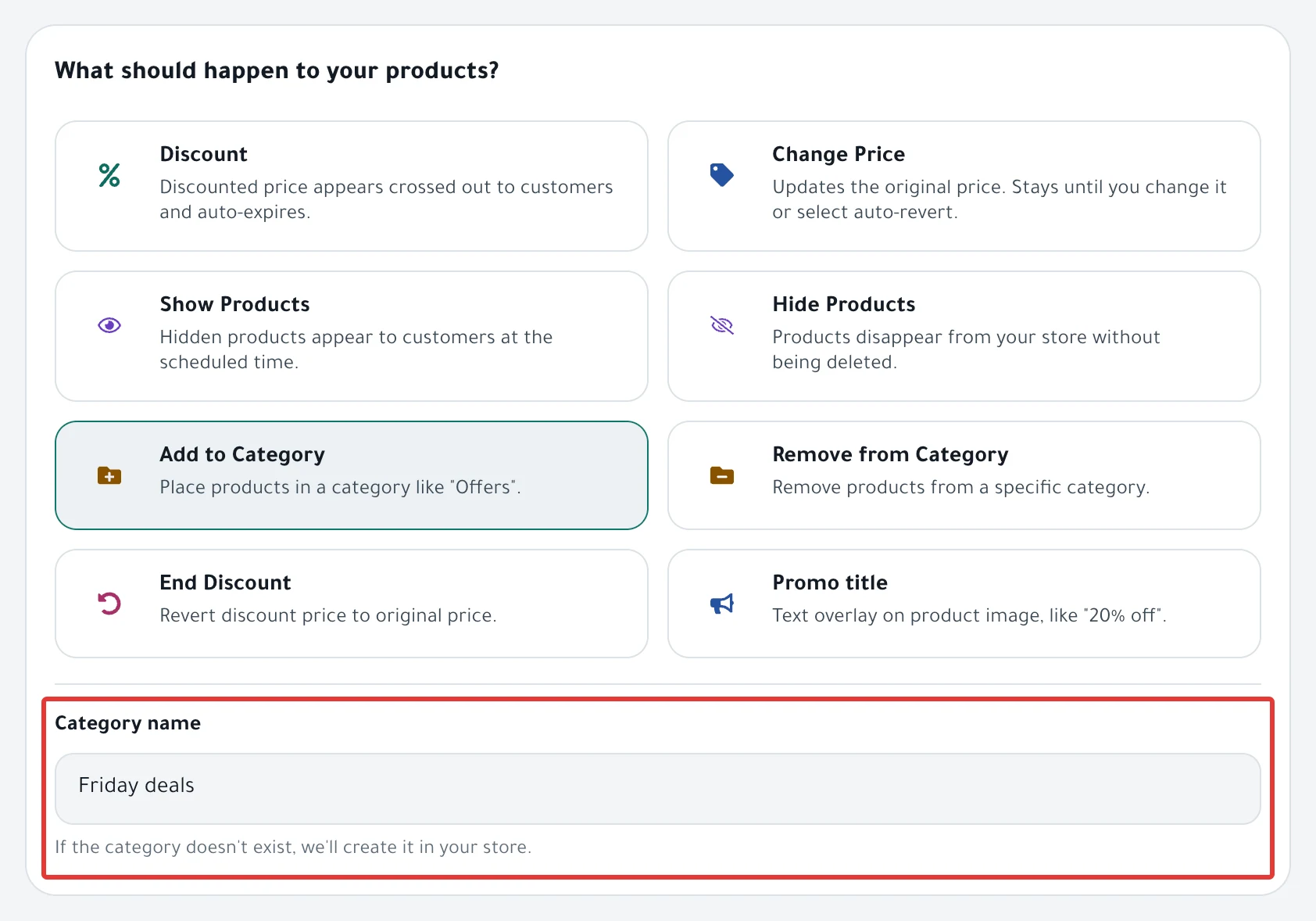
- Click Next. In Which products?, choose the products. You can choose specific products or another category. Read Choose discount products: products, categories or CSV?.
- In When?, choose One time or Repeats, and set the start.
- Under At the end, choose Restore it so the categories of the products go back as they were at the end time. You need an End date for this. Or choose Changes stay.
- Click Next, check the schedule in Review before you turn it on, then click Enable scheduling, or Activate and run now if you chose Now.
Result
- At the start time, PopAutomate starts the run within about a minute. It changes the products at about 10 minutes per 100 products.
- When you add, each product goes into the category and stays in its other categories.
- When you remove, the product leaves this category only, and the category stays in your store.
- With Restore it, the categories of each product go back as they were before the run. On a repeating schedule, they go back at the end of each run day.
Rules
- Enter the category name with the same letters as in your store. Extra spaces and upper- or lowercase Latin letters do not matter, but "Offer" is not the same as "Offers".
- When you add, if PopAutomate does not find a category with that name, it creates the category in your store. When you remove, it creates nothing.
- If your store does not answer the category search during the run, PopAutomate does not change the product and does not create a duplicate category.
- On Salla, when you add, PopAutomate skips a product that is already in the category. When you remove, it skips a product that is not in the category, on both Salla and Zid.
- In the run results, you see "Skipped" next to such a product, with the message "We couldn't tell why…". You do not need to retry.
- On a repeating schedule, PopAutomate adds the products to the same category, or removes them from it, at every run.
- On Salla, if you change a product's categories yourself after the run, PopAutomate leaves the product as you edited it and does not restore it at the end.
To gather the discounted products in one category during the offer, read Offers category on Salla and Zid: group discounted products.
If it did not work
- Some products are still outside the category, or still in it: Some products did not change after a schedule ran
- The categories did not go back after the end: Prices did not come back after an offer: causes and fixes
- The change did not start on time: A schedule did not run on time: why and how to fix it
Next
Restoring prices after an offer: what comes back?
Or go back to Schedule Salla and Zid products: discount, price, visibility.
Did this article answer your question?