Tiered discount on Salla and Zid: it grows day by day
With Discount, turn on Tiered discount, then set the day and the percentage of each step, such as 10%, then 20%, then 30%. An offer has 2 to 5 steps.
On Zid
On Zid, every option of a product gets the main product's sale price. If the options of a product have different prices, use a regular discount with Final offer price instead of a tiered discount.
Steps
Path: New schedule > What happens? > Which products? > When? > Review & activate
- Click New schedule in the menu on the left. On your phone, tap the + button in the bottom bar.
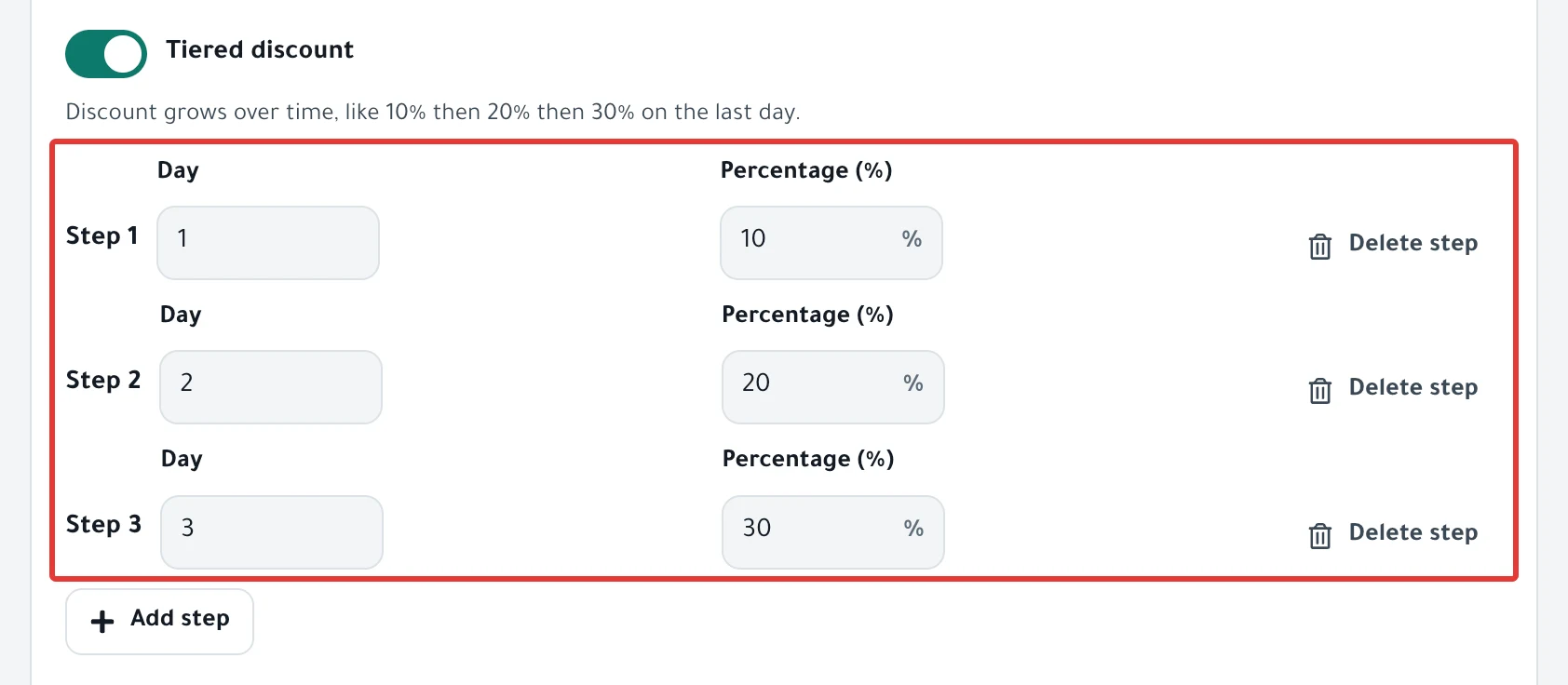
- Enter a name in Schedule name, choose the Discount card, then turn on the Tiered discount switch. The note under it reads "Discount grows over time, like 10% then 20% then 30% on the last day."
- Three steps are ready: day 1 at 10%, day 2 at 20% and day 3 at 30%. In each step (Step 1, Step 2 and so on), edit the Day field and the Percentage (%) field.
- To add a step, click Add step. To delete a step, click Delete step next to it. At 5 steps, Add step turns gray and "Up to 5 steps" appears. You cannot delete a step when only two are left.
- Click Next. In Which products?, choose Products or Categories. For details, read Choose discount products: products, categories or CSV?.
- In When?, choose One time and set the start and the end, or choose With an ad and set the ad time and hours. Make the offer end after the start of the last step's day. For the offer with an ad, see Time an offer around your Snapchat or Instagram ad.
- Under Review before you turn it on, you see the price of the first 8 products at the first step's percentage. Then click Enable scheduling, or Activate and run now if you chose Now.
Result
- At the start time, PopAutomate applies the first step's discount to all the products. Day 1 starts with this run.
- Day 2 starts 24 hours after the first run, day 3 after 48 hours, and so on. At the start of each step's day, PopAutomate changes the discount to that step's percentage within about a minute.
- PopAutomate calculates each step's percentage from the product's original price, not from the price of the step before. A 20% step on a product that costs 100 SAR makes its price 80 SAR.
- Each step appears as its own run in the run results.
- At the end time, the discount ends and the product goes back to its original price.
Rules
- Step 1 is on day 1, and each step's day comes after the one before. Otherwise you see "Steps start on day 1, and each step's day comes after the one before (2 to 5 steps)."
- Each step's percentage is from 1 to 99. Otherwise you see "Each step needs a percentage between 1 and 99."
- A tiered discount does not repeat. With Repeats, you see "A tiered discount is for a one-time offer or an offer with an ad, not a repeating one."
- It does not work with a CSV file: "A tiered discount can't come from a CSV file."
- If the offer ends before the last step's day, you see "The offer ends before the last step's day. Use fewer days or make the offer longer."
- If you pause the schedule, PopAutomate does not change the discount. After you turn it back on, it jumps straight to the step for the current day.
- If a product already had an earlier sale price, your discount replaces it. When the offer ends, the earlier sale price does not come back, so set it again yourself in Salla or Zid.
- If you duplicate this schedule, the copy opens as a regular discount at the first step's percentage. Turn on Tiered discount and add the steps again before you activate. To learn how to duplicate, read Duplicate a schedule: same settings, new dates.
If it did not work
- The sale price is not what you expected: Wrong discount price in your store: causes and fixes
- The discount did not change on a step's day: A schedule did not run on time: why and how to fix it
- The sale price stayed after the end: Prices did not come back after an offer: causes and fixes
Next
Track each step in Schedule run results: what changed in your store?
For the steps of a regular discount, see Schedule a discount on Salla and Zid. Or go back to Schedule Salla and Zid products: discount, price, visibility.
Did this article answer your question?