Upload a CSV with a price per product on Salla and Zid
For a different price on each product, upload a CSV file with the product ID and the price. The file works with Discount and Change Price only. A file can be up to 10 MB and 50,000 rows.
Steps
Path: Schedules > New schedule > What happens? > Which products? > CSV file
-
Click New schedule in the menu on the left, and enter a name in Schedule name. On your phone, tap the + button in the tab bar at the bottom.
-
Choose the Discount or Change Price card, and enter any value under How much?.
You cannot go on without a value, but each product's price comes from the file, not from this value. With Change Price, choose New price, because the file does not accept an increase or decrease by a percentage or an amount. With Discount, do not turn on Tiered discount, because it does not work with the file.
-
Under Which products?, choose the CSV file tab, then click Download Salla template. On a Zid store, the button reads Download Zid template.
-
Fill in the template: one row per product, with two columns.
Column Salla Zid Product product_idskuPrice with Discount sale_pricesale_pricePrice with Change Price new_pricenew_priceOn Zid, enter the product's SKU in the
skucolumn, exactly as it is in your store.In the price column, enter the final price your customer sees, not the discount amount. For example, if a product costs 200 SAR and you want to sell it at 150 SAR, enter 150.
-
Drag the file into the box that says "Drag a CSV file here or click to choose". Wait until "Checking the file…" finishes.
-
Check the result under the file name: the number of valid rows and the number of rows with problems. To fix the errors, click Download problem rows, fix them, then click Upload another file.
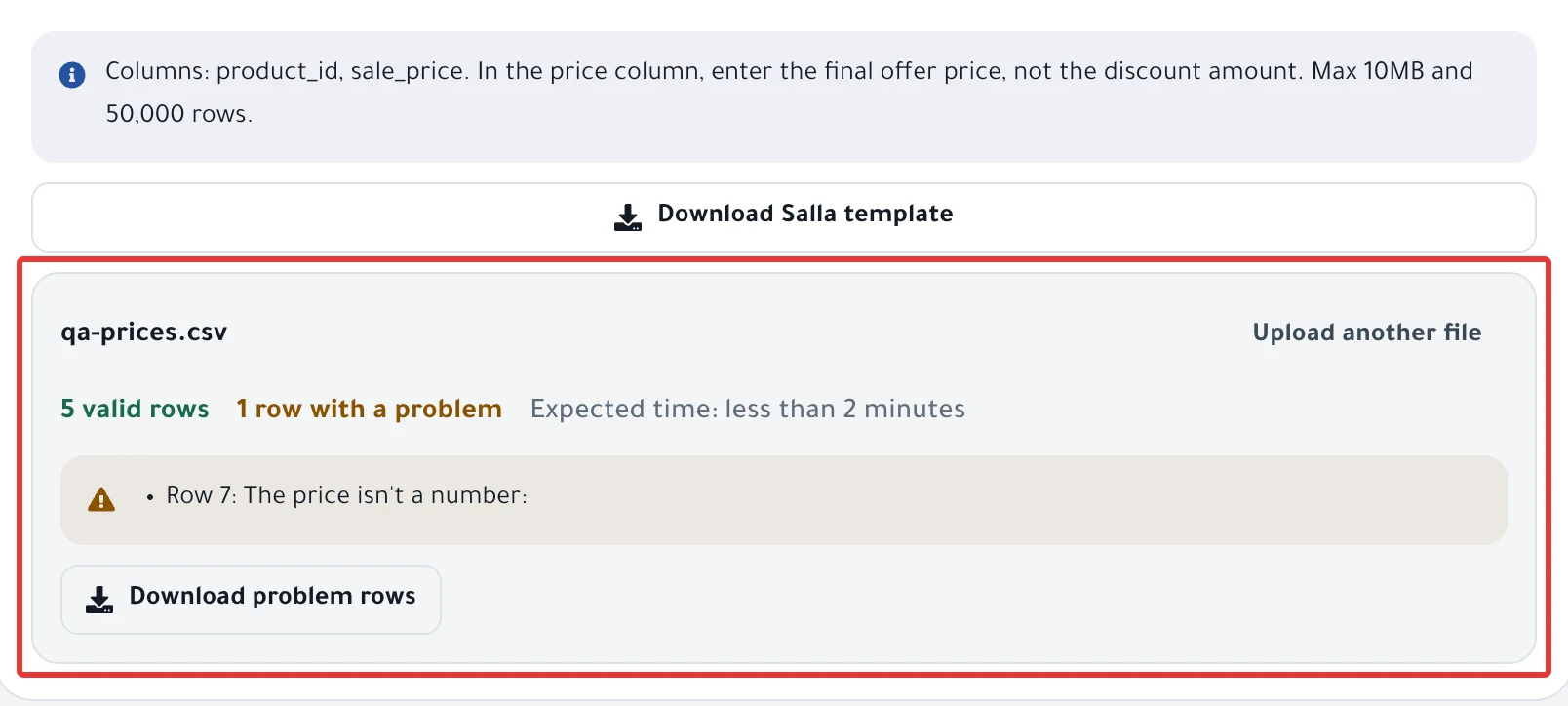
- Click Next, set the time under When?, then click Next again.
- Under Review before you turn it on, click Enable scheduling within 30 minutes of uploading the file. If you chose Now as the start, the button reads Activate and run now.
Result
You see the message "Schedule saved." At the set time, each product in the file gets the price from its own row, at about 10 minutes per 100 products.
For 30 days, you can download your file from the schedule page with the Download the original file button.
Rules
- The price is a number greater than zero, with at most two digits after the decimal point. Arabic-Indic digits, such as
٤٩٫٩٠, are accepted. - If a product appears twice in the file, PopAutomate uses its last price. It ignores extra columns.
- PopAutomate checks a sample of the file's products in your store before you activate. Products it cannot find are listed in a message that ends "…Fix their ids before you turn this on, or they'll fail." Correct those product IDs and upload the file again.
- If you activate more than 30 minutes after the upload, the schedule is not saved and the builder goes back to Which products?. Upload the file again, then activate.
- A schedule that uses a file cannot be edited. To change the prices or the products, delete it and create a new schedule with the new file.
- If a product already had an earlier sale price, the price from your file replaces it. When the discount ends, the earlier sale price does not come back, so set it again yourself in your Salla or Zid dashboard.
- For one price or one percentage for all products, without a file, read Change product prices on Salla and Zid at a set time.
- To see when a file makes sense and when products or categories are enough, read Choose discount products: products, categories or CSV?.
If it did not work
- The whole file was rejected, or some rows were rejected: CSV file rejected or has rejected rows: causes and fixes
- Some products from the file kept their price: Some products did not change after a schedule ran
- You want to edit a schedule that uses a file: Edit a saved schedule: change the time, value or products
Next
Schedule a discount on Salla and Zid
Or go back to Schedule Salla and Zid products: discount, price, visibility.
Did this article answer your question?