Offers category on Salla and Zid: group discounted products
With Discount or Change Price, turn on Add to «Offers category» during the offer. The products join the Offers category in your store and leave it when the offer ends. In your store, this category is always named "قسم العروض" (Arabic for "Offers section"), even when your PopAutomate dashboard is in English.
Steps
Path: New schedule > What happens? > Which products? > When? > Review & activate
- Click New schedule in the menu on the left. On your phone, tap the + button in the tab bar at the bottom.
- Enter a name in Schedule name, choose the Discount or Change Price card, and enter the value under How much?.
- Turn on Add to «Offers category» during the offer under the value. Then click Next.
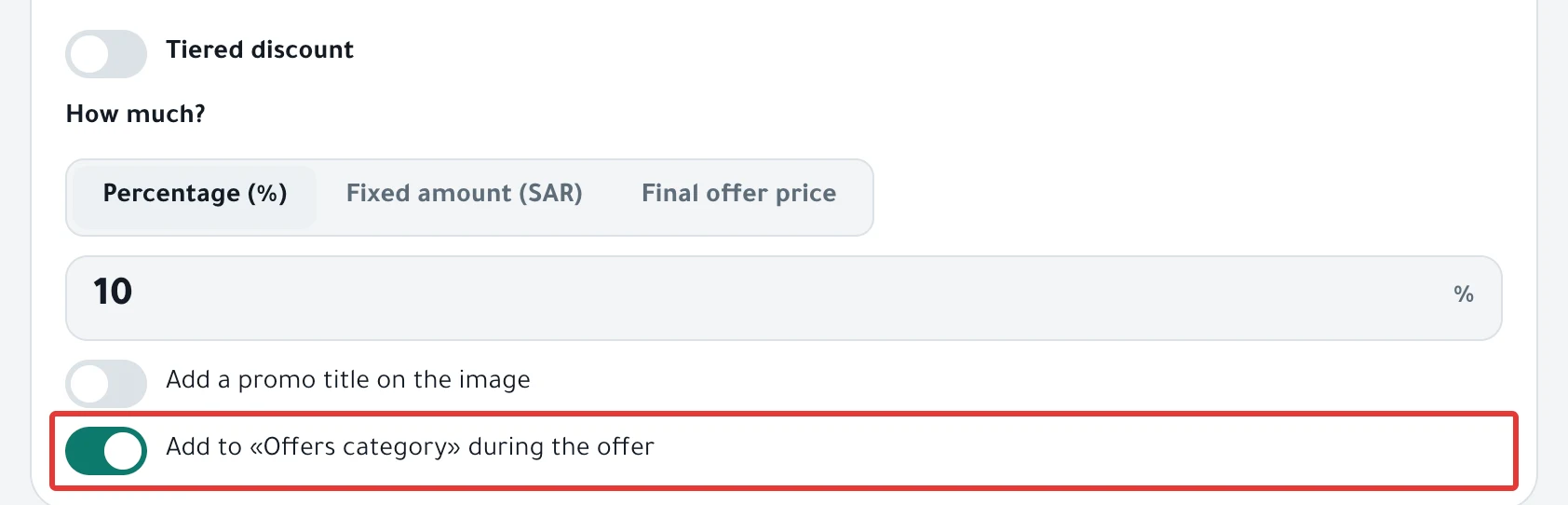
-
Under Which products?, choose the products, then click Next.
-
Under When?, set the start and the end. With a discount, At the end shows "The discount ends automatically, and we remove products from «Offers category»."
With Change Price, leave Restore it chosen. If you choose Changes stay, you see "The offers category is removed at the end, so the price must be restored at the end."
-
Under Review before you turn it on, check the prices, then click Enable scheduling. If you chose Now as the start, click Activate and run now instead.
For the full discount steps, see Schedule a discount on Salla and Zid. For the price steps, see Change product prices on Salla and Zid at a set time.
Result
- PopAutomate looks in your store for a category named exactly "قسم العروض". If there is none, PopAutomate creates it.
- After a product's price changes, PopAutomate adds the product to the Offers category. The product stays in its other categories. A product whose price did not change is not added.
- When the offer ends, PopAutomate takes the products out of the Offers category, and the discount ends or the old price comes back. In a repeating schedule, this happens at the end of every run day.
Rules
- After the offer ends, the Offers category stays in your store, empty. Hide it or delete it in your Salla or Zid dashboard if you do not need it.
- If the Offers category is not in your store menu, add it from your Salla or Zid dashboard so your customers can reach it.
- On Salla, if you change a product's categories yourself during the offer, the product may stay in the Offers category after the offer ends. Remove it from that category in your Salla dashboard.
- If a product already had an earlier sale price, your discount replaces it. When the offer ends, the earlier sale price does not come back, so set it again yourself in your Salla or Zid dashboard.
- If you duplicate this schedule, turn the switch on again before you activate the copy. The copy does not keep it. To see what a copy keeps and what it does not, read Duplicate a schedule: same settings, new dates.
If it did not work
- Some products did not join the Offers category: Some products did not change after a schedule ran
- Products stayed in the Offers category after the end: Prices did not come back after an offer: causes and fixes
- The sale price stayed after the end: Prices did not come back after an offer: causes and fixes
Next
If the Offers category stays empty in your store, read Empty Offers category after an offer: hide or delete it.
To see what comes back after an offer, read Restoring prices after an offer: what comes back?. Or go back to Schedule Salla and Zid products: discount, price, visibility.
Did this article answer your question?