Change product prices on Salla and Zid at a set time
Choose the Change Price card, enter the new price or the percentage or amount to increase or decrease, and set the time. With Restore it, the previous price comes back at the end time.
On Zid, only the main price changes. The prices of the options do not change. The note about options that you see in the review step does not apply to a price change.
After the first run, open a product in your Zid dashboard and check that the price changed.
Steps
Path: New schedule > What happens? > Which products? > When? > Review & activate
- Click New schedule in the menu on the left. On your phone, tap the + button in the bottom bar.
- Enter a name in Schedule name, then under What should happen to your products?, choose the Change Price card.
- Under How much?, choose New price and enter the price. Or choose Percentage (%) or Fixed amount (SAR), then under Direction choose Decrease or Increase.
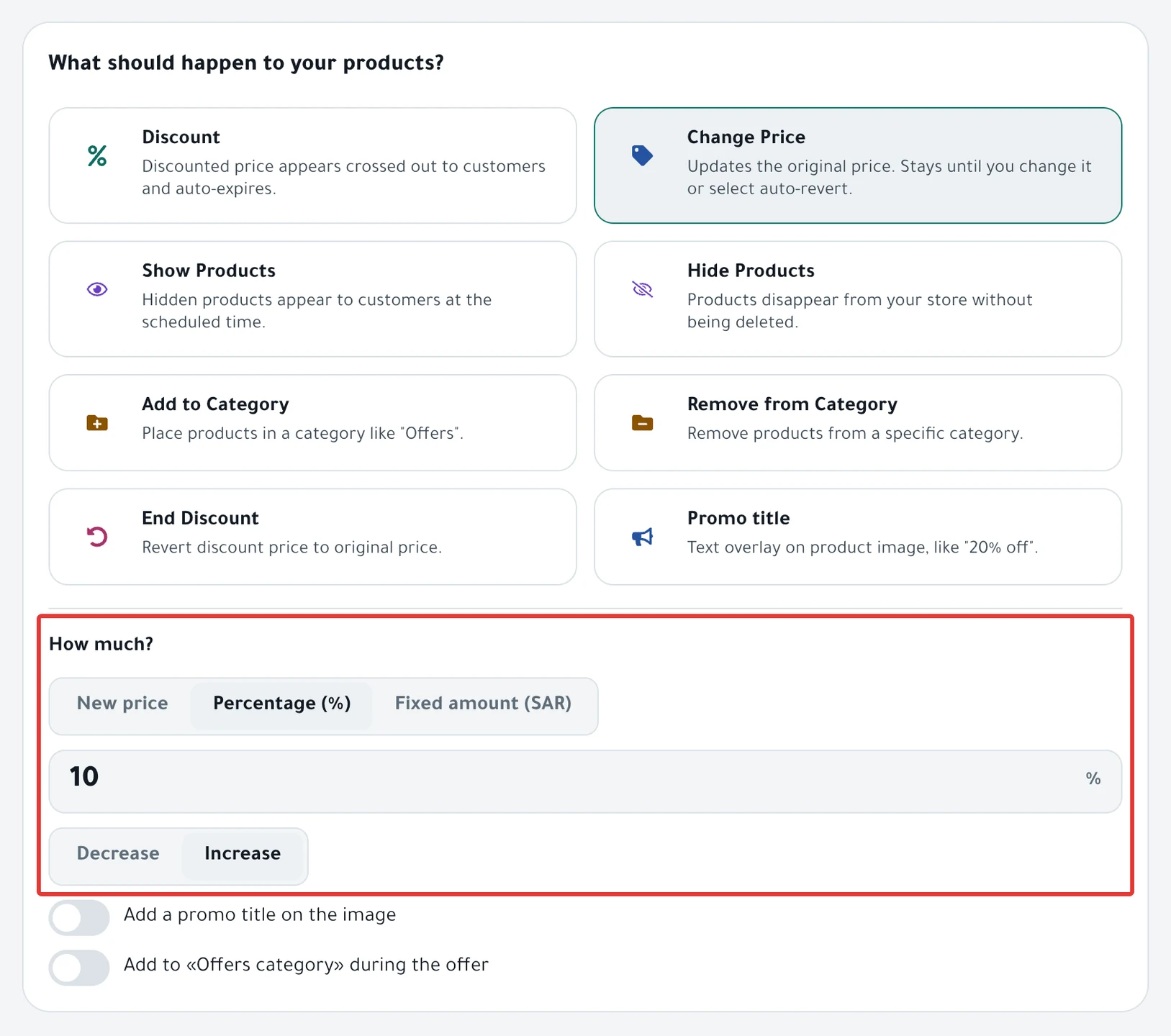
- Click Next. In Which products?, choose Products or Categories. To see the difference, read Choose discount products: products, categories or CSV?.
- In When?, choose One time or Repeats, and set the start.
- Under At the end, choose Restore it to get the previous price back at the end time. You need an End date for this. Or choose Changes stay to keep the new price. Then click Next.
- Under Review before you turn it on, check the price before and after for the first 8 products, then click Enable scheduling. If you chose Now, the button reads Activate and run now.
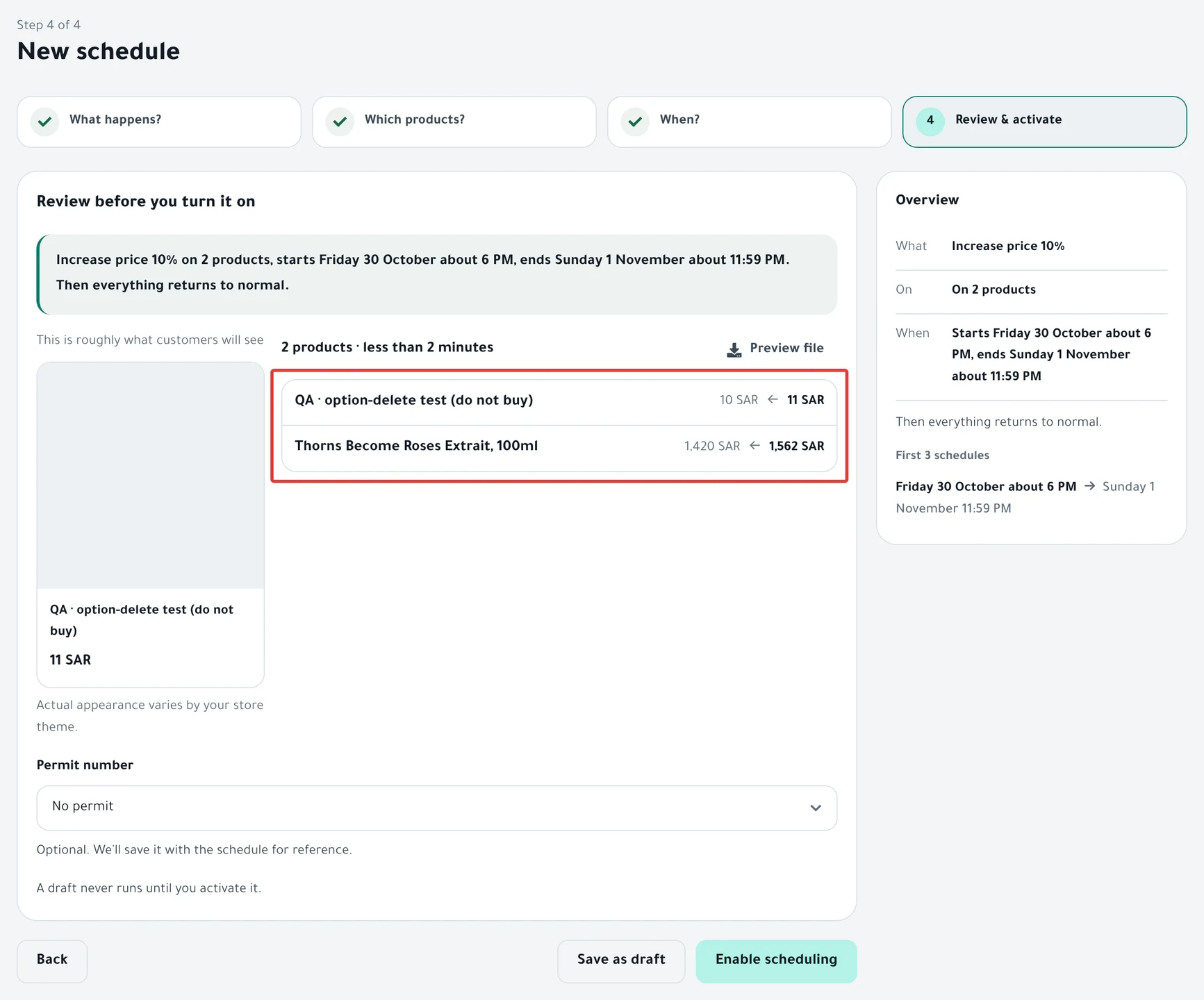
Result
- At the start time, PopAutomate starts the run within about a minute. It changes the products at about 10 minutes per 100 products.
- Customers see the new price in place of the previous one. A price change does not add a crossed-out price.
- With Restore it, the previous price comes back at the end time. On a repeating schedule, it comes back at the end of each run day, or at the end time you chose for the day.
To see what changed, read Schedule run results: what changed in your store?.
Rules
- PopAutomate calculates the percentage and the amount from the product's price at run time, and rounds the result to 2 decimals.
- A percentage decrease must be below 100, or you see "Discount must be less than 100%." If a product's price would become zero or less, PopAutomate does not change it.
- If the schedule repeats with a percentage or an amount, choose Restore it: "A repeating increase or decrease must be restored at the end of each run, or it adds up."
- A price change changes the original price only. If a product has a discount running, its sale price stays as it is.
- If you choose more than one category and they share a product, do not use a percentage or an amount. The price of that product can change twice.
- A CSV file accepts new prices only: "CSV prices are new prices, not increases or decreases."
- If you duplicate a price-change schedule that uses a percentage or an amount, the copy opens on New price with the same number. Choose the type and the direction again before you activate. To learn how to duplicate, read Duplicate a schedule: same settings, new dates.
- If you change a product's price yourself after the run, PopAutomate does not restore it at the end, so your change stays.
To restore prices by hand before the end time, read Restore prices and products after a schedule ran.
If it did not work
- The price of some products did not change: Some products did not change after a schedule ran
- The price changed more than you calculated: Wrong discount price in your store: causes and fixes
- The previous price did not come back after the end: Prices did not come back after an offer: causes and fixes
- The change did not start on time: A schedule did not run on time: why and how to fix it
Next
Restoring prices after an offer: what comes back?
Or go back to Schedule Salla and Zid products: discount, price, visibility.
Did this article answer your question?