Schedule run results: what changed in your store?
Open the schedule and look at Run history. Each run shows how many products changed, how many did not, and why.
Steps
Path: Schedules > the schedule > Run history
- Click Schedules in the menu on the left, then click the schedule name. On your phone, Schedules is in the bottom bar.
- Scroll down to Run history. The newest run is at the top.
- Read the run line: its type, date and duration, then the counts, such as "12 changed · 2 didn't change", then its status.
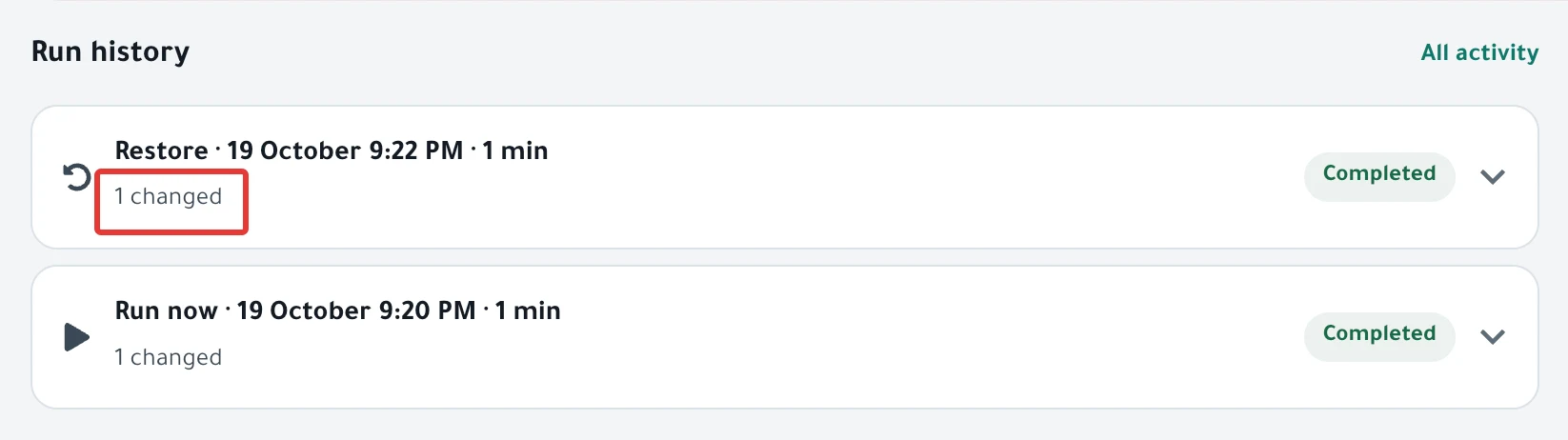
- Click the run line to open it. The newest run opens on its own if it did not end as Completed.
- Under Changes, each product shows what changed (before and after), its result, and the reason if it did not change.
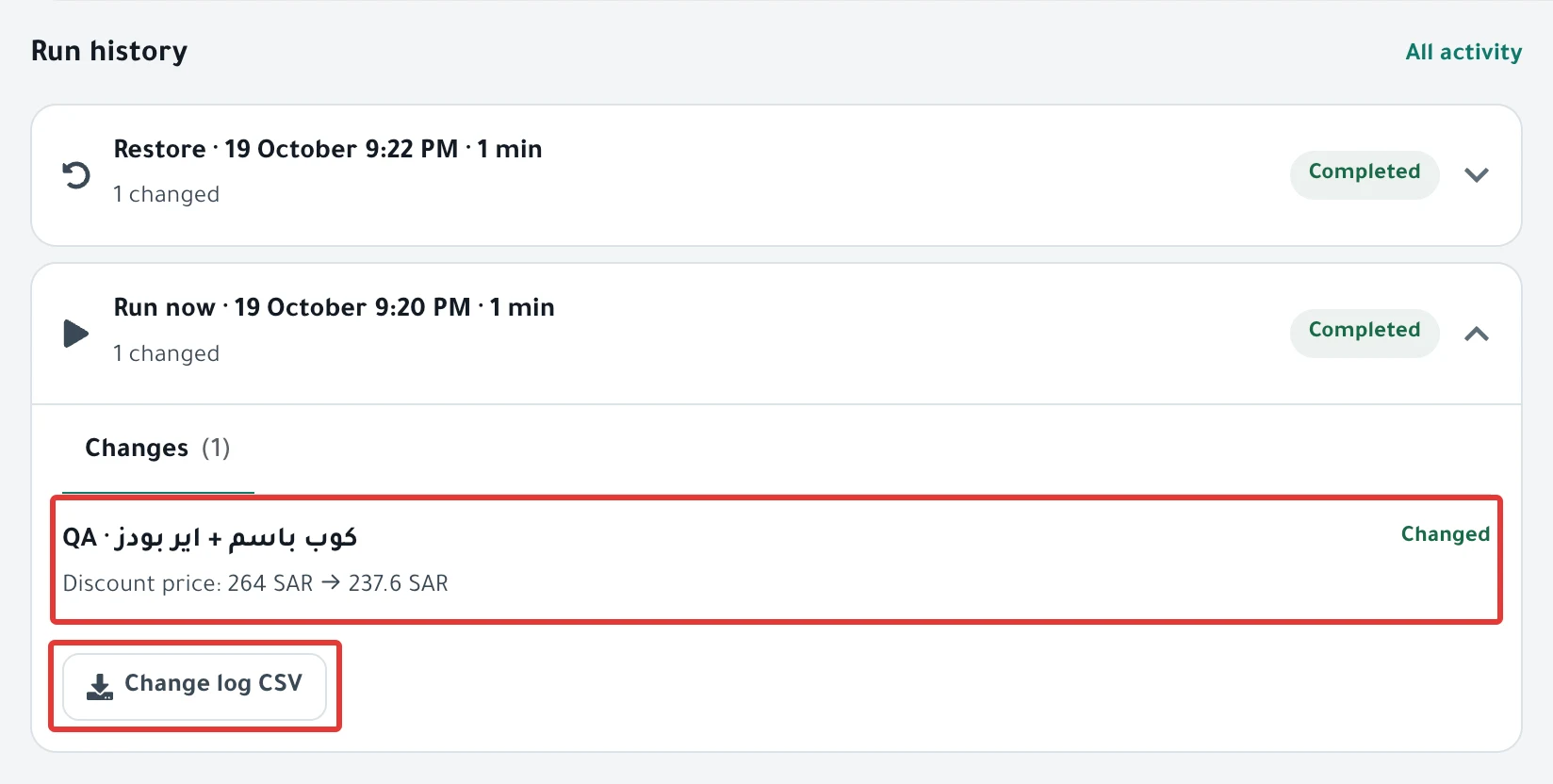
- To download the products shown as a file, click Change log CSV.
Result
The run type appears at the start of the line:
| What you see | What it means |
|---|---|
| On Schedule | A run at the schedule's time |
| Run now | A run you started with Run it now |
| Retry | A run on products that did not change before |
| Restore | A restore of the products, started with Restore or End offer now |
| Ended on time | A restore that happens on its own at the end of the offer |
The counts on the line:
- "12 changed": products that changed in your store.
- "1 partly changed": products where part of the change went through and part did not. The reason is under the part that did not change.
- "2 didn't change": products PopAutomate tried to change that did not change. The reason is under each product.
- "3 left as is": products PopAutomate left unchanged on purpose. The reason is under each product.
- "4 didn't run": products PopAutomate did not reach because the run was stopped.
The run status is Completed, Completed with issues, Failed, Didn't run or Stopped. For what each status means, see Status guide: what schedule and run statuses mean.
Rules
- PopAutomate sends the "✅ نجحت حملتك: …" email ("Your campaign succeeded") after every run at its scheduled time and after every Run it now. You get it even if some products did not change. Do not rely on it: open Run history.
- In the Schedules list you may see "Last run: Completed" with a number in parentheses. The number counts products that did not change, so open the schedule to see them.
- PopAutomate shows the first 500 lines of each run, and the CSV file has only those lines.
- If you see "Didn't start: the store wasn't connected at the time." or "Didn't start: the schedule wasn't ready at the time." under a run, that run changed nothing.
- If some products can still be retried, a Retry button with their number appears in the open run.
If it did not work
- Products show "didn't change" and you want the reason and the fix: Some products did not change after a schedule ran
- There is no run at the scheduled time, or you see "Didn't start: …": A schedule did not run on time: why and how to fix it
- You got the "✅ نجحت حملتك" email and the products did not change: Campaign succeeded email, but products did not change
Next
Some products did not change after a schedule ran
All the articles on tracking your schedules are in Track your schedules: pause, end or restore your products.
Did this article answer your question?