Run a schedule now instead of waiting for its time
Click Run it now on the schedule page, and PopAutomate runs it on your store once, right away. In a one-time schedule, this counts as its only run.
Steps
Path: Schedules > the schedule > Run it now
- Click Schedules in the menu on the left, then click the schedule name. On your phone, Schedules is in the bottom bar.
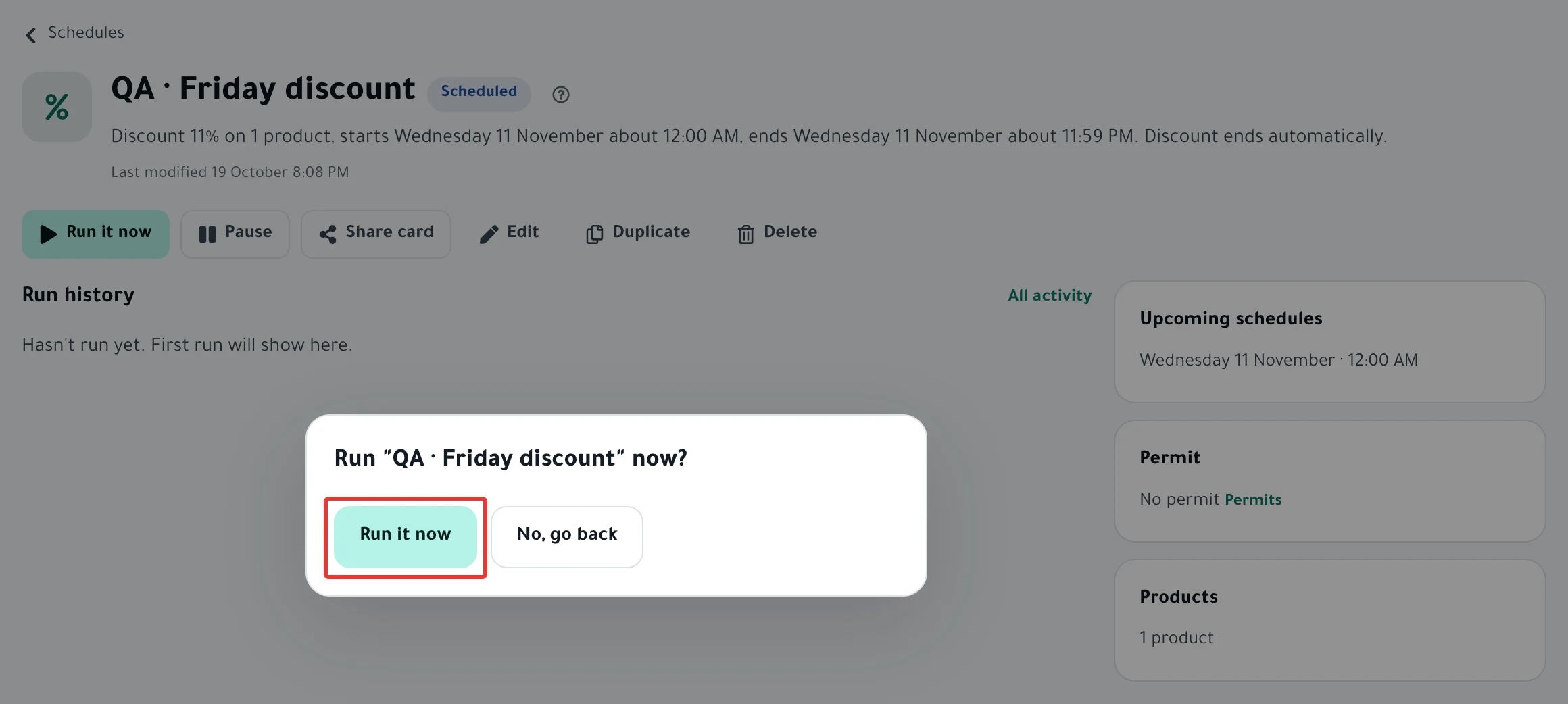
- Make sure its status is Scheduled, then click Run it now at the top of the page.
- In the dialog "Run "…" now?", click Run it now.
Result
- You see "We started the run." and the status changes to Running.
- A run of type Run now appears in Run history. Open it to see what changed for each product.
- The run takes about 10 minutes per 100 products, and you can close the page.
- The run happens even if today is not one of the schedule's days.
Rules
- In a one-time schedule, Run it now counts as its only run, so it will not run again at its scheduled time. Duplicate it first if you need that time.
- To run now and keep the scheduled time, click Duplicate on the schedule page. In the copy, choose Now for the start, check the dates and settings, then activate it. The original schedule keeps its time.
- The copy does not get every setting. Products you excluded and tiered discount steps, for example, are not copied. Add them again in the copy before you activate it. The full list is in Duplicate a schedule: same settings, new dates.
- In a repeating schedule, the next times stay as they are. If you set Number of times, the count goes down by one.
- A schedule that is Paused or Disabled does not run now. Click Activate first, as in Pause a schedule and turn it back on. A draft does not run until you activate it.
- If you see "Your store is busy with another run…", another schedule is running on your store now. Try again after it finishes, as in A schedule did not run on time: why and how to fix it.
- On the Calendar, the same button appears when you click the schedule. There, the confirm button is Run now.
If it did not work
- Run it now does not appear because the status is not Scheduled: Status guide: what schedule and run statuses mean
- You see "Reconnect your store first.": Store disconnected and schedules paused: how to reconnect
- You see "We couldn't do that. Try again.": Fix "We couldn't do that" when you click a schedule button
- The run finished and some products did not change: Some products did not change after a schedule ran
- You want to restore what the run changed: Restore prices and products after a schedule ran
Next
Schedule run results: what changed in your store?
All the articles on tracking your schedules are in Track your schedules: pause, end or restore your products.
Did this article answer your question?