Activity log: see what happened in your account
Click Activity log to see what happened in your schedules, day by day: what you did, the result of each run, and lost connections.
Steps
Path: Activity log
- Click Activity log in the menu on the left. On your phone, it is in the bar at the bottom.
- Choose the period: 7 days, 30 days, 90 days or 1 year. The page opens on 30 days.
- Choose the type of events: All, Runs, Your changes, System & connection or Emails. Each type shows how many events it has.
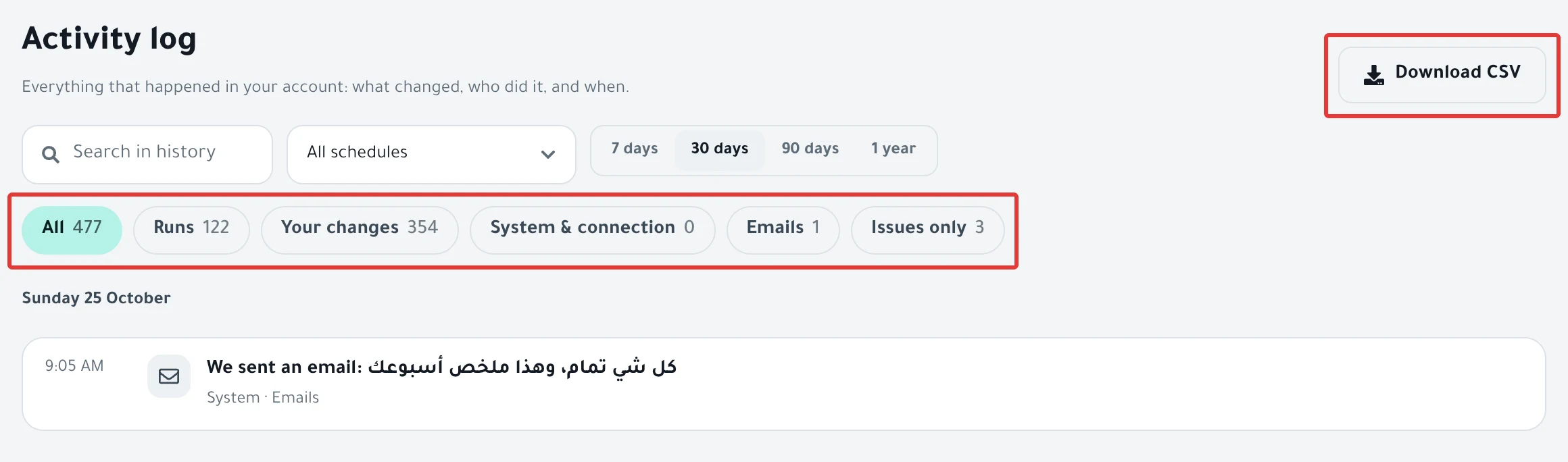
- To see only what needs your attention, click Issues only.
- To look for a schedule, enter its name in Search in history, or choose it from the All schedules list.
- To open the schedule, click Open next to the row.
- To save what you see in a file, click Download CSV at the top of the page.
You can also open the log from a schedule page: click All activity next to Run history to see only that schedule's events.
Result
You see the newest events first, grouped under "Today · …", "Yesterday · …" and the date of each day. Each row shows the time, what happened and who did it: "You", "System" or "Platform".
| Type | What it shows |
|---|---|
| Runs | The result of each run: "«…» ran", "«…» ran with issues", "«…» failed", "«…» didn't run", "«…» ended on time", with the number of products that changed or the reason for the problem |
| Your changes | What you did to your schedules: create, edit, pause, activate, move to Deleted, restore from Deleted, delete permanently and move a date on the calendar, plus what you did to permits |
| System & connection | "«…» is disabled", "Connection to … lost" and "Reconnected with …" |
| Emails | "We sent an email: …" for every alert or summary email we sent you |
PopAutomate emails to Salla and Zid stores are in Arabic.
- Issues only shows runs that had issues, failed or did not run, disabled schedules and lost connections.
- Under the events, you see how many match your choices, then "We keep logs for 12 months."
- After Download CSV, you see "We downloaded the log." A file named
activity-log.csvdownloads. It holds what you see, with the same filters.
Rules
- We keep the log for 12 months, then delete the oldest entries.
- The CSV file has up to 5,000 rows, newest first. Its column names are in English.
- The log shows only the number of products that changed. To see each product and the reason, open the schedule and check Run history, as in Schedule run results: what changed in your store?.
- Clicking Run it now, End offer now or Restore does not add a row by itself. The run it starts appears once it finishes, with "You" next to it.
- A run you stopped with Stop execution does not appear in the log. Stopping a run also pauses the schedule, and that pause does not appear either.
- The log does not show sign-ins or changes to your settings and alerts.
- The "✅ نجحت حملتك: …" email ("Your campaign succeeded") does not appear under Emails. Only alert and summary emails appear there.
- Every filter and button on the Activity log page is explained in Activity log guide: filters, search and CSV download.
If it did not work
- You see "No matching events.": click Clear filters, or choose a longer period.
- You see only one schedule's events, with "Only showing activity for «…»." above them: click Show all.
- You see "We couldn't load this page. Try again.": click Try again.
- You clicked Download CSV and see "Not saved. Try again.": the file did not download. Wait a minute and click again.
- The log shows "«…» failed" or "«…» didn't run": A schedule did not run on time: why and how to fix it
- The log shows "«…» ran with issues": Some products did not change after a schedule ran
Next
Schedule run results: what changed in your store?
All the articles on tracking your schedules are in Track your schedules: pause, end or restore your products.
Did this article answer your question?