Activity log guide: filters, search and CSV download
The Activity log page shows what happened in your account: every run that ended, your changes to schedules, lost connections and the alert emails PopAutomate sent you. The newest event appears first.
Open it from the menu on the left. On your phone, use the tab bar at the bottom of the screen. The other screens are in PopAutomate screen guide: every screen and button.
Each line has the time and who did it: You, System or Platform. Next to each line about a schedule is Open, which opens its page.
Download CSV
The Download CSV button at the top of the page downloads a file with the events that your filters show. After the download, "We downloaded the log." appears.
The file has up to 5,000 events, newest first, and its column names are in English. If you have more events, shorten the range and download more than one file.
If "Not saved. Try again." appears after you click, the file did not download. Click the button again.
Search and choose a schedule
In Search in history, enter a word from an event's title or details, such as a schedule name. Next to it, All schedules lets you choose one schedule.
If you choose a schedule, or open the log from All activity on a schedule page, "Only showing activity for «Schedule name»." appears. Click Show all to go back to all events.
The steps, including Issues only, are in Activity log: see what happened in your account.
Time range
Choose the range: 7 days, 30 days, 90 days or 1 year. The default is 30 days.
Below the list is the number of events, with "We keep logs for 12 months." Older events are deleted. If there are many events, click Show more.
Event types
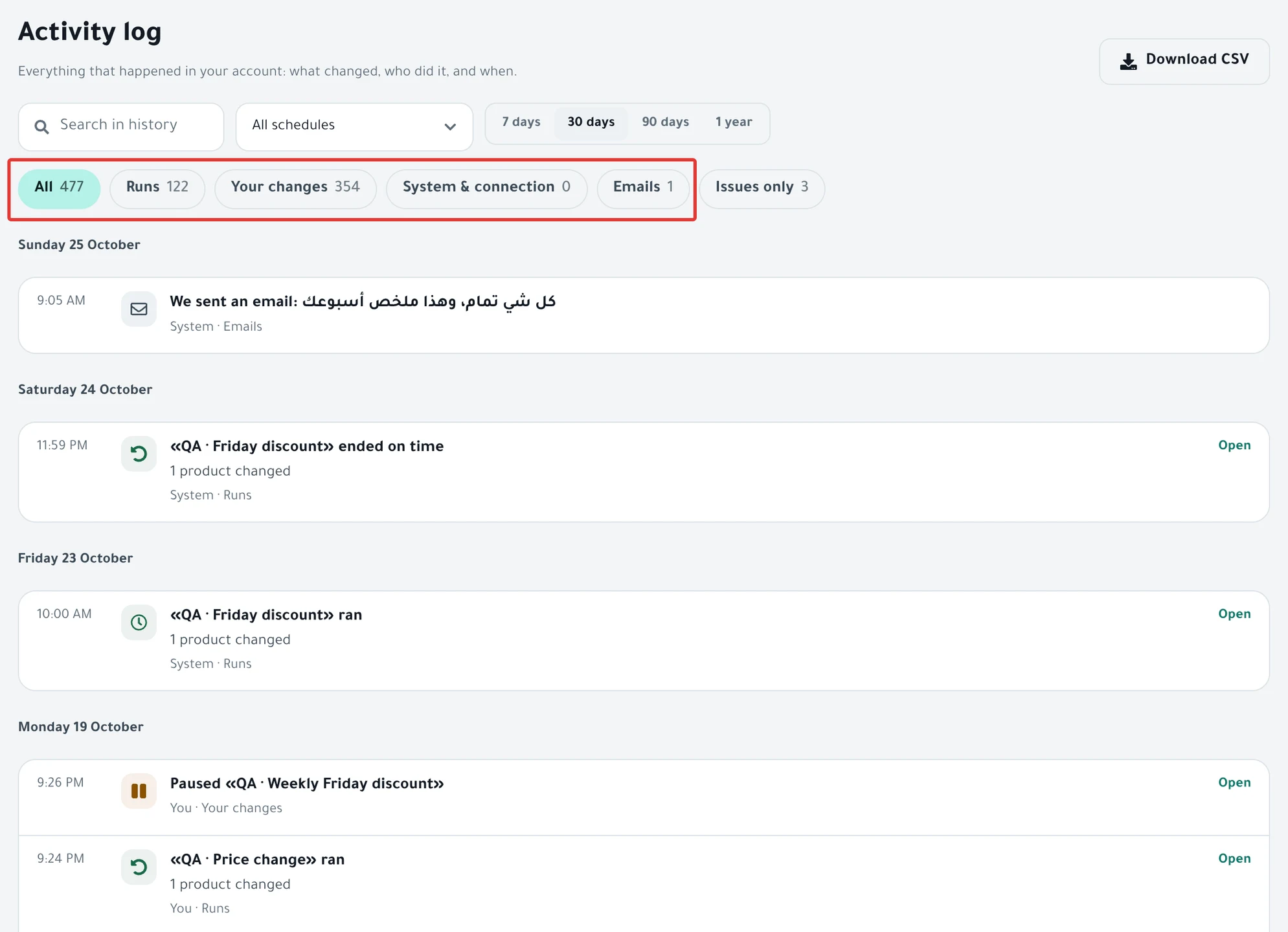
Under the search are buttons with the count of each type for the range, search and schedule you chose:
- All: all events.
- Runs: every run that ended, with the number of products that changed out of its total, or the reason for the problem.
- Your changes: creating a schedule, editing it, pausing and activating it, moving it to Deleted, restoring it, deleting it permanently, and moving its date from the Calendar. Also adding, editing, linking and deleting a discount permit.
- System & connection: a schedule that became Disabled, or a lost connection to your store that came back.
- Emails: every alert email PopAutomate sent you.
If nothing matches, "No matching events." appears. Click Clear filters to go back to all events.
Issues only
Click Issues only to see what needs your attention: a run that ended Completed with issues, Failed or Didn't run, a schedule that became Disabled, and lost connections. Click it again to turn it off.
Click Open on a run line to open the schedule page. In its Run history, you see the products that did not change and why. See Schedule run results: what changed in your store?.
What the log does not show
The log does not show everything. These do not appear in it:
- Clicking Run it now, Stop execution or End offer now. The run itself appears after it ends.
- A run you stopped before it ended.
- The details of each product. The log shows only the count. The details are in Run history on the schedule page.
- Signing in to your account or changing settings.
You can see each product that changed in a run in Schedule page guide: every button, status and run.
Did this article answer your question?