Settings screen guide: account, store, time zone, alerts
The Settings screen has 3 tabs: Account for your name and password, Store & timezone for the connection status and the time zone, and Notifications for the emails you get.
Open it from the menu on the left. On your phone, tap the account button at the top (the circle with your first initial), then tap Settings. The other screens are in PopAutomate screen guide: every screen and button.
Account
The Account tab has a Your data card. Change Name and click Save, and "Your data's saved." appears. If you leave it empty, "Enter your name." appears.
You cannot change Email here: "You can't change it here. Contact us if you need another email." To change it, contact support as shown in Contact PopAutomate support on WhatsApp.
Change password
The Change password button sends a link to your email, and "We sent a password reset link to" appears with your email. Open the link and choose a new password.
If the email does not arrive, check your spam folder. The full steps are in Forgot your PopAutomate password: choose a new one.
Store card
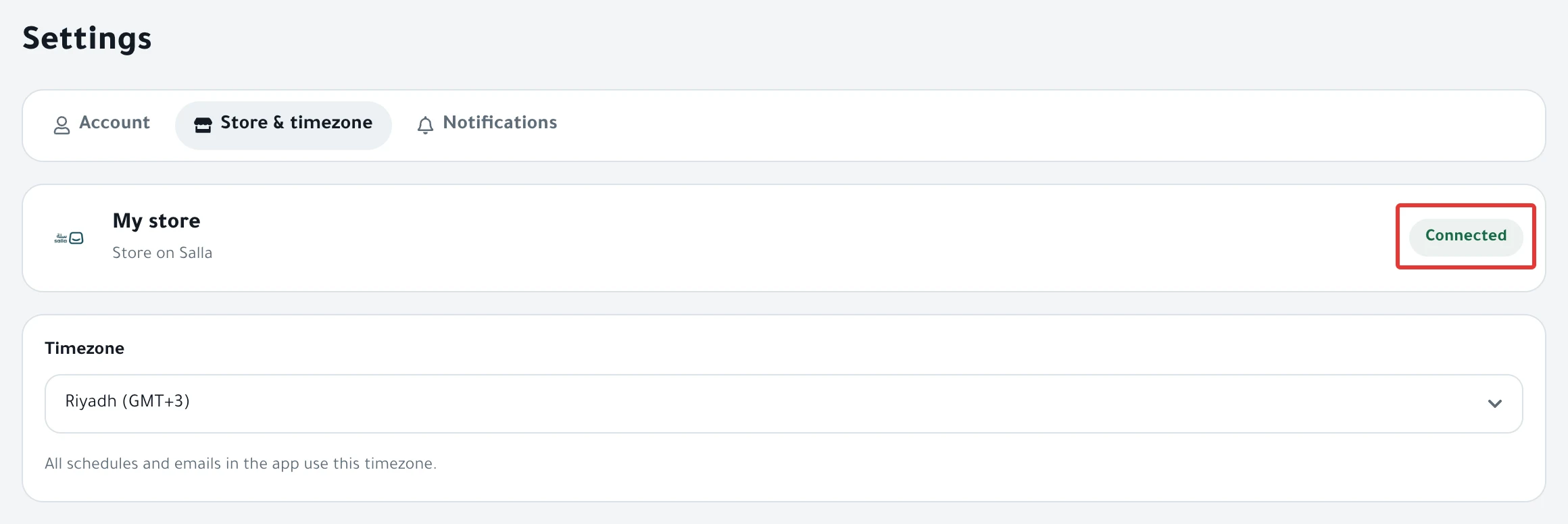
The first card in the Store & timezone tab shows your store name and "Store on Salla" or "Store on Zid", and your store address if it differs from its name.
The page has no button to disconnect the store.
Connection status
Next to the store name is Connected, or Connection disconnected if the connection is lost. When it is lost, the Reconnect button and the message "Your schedules are paused until you reconnect. Nothing will change in your store." appear.
On Salla, the button opens the PopAutomate page on the Salla App Store. To reconnect, sign out, then click Sign in with Salla. On Zid, Connected may show while products do not change. The fix for both cases is in Store disconnected and schedules paused: how to reconnect.
Timezone
Under the store card is Timezone. Choose Riyadh, Dubai, Kuwait or Cairo. It saves right away, and "Timezone changed. Upcoming times will be calculated in it." appears.
"All schedules and emails in the app use this timezone." If it is not set to Riyadh, "Is your store in Saudi Arabia? Most customers are on Riyadh time." appears with a Riyadh button.
If you sign in with your email and password from a device whose time zone differs from your store's, open this tab and check that the time zone did not change. See Change the schedule time zone in PopAutomate.
Notifications
Under How should we reach you?, the Email switch controls all alerts. If you turn it off, the other switches are grayed out. Under What should we alert you about? are If a schedule fails or has issues, If the store connection drops and After every run.
Under Summary, choose None, Daily or Weekly. If you choose a summary, click See example to see how it looks. Every change saves right away, and "Alert settings saved." appears.
What you get in each email, and when, is in PopAutomate email alerts: choose what you get.
Did this article answer your question?