Review & activate step: activate a schedule in PopAutomate
Review & activate is the last of the four steps of a schedule. It shows the schedule in one sentence and the product prices before and after, then the save and activate buttons.
At the top of the page, the subtitle reads "Step 4 of 4". Back takes you to the previous step. The other screens are in PopAutomate screen guide: every screen and button.
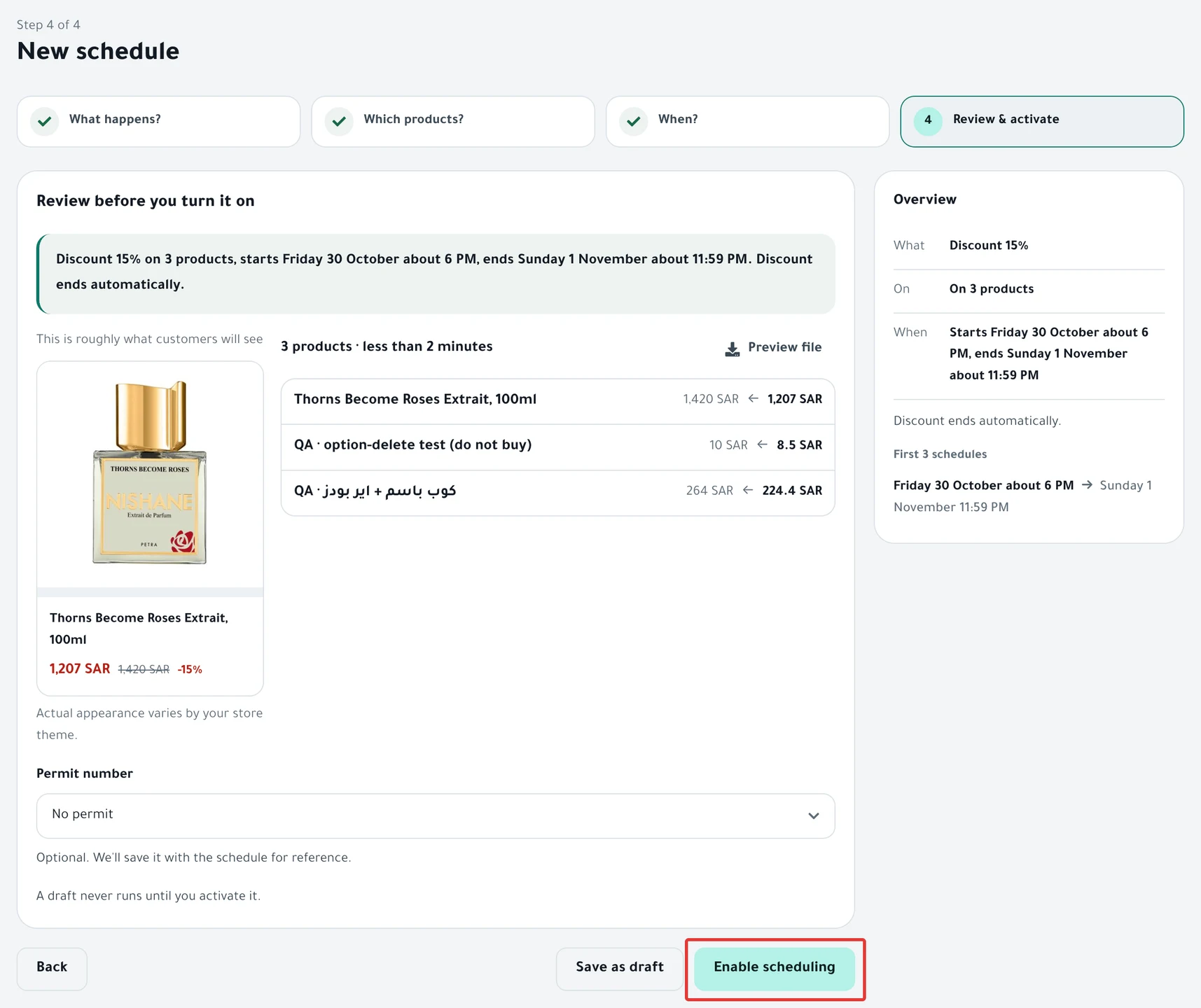
Overview and preview
Under the heading "Review before you turn it on", a sentence says what happens, to which products and when. Read it before you activate.
- A card headed "This is roughly what customers will see" shows the first product. Under it: "Actual appearance varies by your store theme." The promo title appears on this card on Salla only.
- Next to it are the number of products and a rough duration, then the first 8 products with their prices before and after, and a line with how many more there are. Preview file downloads the preview products with their prices before and after.
- With a CSV file, the product list does not appear, only the number and the duration.
The rough duration is about 10 minutes per 100 products.
On the side, the Overview shows What, On and When, and First 3 schedules.
If another schedule touches the same products at the same time, the overlap warning appears here too. It is explained in When? step: schedule timing in PopAutomate.
On Zid, every option of a product gets the main product's sale price in Percentage (%) and Fixed amount (SAR). If your options have different prices, use Final offer price. With Change Price on Zid, only the main price changes. Change the prices of options in your Zid dashboard.
Price warnings
A warning may appear next to a product:
| Warning | It means | Blocks activation? |
|---|---|---|
| "Price becomes zero or less" | The new price is zero or less | Yes |
| "Offer price isn't lower than the original" | The sale price is equal to or higher than the original | Yes |
| "Already showing" | With Show Products, the product is already visible | No |
With a warning that blocks activation, the screen says "Some products would end at a wrong price (marked below). Change the value, or go back to «Which products?» and remove them."
The check uses the preview prices as they are now. With Categories, a product that was not in the preview may join at run time, so check your store prices after the first run.
Permit number
Permit number: choose the offer's permit from your permits, or No permit. Under the list: "Optional. We'll save it with the schedule for reference."
- With One time, if the permit's dates do not cover the start day or the end day, a warning reads "The permit's dates don't cover this schedule's dates." PopAutomate does not check the dates for Repeats or With an ad.
- If PopAutomate could not link the permit, the screen says "The schedule was saved but the permit wasn't linked."
How to save a permit and link it to a discount is in Ministry of Commerce discount permit: save and link it.
Enable scheduling
Enable scheduling saves the schedule and activates it. Nothing changes in your store until the start time. "Schedule saved." appears and the schedule page opens.
If the schedule is not saved, the screen says "The schedule wasn't saved. Try again." or shows the reason.
What you see after you activate is in Schedule page guide: every button, status and run.
Activate and run now
Activate and run now replaces Enable scheduling for a One time schedule that starts Now. It activates the schedule and starts the run in your store right away.
Save changes
When you edit a schedule, the button is Save changes. What it does depends on the schedule's status:
- Paused: it stays paused.
- Draft: it becomes active. If it starts Now, the run starts in your store right away. To keep it as a draft, use Save as draft.
- It starts Now and has already run: PopAutomate does not run it again, except in the case below. The screen says "Edit saved. We didn't run it in your store again because it already ran. To apply it again, press 'Duplicate' and activate the copy."
- It starts Now, its offer is active now (Offer Active), and you changed the value or the products: PopAutomate applies the change in your store now. For a schedule with a start time, saving does not change your store now.
- A price change by a percentage or an amount that is still in your store: PopAutomate does not apply it again. A message explains how to apply the new value.
A One time schedule that has already run does not run again if you change its time. Click Duplicate on its page and set the new time on the copy.
You cannot edit a CSV schedule. Create a new schedule with the new file.
The steps are in Edit a saved schedule: change the time, value or products. To duplicate, read Duplicate a schedule: same settings, new dates.
Save as draft
Save as draft saves the schedule without activating it, and "Draft saved." appears. A note reads "A draft never runs until you activate it."
- It appears when you create a new schedule or edit a draft. It does not appear when you edit an active or paused schedule.
- It does not work with Now: the screen says "A draft needs a start time. Change 'Now' to a set time."
The steps are in Save a schedule as a draft: set it up now, activate later.
To stop an active schedule instead of saving it as a draft, read Pause a schedule and turn it back on.
All four steps are in Schedule a discount on Salla and Zid.
Did this article answer your question?