Quick offer guide: every option and button
A quick offer is a percentage discount on your whole store or on one category. You choose Discount amount?, On what? and Until when?, and the discount ends on its own when the time is up.
To open it, click Quick offer at the top of Home. The full steps are in Run a quick discount on Salla and Zid from Home. The other screens are in PopAutomate screen guide: every screen and button.
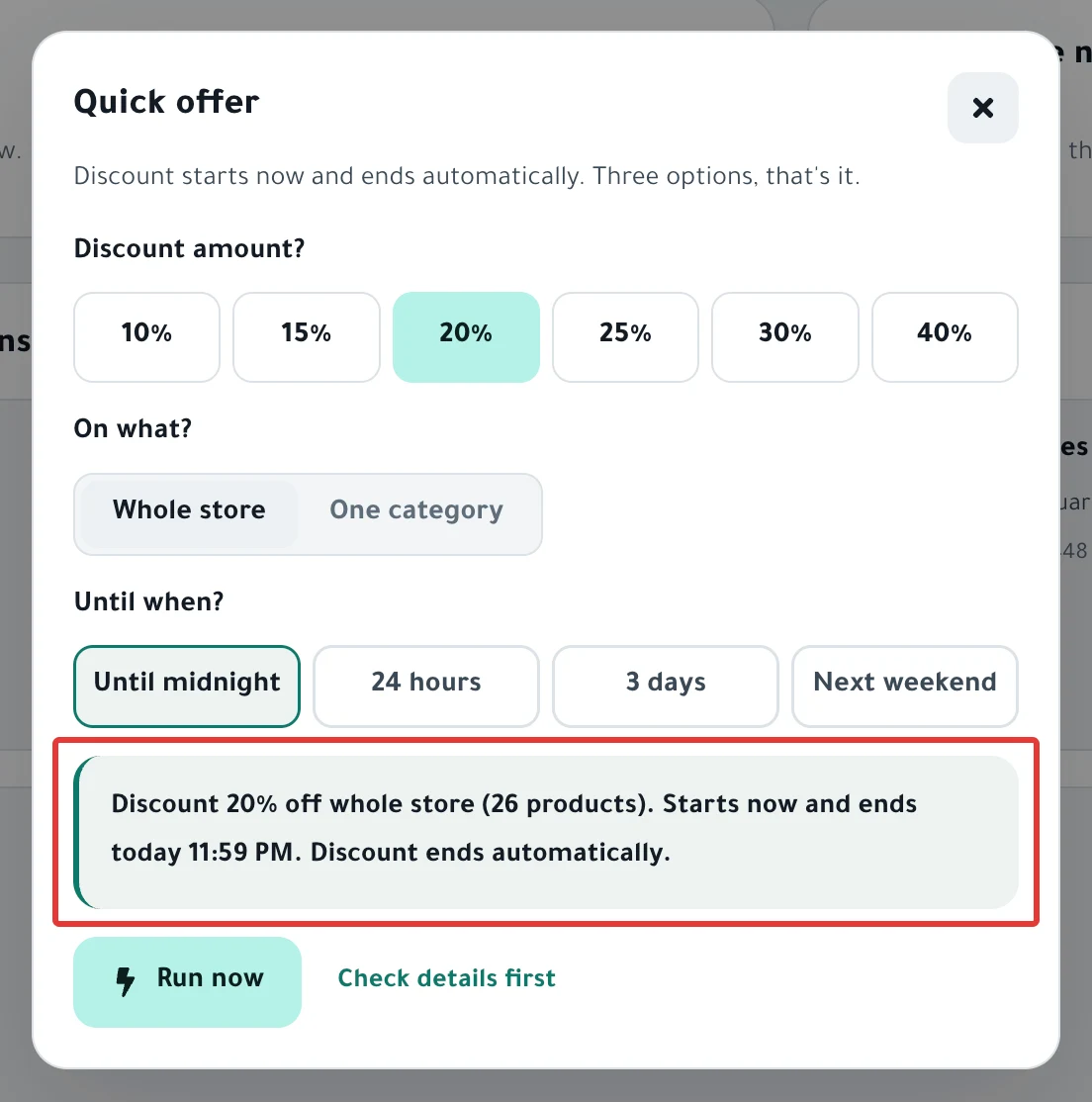
Discount amount?
Choose one of 6 percentages: 10%, 15%, 20%, 25%, 30% or 40%. 20% is chosen when the dialog opens. For any other percentage, use New schedule.
On what?
- Whole store: every product in your store when you click the button. A product you add later does not join this offer.
- One category: choose a category from the list. PopAutomate reads its products at run time, so a product you add to the category before the start joins the offer.
While the categories load, you see "Reading your store's products…", and before you choose one you see "Pick a category first."
On Zid, Whole store includes only the products that have a SKU.
On Zid, every option of a product gets the main product's sale price. If your options have different prices, use New schedule and choose Final offer price.
Until when?
| Option | Starts | Ends |
|---|---|---|
| Until midnight | Now | Today at 11:59 PM |
| 24 hours | Now | Tomorrow at the same minute |
| 3 days | Now | At 11:59 PM on the third day, counting today as the first |
| Next weekend | Next Friday at 12:00 AM | Saturday at 11:59 PM |
Until midnight is chosen by default. On a Friday, Next weekend starts now. On a Saturday, the next weekend is Friday of the following week.
Under the options, a sentence says exactly when the discount starts and when it ends. Read it before you click the button.
If a product already had a sale price, the quick offer's discount replaces it. When the time is up, the earlier sale price does not come back. Set it again yourself in your Salla or Zid dashboard.
On Zid, the hour a discount starts and ends in your store can differ from the hour you chose. The cause and the fix are in A discount started or ended at the wrong time.
Run now
Run now appears when the offer starts right away. It saves and activates the offer, then "Created «…»." appears and the offer's page opens.
The change starts in your store within about a minute. If another run is in progress in your store, the dialog shows "Another run is in progress in your store. The offer waits its turn."
PopAutomate names the offer for you, such as "Quick offer 20% · …" followed by the start date. If you already have an offer with that name, PopAutomate adds a number such as "(2)".
Schedule
Schedule replaces Run now when the offer starts later, such as Next weekend before Friday. It saves and activates the offer. Nothing changes in your store before the start time.
You then see it under Coming in the next 7 days on Home.
Check details first
Check details first saves the offer as a draft, which does not run, and opens the Review & activate step of the schedule. There you see the products and their prices after the discount.
- The button there is Save changes, and it activates the offer. For an offer that starts now, the run starts in your store right away.
- With Until midnight and 3 days, Save as draft does not work: you read "A draft needs a start time. Change 'Now' to a set time."
- With 24 hours, the start time is the minute you clicked, and with Next weekend, it is the start of Friday. If that time has passed, the review sends you to the When? step and you read "Start date has passed. Pick a future date or 'Now'."
What each button in the review does is in Review & activate step: activate a schedule in PopAutomate.
After you click any of the three buttons, one of these errors may appear:
- "We couldn't find any products in your store.": PopAutomate found no products for this offer, so it did not save it.
- "We couldn't create the offer. Nothing changed in your store.": try again. A reason for the error may appear after the message.
To end a quick offer early, read End an offer and restore prices now.
Did this article answer your question?