What happens? step: every schedule type in PopAutomate
What happens? is the first of the four steps of a schedule. Here you enter the schedule name, choose what happens to your products, and enter a value if the type needs one.
To open it, click New schedule, or edit a schedule. On your phone, tap the + button in the tab bar at the bottom. The other screens are in PopAutomate screen guide: every screen and button.
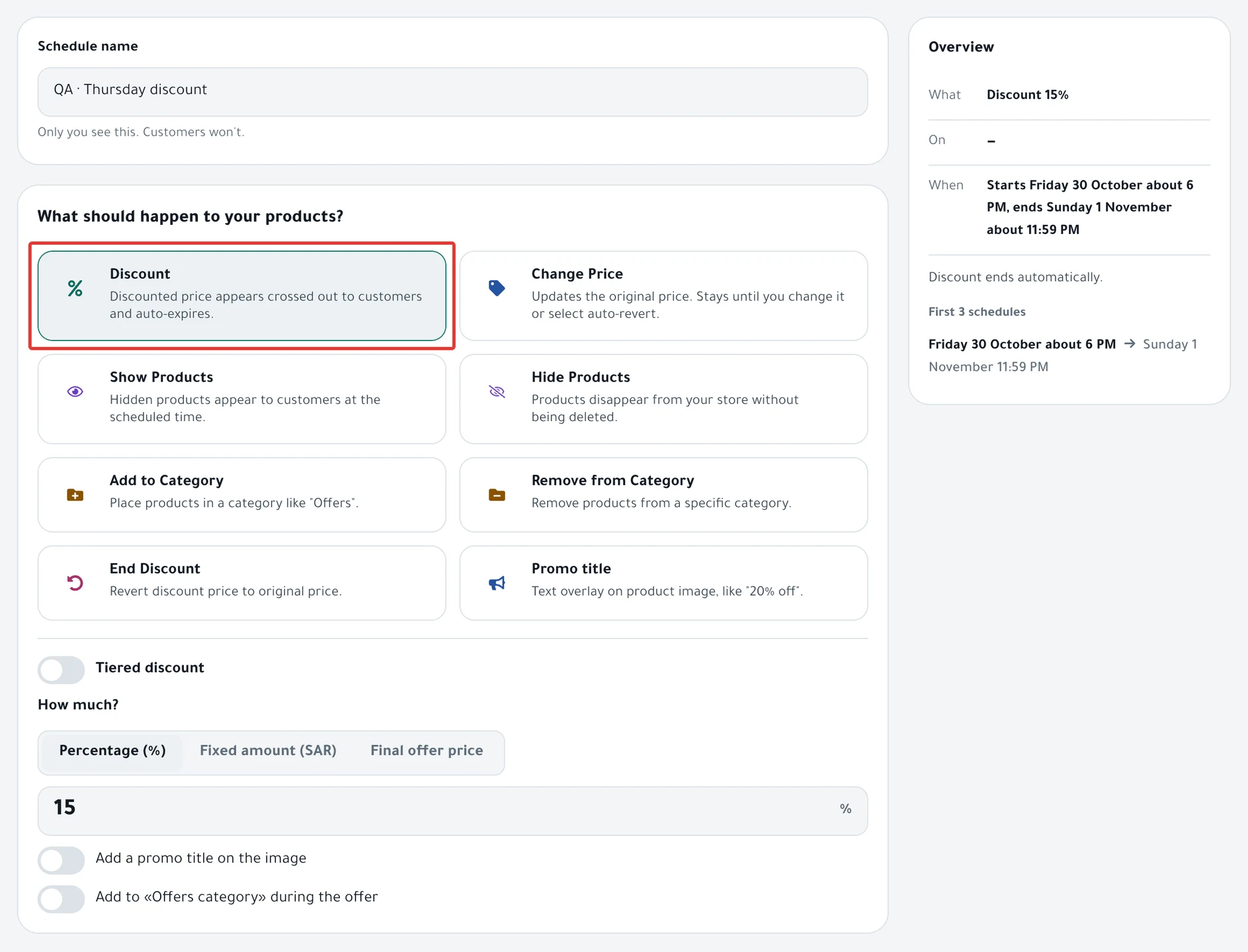
Schedule name
Enter a name that reminds you what the schedule does, such as "Thursday Flash Sale". Only you see the name. Customers do not.
Each schedule needs its own name. If the name is taken, the screen says "You already have a schedule with that name. Choose another." If you leave the name empty, it says "Enter a name for the schedule."
Under the name is the heading What should happen to your products? with eight cards. Choose one.
Discount
The Discount card reads "Discounted price appears crossed out to customers and auto-expires." The original price stays as it is.
Under How much?, choose Percentage (%), Fixed amount (SAR) or Final offer price, then enter the number.
A percentage is a number from 1 to 99. If you enter less than 1, the screen says "Enter a percentage from 1 to 99. A percentage below 1% isn't accepted."
The discount ends on its own at the end time, and the price goes back to the original. If a product already had a sale price, that earlier sale price does not come back after the discount. Set it again yourself in your Salla or Zid dashboard.
On Zid, with Percentage (%) and Fixed amount (SAR), every option of a product gets the main product's sale price. If your options have different prices, use Final offer price.
The full steps are in Schedule a discount on Salla and Zid.
Change price
The Change Price card reads "Updates the original price. Stays until you change it or select auto-revert." Customers do not see a crossed-out price.
Under How much?, New price comes first, then Percentage (%) and Fixed amount (SAR). With a percentage or an amount, you also choose the Direction: Decrease or Increase.
A percentage decrease must be below 100%. Otherwise the screen says "Discount must be less than 100%."
On Zid, only the product's main price changes. Change option prices in your Zid dashboard.
The full steps are in Change product prices on Salla and Zid at a set time.
Show products
The Show Products card reads "Hidden products appear to customers at the scheduled time." This type needs no value.
The steps are in Hide or show products on Salla and Zid at a set time.
Hide products
The Hide Products card reads "Products disappear from your store without being deleted." The products stay in your store dashboard, and customers cannot see them.
For Show Products and Hide Products, you choose in the When? step whether the products go back to how they were at the end.
The steps are in Hide or show products on Salla and Zid at a set time.
Add to category
The Add to Category card reads "Place products in a category like 'Offers'." Enter the Category name. Under the field: "If the category doesn't exist, we'll create it in your store."
The steps are in Add products to a category or remove them at a set time.
Remove from category
The Remove from Category card reads "Remove products from a specific category." Enter the Category name. Under the field: "We'll pull products from this category only, and keep the category itself."
If you leave the category name empty, the screen says "Enter the category name."
The steps are in Add products to a category or remove them at a set time.
End discount
The End Discount card reads "Revert discount price to original price." It removes the sale price from the products you choose and needs no value.
A warning reads "Ending a discount can't be undone." PopAutomate does not bring the sale price back after it removes it.
The steps are in End a discount at a set time on Salla and Zid.
Promo title
The Promo title card reads "Text overlay on product image, like '20% off'." Enter the text in Promo title on image.
If you leave the text empty, the screen says "Enter the promo title."
On Zid, the card is turned off and reads "Promo title on image only shows in cart." The app means Salla, not "cart": the promo title on the image works on Salla only.
The full steps are in Promo title on Salla: add text to your product images.
Tiered discount
The Tiered discount switch appears with Discount only, above How much?. Turn it on to make the discount grow day by day, such as 10% on day 1, then 20%, then 30%.
- Each step has a Day and a percentage. Add step adds a step 2 days after the last one, 10% higher, up to 90%.
- A tiered discount has 2 to 5 steps. At 5 steps, the screen says "Up to 5 steps". Delete step is turned off when only two steps are left.
- The steps start on day 1, and each step's day comes after the one before. Each percentage is between 1 and 99.
- Days count from the first run: day 2 starts 24 hours after it.
A tiered discount works only for an offer that runs One time or With an ad, not for a repeating offer or a CSV file. The offer must also last until the day of the last step.
The steps are in Tiered discount on Salla and Zid: it grows day by day.
Add a promo title on the image
With Discount and Change Price, turn on Add a promo title on the image and enter the text. The text appears on the product images along with the new price.
On Zid, the switch is turned off, because the promo title on the image works on Salla only.
If the discount ends at the end of the day, the promo title may stay on the product on Salla. This happens with All day, or when the end time is 11:59 PM or 12:00 AM. Choose another end time, or delete the title in your Salla dashboard after the offer.
Add to «Offers category» during the offer
With Discount and Change Price, turn on Add to «Offers category» during the offer. The products join the Offers category in your store and leave it when the offer ends. In your store, this category is always named "قسم العروض" (Arabic for "Offers section"), even when PopAutomate is in English. If your store does not have it, PopAutomate creates it.
With Change Price, the price must be restored at the end. Otherwise the screen says "The offers category is removed at the end, so the price must be restored at the end."
The category stays in your store after the offer. Delete it in your Salla or Zid dashboard if you no longer need it.
If a wrong price appears in your store after a run, read Wrong discount price in your store: causes and fixes.
The steps are in Offers category on Salla and Zid: group discounted products.
Did this article answer your question?