Schedules list guide: search, filters and the switch
The Schedules list shows all your schedules with their status, next run and last run. Open it from the menu on the left. On your phone, use the tab bar at the bottom of the screen.
Click any row to open the schedule page, which has the other buttons. You cannot delete from the list itself. The other screens are in PopAutomate screen guide: every screen and button.
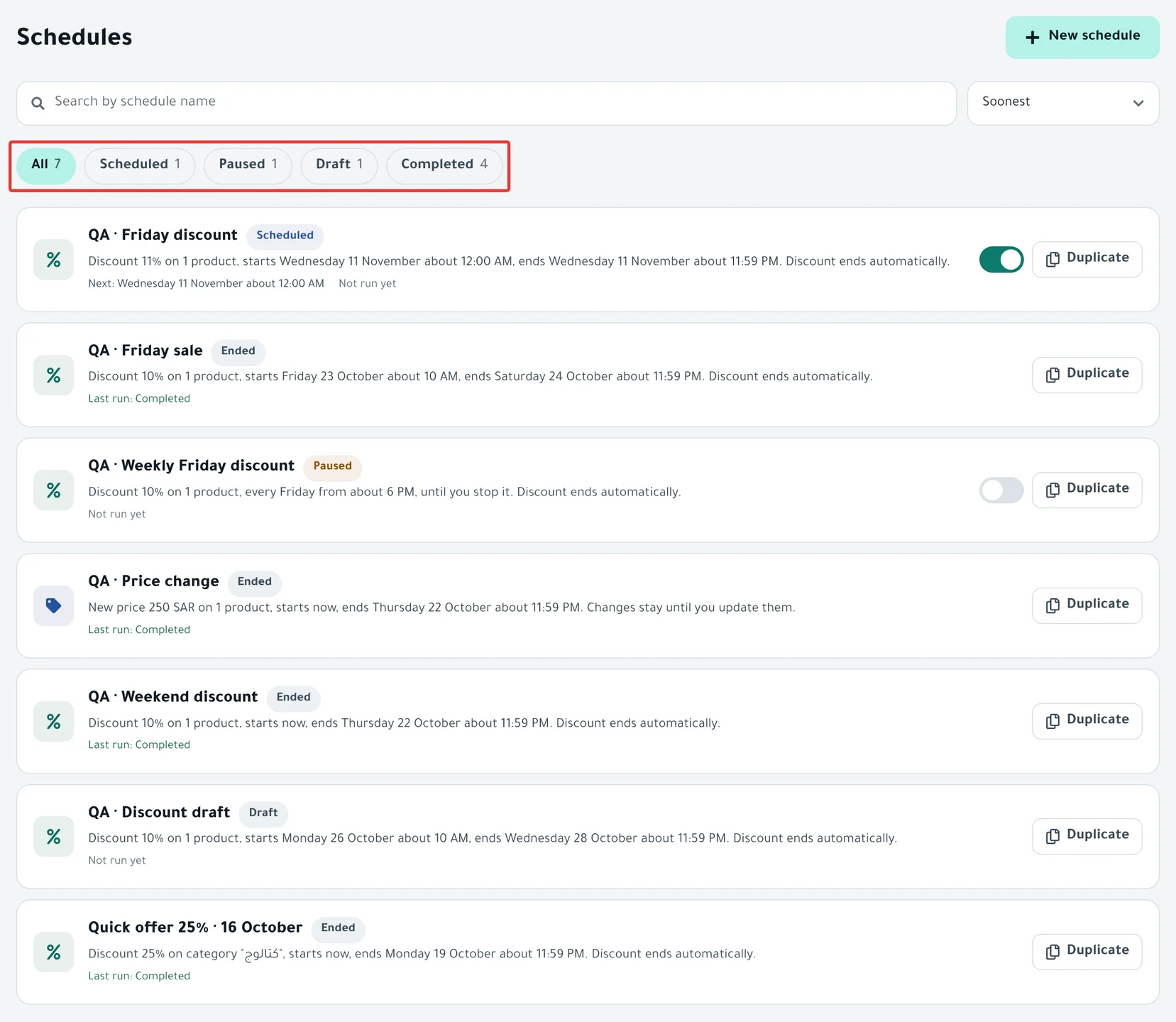
Search and sort
Type part of a schedule's name in the Search by schedule name box. The search looks at names only and ignores upper and lower case. It is cleared when you leave the page.
Next to the search, you choose the order: Soonest (the default) or Last edited.
If no schedule matches what you typed, "No schedules match your search." appears. Click Clear search to clear the text and set the filter back to All.
Filters
Below the search are buttons that filter the schedules by status, with a count next to each. A button appears only if it has at least one schedule.
- All: all your schedules.
- Active: a schedule that is running now, or whose offer is live in your store.
- Scheduled: waiting for its next run.
- Needs attention: a schedule that is Disabled or Failed.
- Paused: you paused it.
- Draft: you saved it and did not activate it.
- Completed: it ended, or it ran and will not run again.
Below the list is a line with the number of schedules shown, like "3 schedules". If the filter you chose is empty, the list shows all schedules. What each status means is in Status guide: what schedule and run statuses mean.
Last run and next run
Each row shows the schedule name and a status badge. If your store is not connected, the badge reads Disabled on schedules that are waiting for their next run or have a live offer.
Under the name is the next run time after Next:, or Active now if the schedule is running. Next to it is Last run: with its result, or Not run yet.
If you see Completed with a number in parentheses, some products did not change in that run. Open the schedule and check Run history. See Some products did not change after a schedule ran.
The activate and pause switch
The switch at the end of the row appears only for a Scheduled schedule (it is on) or a Paused schedule (it is off). For other statuses it does not appear.
When you turn it off, it asks "Pause «Schedule name»?" and says "It won't run until you enable it. Changes in your store will stay as they are." Click Pause, or No, go back to cancel.
After you pause, "Paused «Schedule name»." appears with Undo. When you turn it back on, it does not ask. "Turned «Schedule name» back on." appears, also with Undo.
If "We couldn't do that. Try again." appears, the status of the schedule did not change. Refresh the page and try again.
To pause a schedule or turn it back on from its page, see Pause a schedule and turn it back on.
Duplicate
The Duplicate button opens a new schedule with the settings of the original schedule, and adds "(New version)" to its name. The dates of the original stay. If the start date has passed, it becomes today, and the end date moves by the same number of days. "We copied your settings. Check the dates before you activate." appears above the schedule.
For what does not carry over to the copy, and how to add it, see Duplicate a schedule: same settings, new dates. Some settings do not carry over: the steps of a tiered discount, the Offers category, excluded products, the ad time and the daily end time. Check all of them on each step before you activate.
If the schedule changes the price by a percentage or an amount, the number in the copy becomes a fixed new price, so choose the percentage or amount again.
If you have no schedule yet, "No schedules yet" and a Create your first schedule button appear. If "We couldn't load your schedules." appears, refresh the page. To start a new schedule, see Schedule a discount on Salla and Zid.
Did this article answer your question?