Pause a schedule and turn it back on
Click Pause on the schedule page and the schedule stops running at its times. What it already changed in your store stays. Click Activate to put it back on its times.
Steps
Path: Schedules > the schedule > Pause
Pause the schedule
- Click Schedules in the menu on the left, then click the schedule name. On your phone, Schedules is in the bar at the bottom.
- Make sure its status is Scheduled, then click Pause at the top of the page.
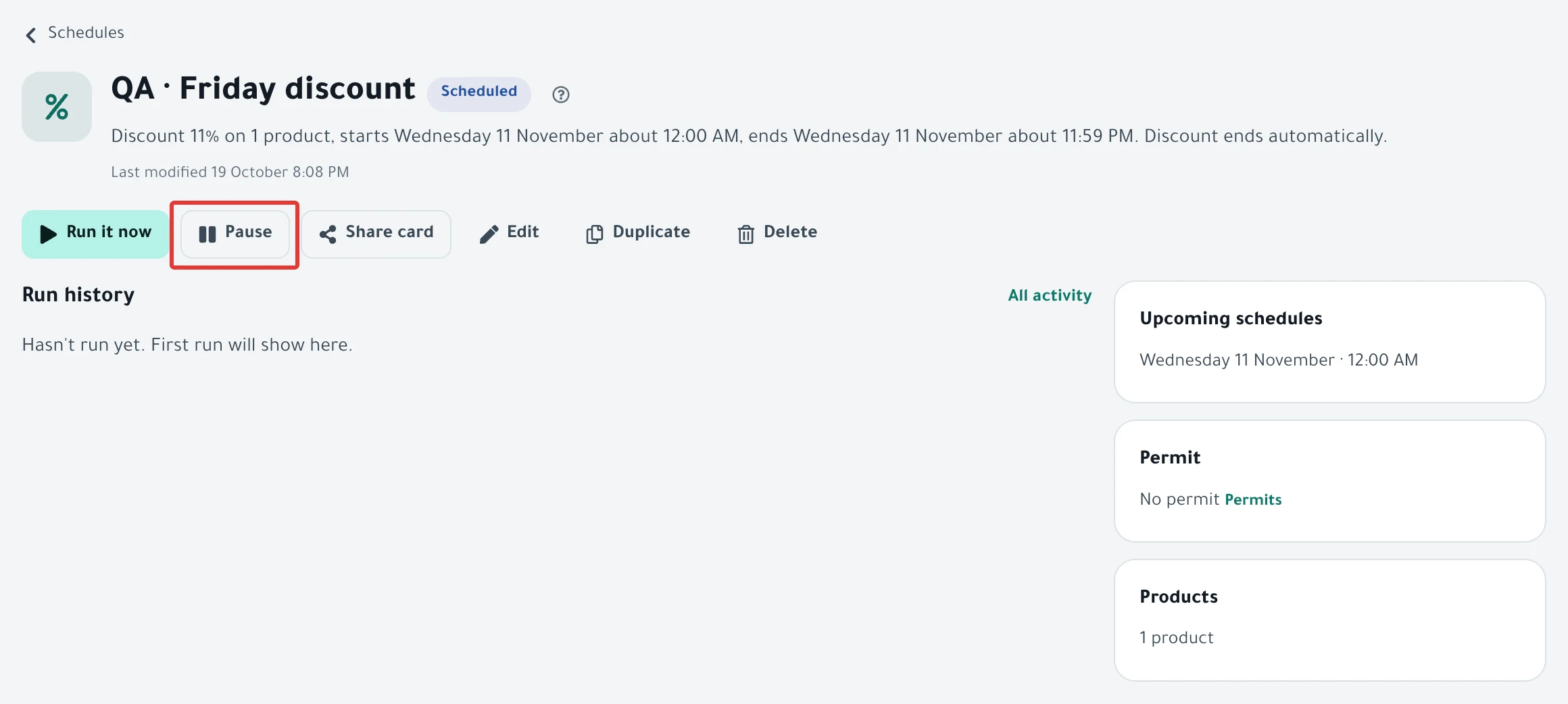
You see "Paused." with an Undo button in case you clicked by mistake.
Turn the schedule back on
- Open the schedule from Schedules.
- Click Activate at the top of the page or in the Paused banner. You see "Activated."
You can also do it from the Schedules list: click the Activate or pause switch next to the schedule, then click Pause in the dialog "Pause «…»?". To activate it, click the switch again.
Result
- The status becomes Paused, and the schedule does not run at any time until you activate it.
- Nothing changes in your store. What the schedule changed before you paused it stays as it is.
- In the Schedules list, you find it under Paused.
- After you click Activate, the schedule runs from its next time. If that time has not come yet, nothing runs when you click.
Rules
- Pause appears only while the schedule is Scheduled. You cannot pause a live offer: use End an offer and restore prices now.
- For a repeating schedule, times missed while it is paused do not run later. It runs at its first time after you activate it.
- For a one-time schedule, if its time passed while it was paused, it runs within about a minute after you click Activate. To avoid that, change its time with Edit before you activate it, as in Edit a saved schedule: change the time, value or products.
- If your store is disconnected, you see "Turned on, but it can't run until you reconnect your store." Reconnect your store so it can run.
- A repeating schedule that is Disabled because it failed twice in a row also comes back with Activate, after you fix the cause.
- While the schedule is paused, Restore appears if what it changed is still in your store. Click it to restore, as in Restore prices and products after a schedule ran.
- A schedule becomes Paused on its own in two cases: if you stop a run in progress, or if you restore it from Deleted. In both cases Activate brings it back. Details are in A schedule paused itself: why and how to turn it back on.
If it did not work
- Pause does not appear because the schedule is Running: Stop a run that is in progress on your store
- You activated it and the status is still Disabled: A schedule did not run on time: why and how to fix it
- You want to know when you paused or activated the schedule: Activity log: see what happened in your account
- What Paused and the other statuses mean: Status guide: what schedule and run statuses mean
Next
Stop a run that is in progress on your store
All the articles on tracking your schedules are in Track your schedules: pause, end or restore your products.
Did this article answer your question?