Delete a schedule and restore it from Deleted
Click Delete on the schedule page. The schedule moves to Deleted and stops running. From there, you can restore it (it comes back paused) or delete it permanently.
Steps
Path: Schedules > the schedule > Delete
Move the schedule to Deleted
- Click Schedules in the menu on the left, then click the schedule name. On your phone, Schedules is in the bar at the bottom.
- Click Delete, the last button at the top of the page.
- In the dialog "Move "…" to Deleted?", click Move to Deleted.
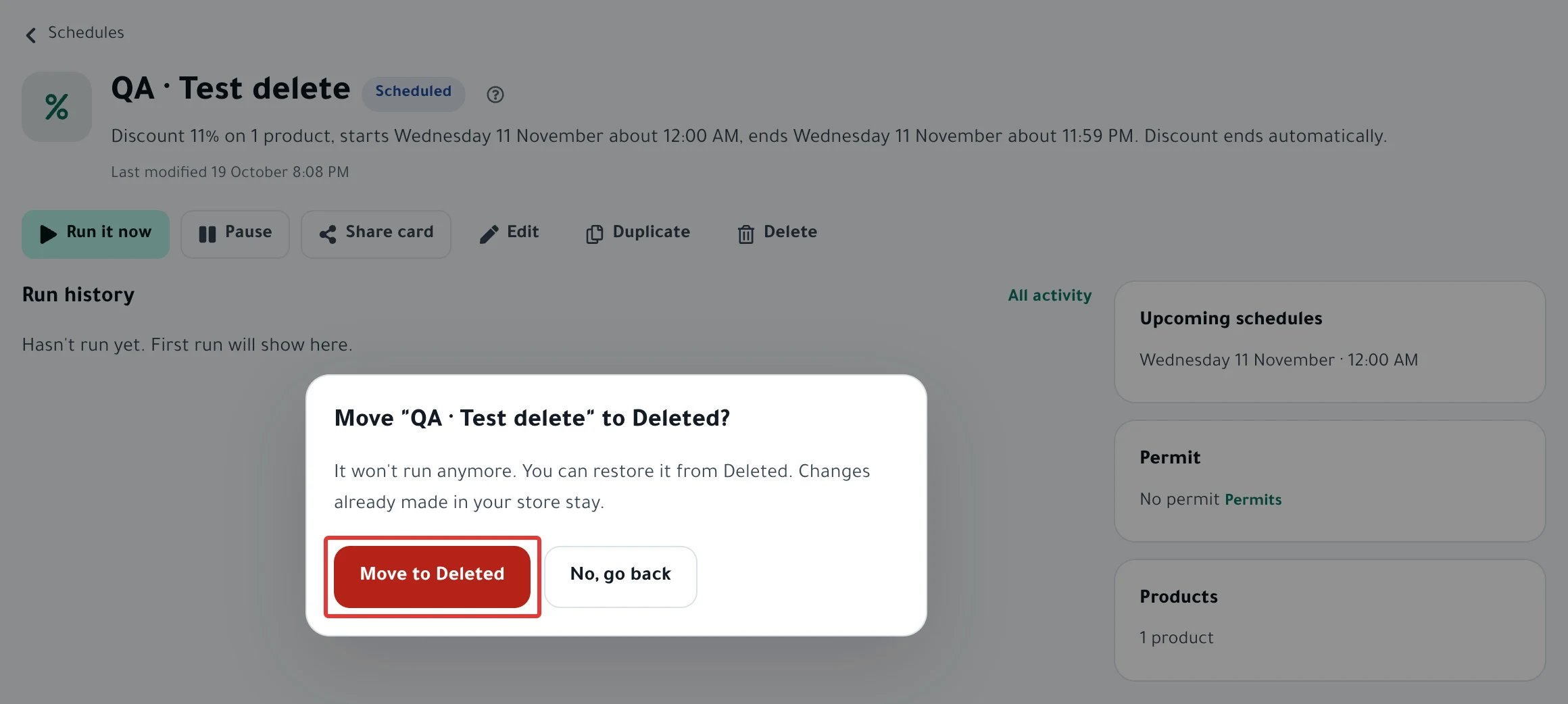
You see "Moved to Deleted." with an Undo button in case you clicked by mistake.
Restore the schedule from Deleted
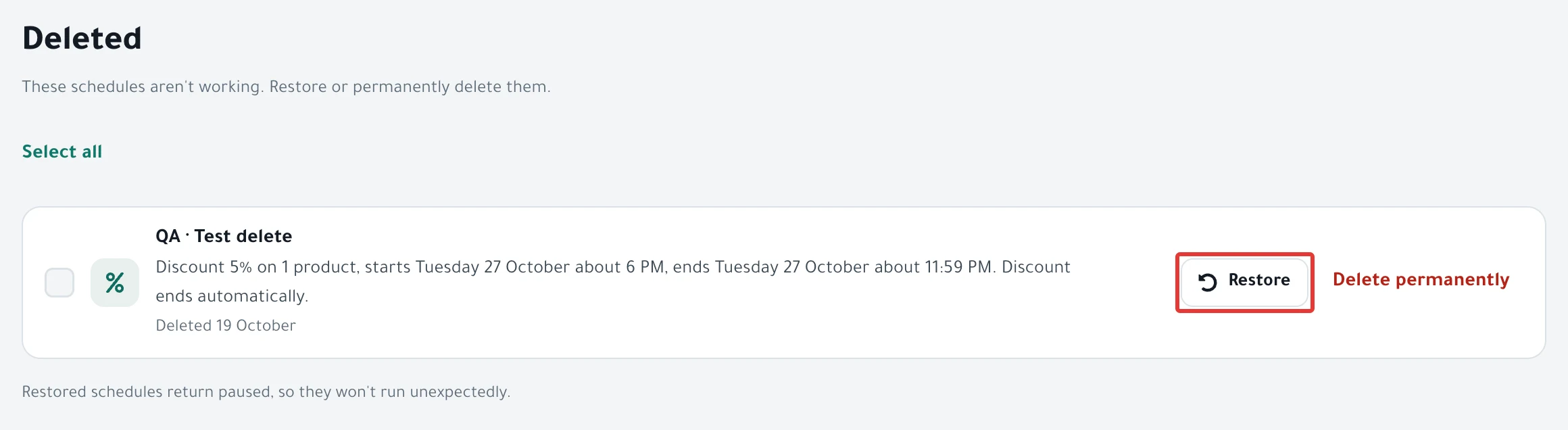
- Click Deleted in the menu on the left. On your phone, tap the account button at the top (the circle with your first initial), then Deleted.
- Click Restore next to the schedule. To restore more than one, choose them, then click the button in the bar at the bottom. It shows the number of schedules, for example "Restore 3".
The schedule goes back to Schedules. Open it and click Activate when you want it to run.
Delete the schedule permanently
- In Deleted, click Delete permanently next to the schedule.
- In the dialog "Delete permanently?", click Delete permanently. You see "Deleted permanently."
Result
- A schedule in Deleted does not run at any time, and it stays there until you delete it permanently.
- Moving it to Deleted does not change your store. What the schedule changed stays as it is.
- If the offer is live and you chose to restore prices at its end, the offer keeps running until it ends. Then PopAutomate restores the products. The dialog shows the end time.
- A schedule you restore from Deleted comes back Paused, and you see "Restored paused. Activate when ready."
- A draft comes back as a draft. A schedule that had finished comes back to Schedules as it was and does not run again.
- Undo in the "Moved to Deleted." message works like Restore in Deleted.
Rules
-
If the schedule is Running, deleting it does not stop the run. Click Stop execution first, as in Stop a run that is in progress on your store, then delete the schedule.
-
To restore what the schedule changed in your store, click Restore on its page before you delete it, as in Restore prices and products after a schedule ran.
-
If the schedule still has a restore due (at the end of the offer, or from a retry), PopAutomate does not delete it permanently. You see "Not deleted: its changes aren't back in your store yet. We'll put them back at the end, then you can delete it permanently." It stays in Deleted until PopAutomate restores its products. Then you can delete it.
-
A schedule with no restore due is deleted, and what it changed stays in your store. For example, a schedule where you chose Changes stay, or one whose products were still changed after the last restore attempt. To restore those products, click Restore on the schedule page before you delete it.
-
If a product had an earlier sale price, the end of the discount does not bring it back. Set it again yourself in your Salla or Zid dashboard.
-
Deleting permanently cannot be undone. To reuse a schedule's offer later, restore it and duplicate it before you delete it permanently, as in Duplicate a schedule: same settings, new dates.
-
To delete more than one schedule permanently, choose them in Deleted, then click the button in the bar at the bottom. It shows the number of schedules, for example "Delete 3 permanently".
-
Every button on the Deleted page is explained in Deleted screen guide: restore or delete permanently.
If it did not work
- You deleted the schedule permanently and the prices did not come back: Prices did not come back after an offer: causes and fixes
- You see "Not deleted: …": PopAutomate is waiting to restore its products at the scheduled time. Delete it after that.
- You restored the schedule and it does not run at its times: Pause a schedule and turn it back on
- You see "Not saved. Try again." on the Deleted page: refresh the page and try again.
Next
Schedule run results: what changed in your store?
All the articles on tracking your schedules are in Track your schedules: pause, end or restore your products.
Did this article answer your question?