Weekly summary: what you get every Sunday
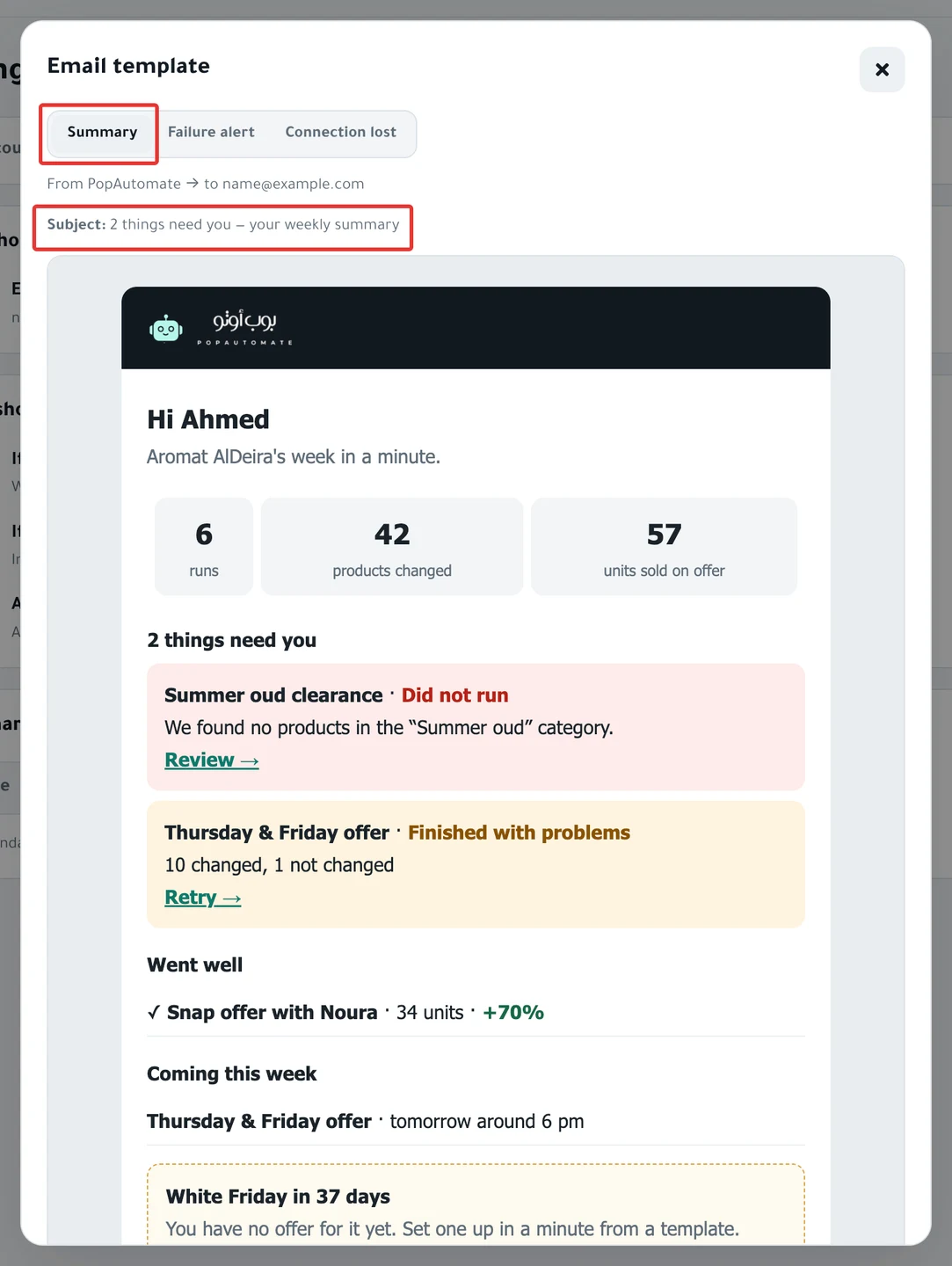
Every Sunday at 9 AM, you get an email that sums up your schedules' week: what needs your attention, what went well and what is coming.
PopAutomate emails to Salla and Zid stores are in Arabic.
Example
Mohammed has 3 schedules. On Sunday morning, an email arrived with the subject "2 things need you — your weekly summary".
In the email, "Friday discount" has "Finished with problems" next to it, and "Payday offer" has "Did not run". "Show perfumes" is under "Went well", and one schedule is under "Coming this week".
Clicking the link under "Friday discount" opened the schedule page, with the last run in Run history.
What is in the summary
| Part | What it has |
|---|---|
| Numbers | How many times your schedules ran, and how many products changed |
| "One thing needs you" or "… things need you" | Up to 3 schedules whose last run failed, did not run or finished with problems, with the reason or the number that changed and did not change |
| "Went well" | Up to 3 schedules whose last run finished without problems |
| "Coming this week" | Up to 4 active schedules that run in the next 7 days, with their times |
- The summary shows only the last run of each schedule in the week.
- A schedule in Deleted does not appear in the summary.
- Under each schedule that needs you, a link opens the schedule page.
- At the bottom of the email are an Open dashboard button, the line "Sent every Sunday at 9 am." and a Change or stop the summary link.
If nothing needs you, the subject is "All good — your weekly summary".
When you get it
- With Weekly, you get it every Sunday at about 9 AM, in your account time zone (set in Settings). It covers the last 7 days.
- Weekly is the default.
- With Daily, you get it every day at 9 AM. It covers the last day, and its subject ends with "your daily summary".
- It goes to your account email.
To check or change your account time zone, follow Change the schedule time zone in PopAutomate.
When you do not get it
We do not send the summary in these cases:
- Your account has no schedules.
- Nothing ran in the week, nothing needs you and no schedule is coming up.
- You chose None under Summary.
- You turned off the Email switch in Notifications.
What you can do
- You see a schedule under "One thing needs you" or "… things need you": click the link under it, open the last run in Run history and read the reason, as in Schedule run results: what changed in your store?.
- You want an alert the moment a schedule fails, instead of waiting for Sunday: keep If a schedule fails or has issues turned on. For details, see PopAutomate alerts: the bell, email and summary.
Change or stop the summary
Path: Settings > Notifications > Summary
- Click Settings at the bottom of the menu on the left. On your phone, tap the account button at the top (the circle with your first initial), then Settings.
- Choose the Notifications tab.
- Under Summary, choose None, Daily or Weekly. Your choice is saved right away.
- To see what the email looks like, click See example next to Summary. The sample uses demo numbers.
You can also click Change or stop the summary at the bottom of the email. It opens Settings.
For all the alert options, see PopAutomate email alerts: choose what you get.
All the articles on tracking your schedules are in Track your schedules: pause, end or restore your products.
Did this article answer your question?