Change the schedule time zone in PopAutomate
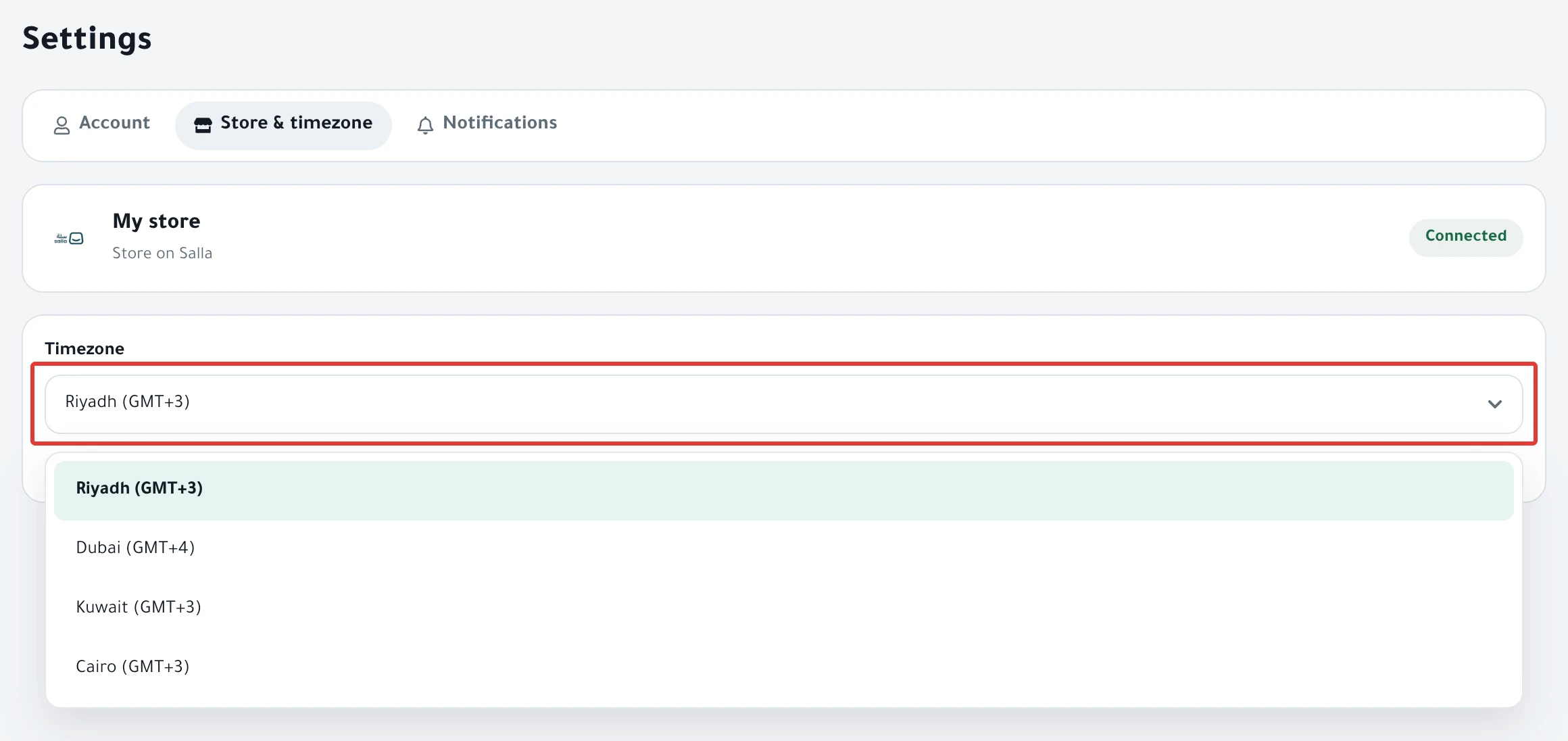
Open Settings, then Store & timezone, and choose your time zone under Timezone. Every schedule runs in this time zone. A new account starts on Riyadh time (GMT+3).
Steps
Path: Settings > Store & timezone > Timezone
- Open Settings from the menu on the left. On your phone, tap the account button at the top (the circle with your first initial), then Settings.
- Click Store & timezone.
- Open the Timezone list and choose your time zone: Riyadh, Dubai, Kuwait or Cairo. Each one shows its offset from GMT, such as "(GMT+3)".
- PopAutomate saves your choice at once. The message "Timezone changed. Upcoming times will be calculated in it." appears.
Result
Each schedule runs at the same clock time you chose for it, but in the new time zone. A schedule set for 8 PM runs at 8 PM Dubai time if you choose Dubai.
Upcoming run times update within about 5 minutes. Times in the app and in emails appear in this time zone: "All schedules and emails in the app use this timezone."
Rules
- If you choose a time zone other than Riyadh, a warning appears: "Is your store in Saudi Arabia? Most customers are on Riyadh time." Its Riyadh button switches your account back to Riyadh.
- If your account time zone is not one of the four, it appears at the end of the list under its English name, such as Europe/London.
- On a computer, the time zone at the top of the page only displays your time zone. Clicking it opens help and does not change the time zone. Change it in Settings.
- Signing in with email and password can switch your account time zone to your device's time zone. After each sign-in that way, check Timezone here. Signing in with the Salla or Zid button does not change your time zone.
If it did not work
- Do you see "Not saved. Try again."? The time zone goes back to how it was. Choose it again.
- Do you see "Start date has passed. Pick a future date or "Now"." for a time that has not come yet in your time zone? This check on the schedule screen uses Riyadh time. Choose a later time, ahead by the hours between your time zone and Riyadh.
- Did the offer start or end at a different hour than you chose? Read A discount started or ended at the wrong time.
Next
Repeat an offer every week on Salla and Zid
Go back to PopAutomate account: store connection, password, time zone.
Did this article answer your question?