Contact PopAutomate support on WhatsApp
Click Support in the menu on the left, or Contact us in your account menu, then click WhatsApp to message the PopAutomate team.
Steps
Path: Support > the Contact us dialog > WhatsApp
- Click Support at the bottom of the menu on the left. On your phone, tap the account button at the top (the circle with your first initial), then Contact us.
- The Contact us dialog opens. Click WhatsApp.
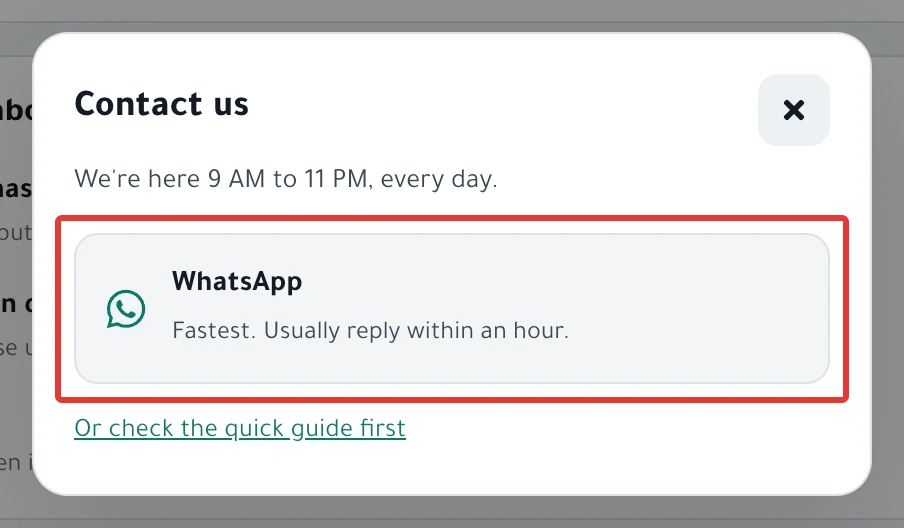
- A WhatsApp chat with the PopAutomate team opens in a new tab. Write your message there, then send it.
You also find Contact us at the end of the Guide page, after "Didn't find your answer?".
Result
A WhatsApp chat with the support team starts. The Contact us dialog says: "We're here 9 AM to 11 PM, every day."
Rules
- In your first message, send your store name and whether it is on Salla or Zid.
- Send your PopAutomate account email. You find it in Settings > Account.
- Send the schedule name, and a screenshot of the message you saw.
- Never send your password to anyone, not even to support.
- You cannot change your account email in Settings: the field is locked. If you need a different email, message us the same way.
- The Or check the quick guide first link in the dialog opens the Guide page inside the app.
If it did not work
- Cannot sign in to your account? Support and Contact us appear only after you sign in. Open the PopAutomate website home page and click Contact us in the site menu, or the WhatsApp button at the bottom of the page.
- Do you see a message on the sign-in page? Try the fix first in Can't sign in with Salla or Zid in PopAutomate or Wrong password: email sign-in does not work in PopAutomate.
- Cannot find Support on your phone? On the phone it is called Contact us, in your account menu. The phone menu is explained in PopAutomate on your phone: the tab bar and account menu.
Next
Fix a PopAutomate problem: where did you see it?
Go back to PopAutomate account: store connection, password, time zone.
Did this article answer your question?