Can't sign in with Salla or Zid in PopAutomate
Most often, the approval on the Salla or Zid page did not finish. Click Sign in with Salla or Sign in with Zid again.
What you see
- After the Salla or Zid page, you come back to the sign-in page, and above the buttons it says: "We couldn't sign you in through your store. Try again, or use your email and password."
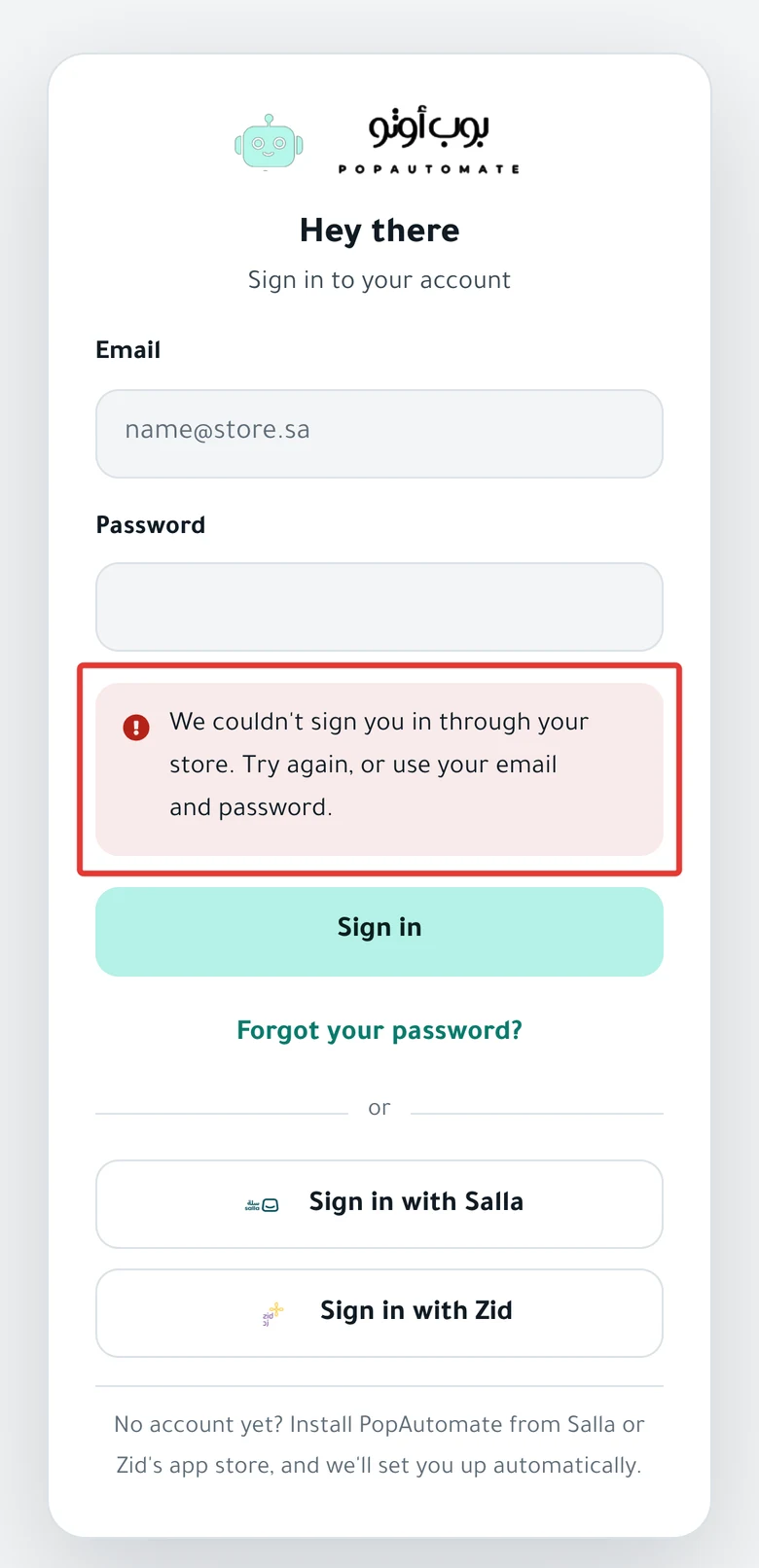
Why it happens
PopAutomate shows the same message for every cause. The most common causes:
- You did not finish the approval on the Salla or Zid page, or you took more than 10 minutes.
- The store owner's email or phone number is already used by another PopAutomate account.
- The Salla or Zid account you signed in with has no valid phone number or email, and this is the store's first sign-in.
In the last two cases, trying again does not fix the problem.
Fix
Try signing in again
- Open the PopAutomate sign-in page.
- Click Sign in with Salla or Sign in with Zid, depending on your store.
- Sign in with the store owner's account, and approve the PopAutomate connection within 10 minutes.
If the message comes back twice, go to the next fixes.
Sign in with your email and password
The account that the store install created has no password until you choose one.
- Click Forgot your password? on the sign-in page.
- Enter the store owner's email and click Send link.
- Open the link in your email, enter a new password and click Save password. Then click Sign in.
Details in Forgot your PopAutomate password: choose a new one. If a message appears after you enter your password, read Wrong password: email sign-in does not work in PopAutomate.
Your email or phone belongs to another store
Each PopAutomate account is tied to one store, and an account cannot move from Salla to Zid. If you have two stores with the same email, the second store cannot sign in.
- Sign in to your current account with your email and password, as in the previous fix.
- To connect the second store, contact us as described at the end of this article.
The store account has no phone number
On a store's first sign-in, PopAutomate needs a phone number and a valid email from Salla or Zid for the account you signed in with. If one of them does not come through, trying again will not work. Contact us as described at the end of this article.
Still stuck?
Contact PopAutomate support: these cases need us to review your account. If you can sign in with your email and password, click Support in the menu on the left. On your phone, tap Contact us in the account menu. If you cannot sign in, you can still reach us: the steps are in Contact PopAutomate support on WhatsApp. Send:
- Your store name and link, and whether it is on Salla or Zid.
- The email and phone number on the store owner's account.
- A screenshot of the sign-in page with the message.
If you sign in and see "Paused: the connection to …", read Store disconnected and schedules paused: how to reconnect.
If the We couldn't connect your store card appears after the install, not the sign-in page message, read Connection problem: "We couldn't connect your store".
For other problems, go back to Fix a PopAutomate problem: where did you see it?.
Did this article answer your question?